Multitenancy
Notes before installation
Oplon Global Distributed Gateway Multitenancy allows you to use the platform by sharing resources with multiple tenants while keeping the configurations that can be modified separate. The model is designed to manage multiple tenants with the ability to group them into Resource Groups in order to manage multiple users in aggregate form.
Oplon Global Distributed Gateway is a product intended for mission-critical environments; therefore, only staff who have completed the course and passed the exam are authorized to certify the installation and maintenance of the products in operation. All certified persons are provided with a certificate of course attendance and exam completion issued by Oplon.
Preparing to install
To get the Oplon Global Distributed Gateway Multitenancy feature, simply download it from the website www.oplon.net . You can unlock Oplon Global Distributed Gateway Multitenancy by purchasing the usage licenses at any time.
The system is completely backward-compatible with previous versions and user settings from previous versions.
Tenant and Resource Group
Multitenancy applies by assigning a specific Tenant to the modules. If the module does not have a Tenant, only users with “root” privileges can access and administer it.
To start using the Multitenancy feature, first create the Tenants through the appropriate option on the system bar:
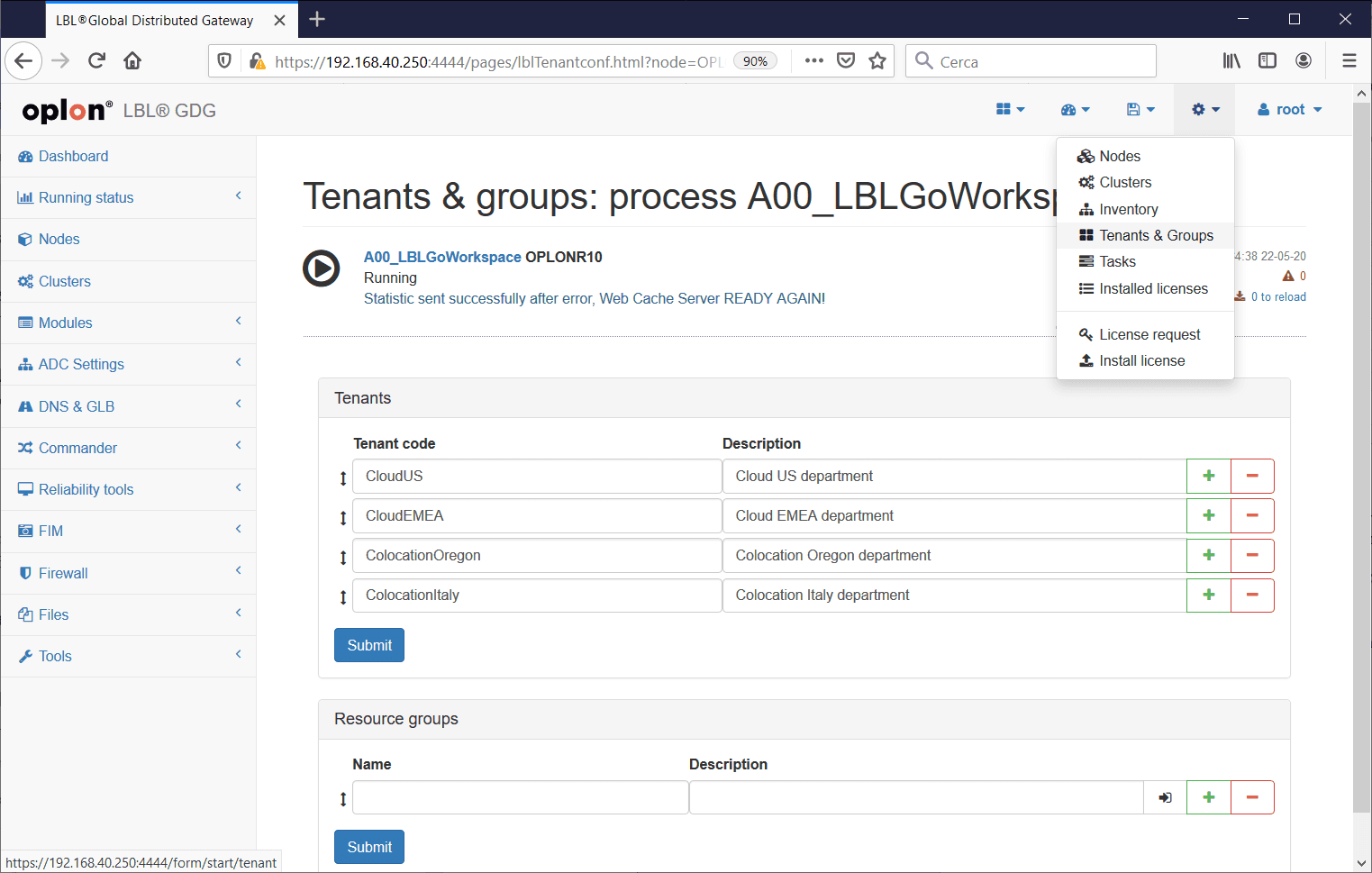
After registering the Tenants, you must create the Resource Groups, which can aggregate multiple Tenants.
Since Resource Groups are the items that are assigned to users, you can generate hierarchies of users who can use certain sets of resources.
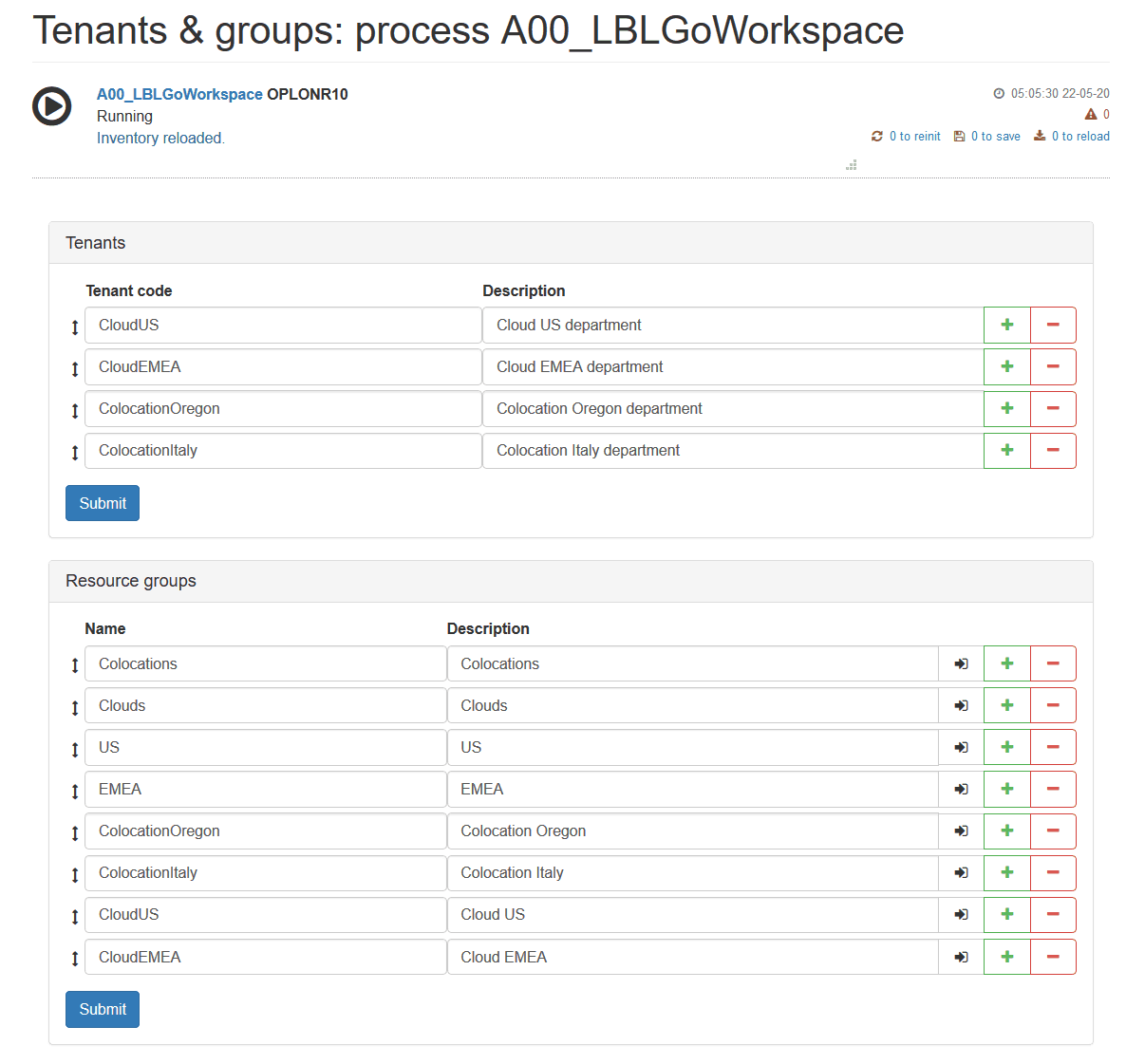
For example, suppose there are 4 Tenants: CloudUS, CloudEMEA, ColocationOregon, ColocationItaly.
Users who need access to these Tenants will have different types of management visibility and will be able to administer only the Tenants they are responsible for. For example, cloud users will only be able to manage Cloud modules, EMEA users will only manage EMEA Tenants, or some users will only be able to manage their own module.
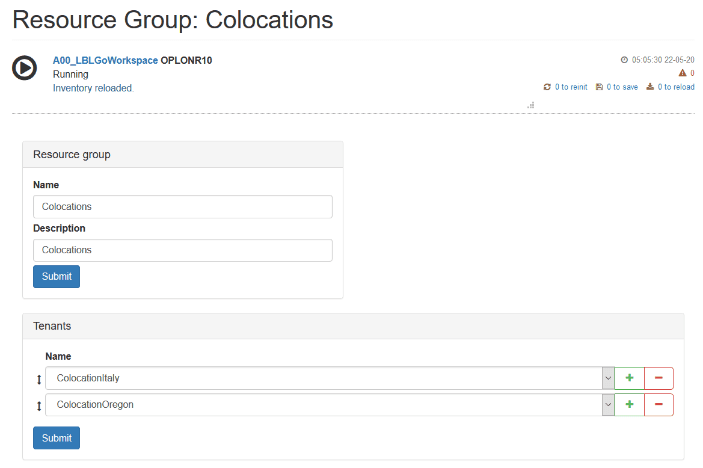
Resource Groups are used to create these management hierarchies. The following is an example of tenant aggregation in different Resource Groups.
Example of Resource Groups:
| Name | Tenants |
|---|---|
| Colocations | ColocationOregon, ColocationItaly |
| Clouds | CloudUS, CloudEMEA |
| US | ColocationOregon, CloudUS |
| EMEA | ColocationItaly, CloudEMEA |
| ColocationOregon | ColocationOregon |
| ColocationItaly | ColocationItaly |
| CloudUS | CloudUS |
| CloudEMEA | CloudEMEA |
With these Resource Groups, it is clear that you can assign individual users to administer only modules in the Cloud, or only modules in Colocation, or modules in US or EMEA or, to other users, only specific modules.
Associate a Tenant with Modules
After creating the Tenants and Resource Groups, associate the modules with a Tenant. All modules in the suite can be associated with a Tenant.
To associate a module with a Tenant, go to module management:
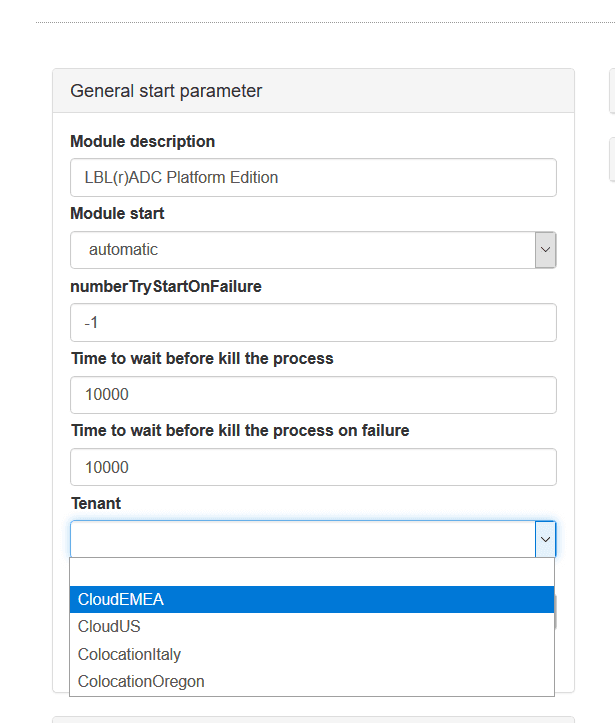
Modules > choose a module > Edit > General start parameter, and in the Tenant field, choose the Tenant to which you want to assign the module.
Warning: If the module is running, it will restart when it is saved. Make sure this does not cause any service disruption.
Test Resource Groups as a User with Root Privileges
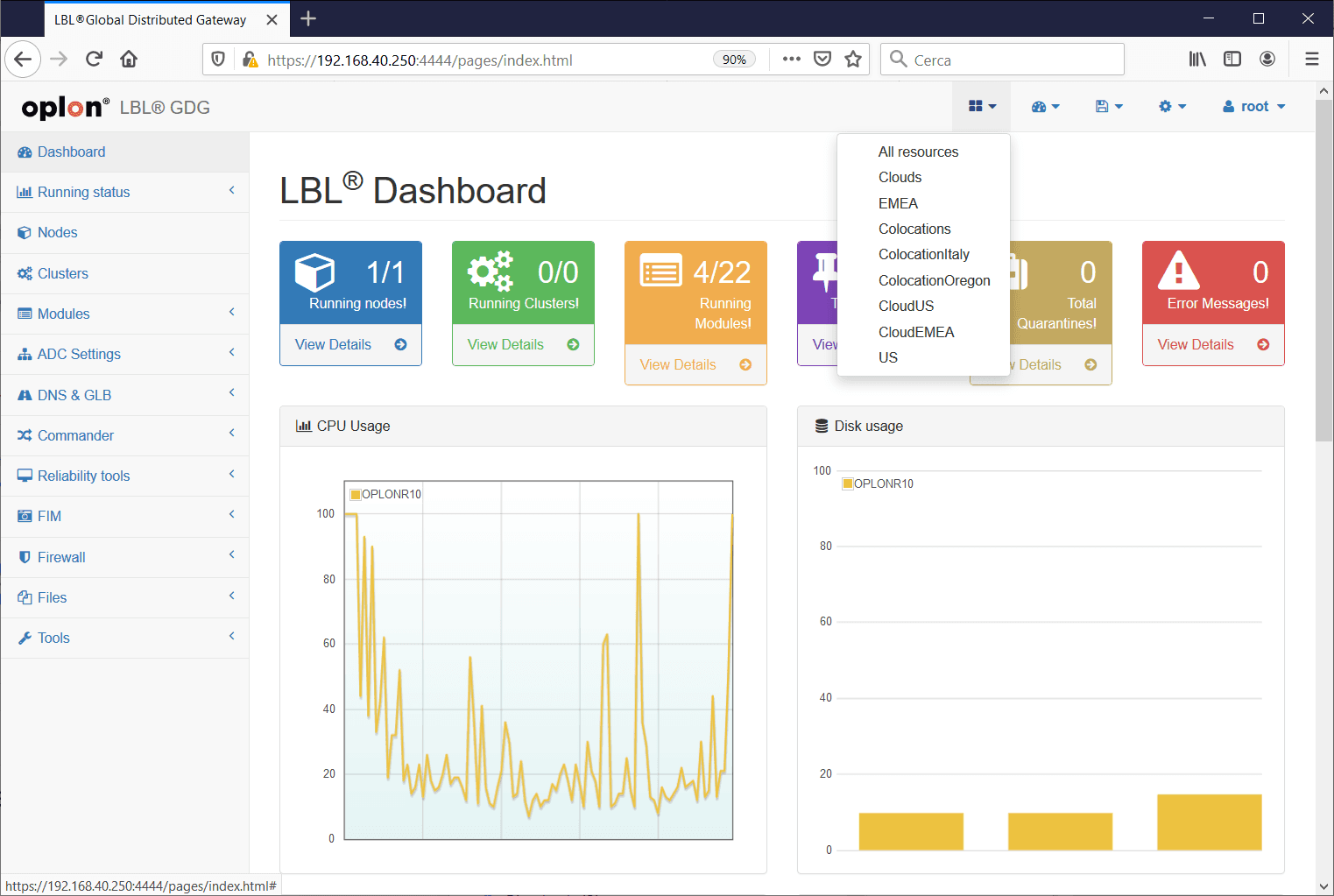
As a user with root privileges, you can verify the Resource Groups settings by selecting the Resource Group you want to impersonate from the system bar.
Once selected, you will only be able to access the modules that relate to the Tenants of that Resource Group. You can return to managing all modules by choosing All resources.
Associate a Resource Group with a User
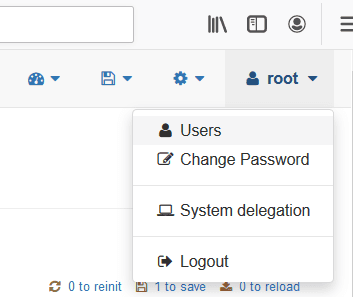
To associate a Resource Group with a user, simply go to user management (Users) from the action bar:
On a new installation, there is only the user created during the first setup, which is the root user by definition.
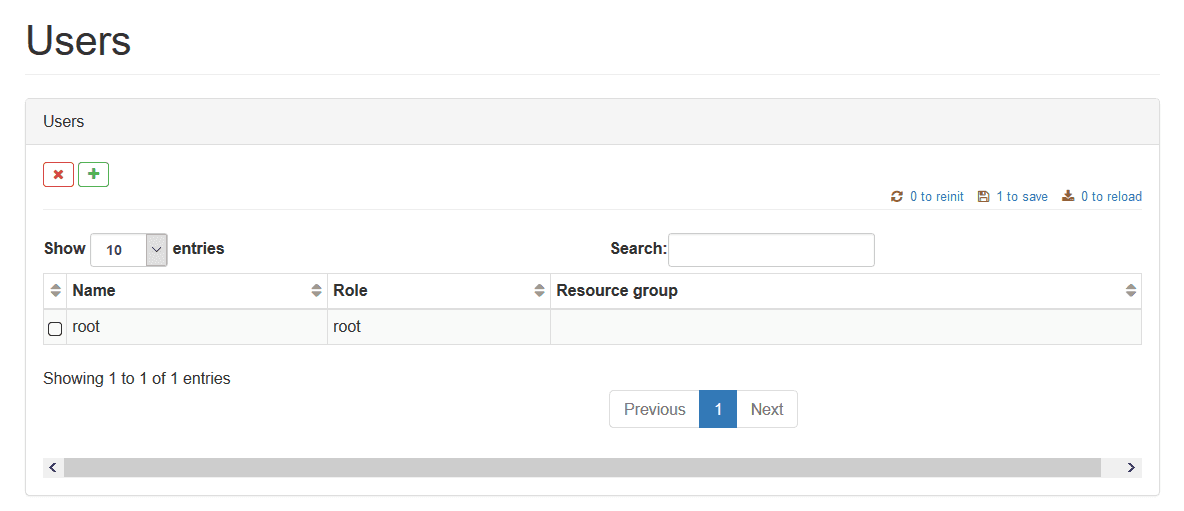
With the + button, create a new user who can only work on US modules.
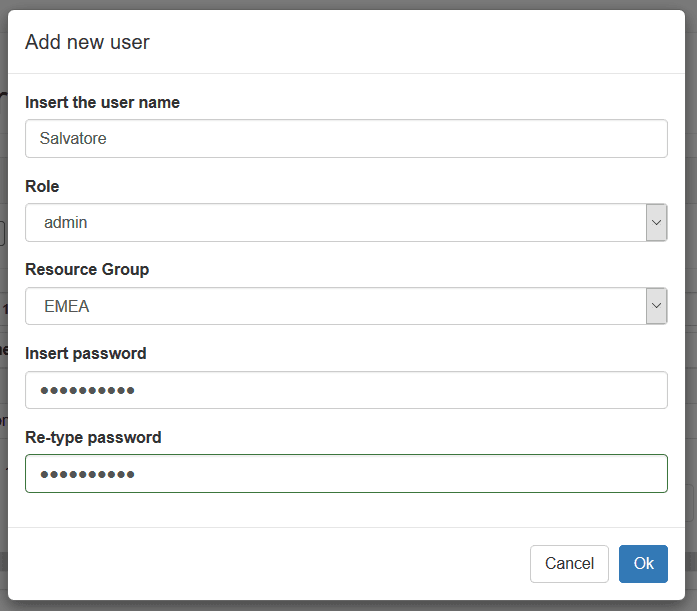
At the end of the creation, the new user will be assigned the Resource Group they belong to.
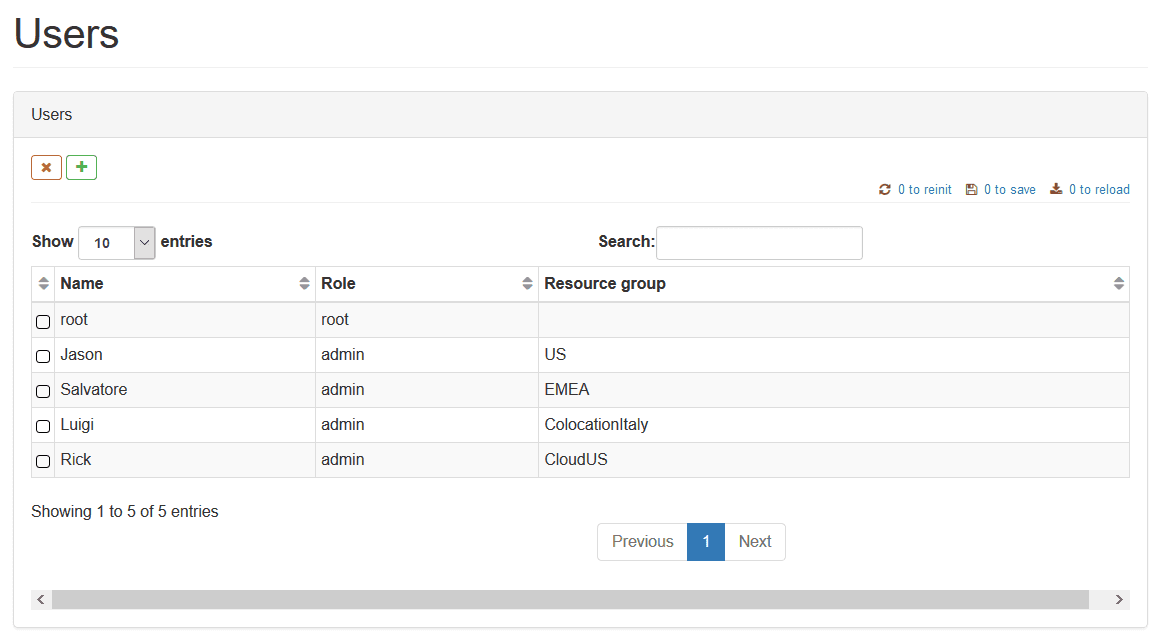
Using Modules as a User with a Resource Group
A user who has been associated with a Resource Group will only manage the modules that belong to the tenants of their Resource Group.
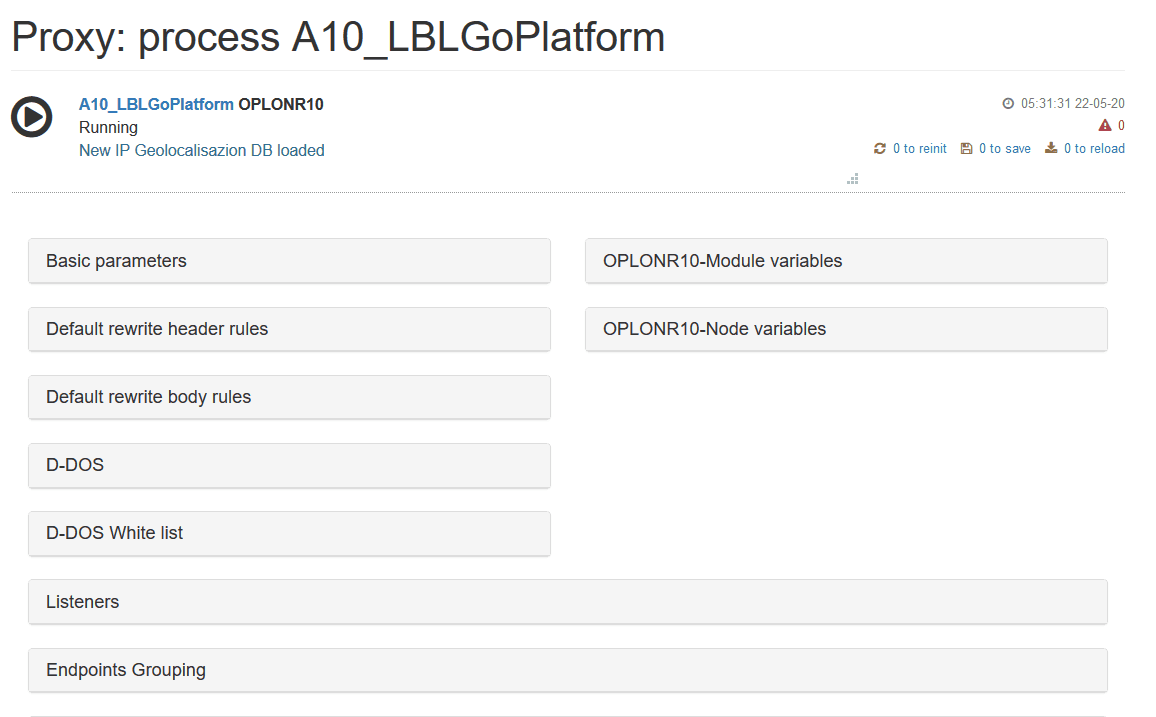
Here’s what is visible to a user with root privileges and no Resource Group membership:
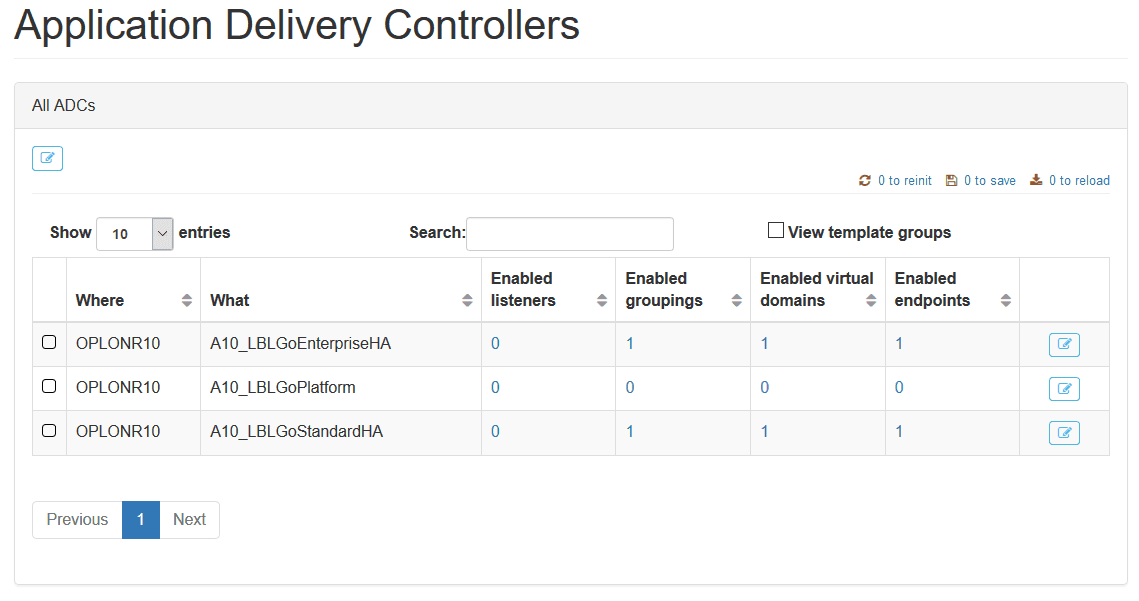
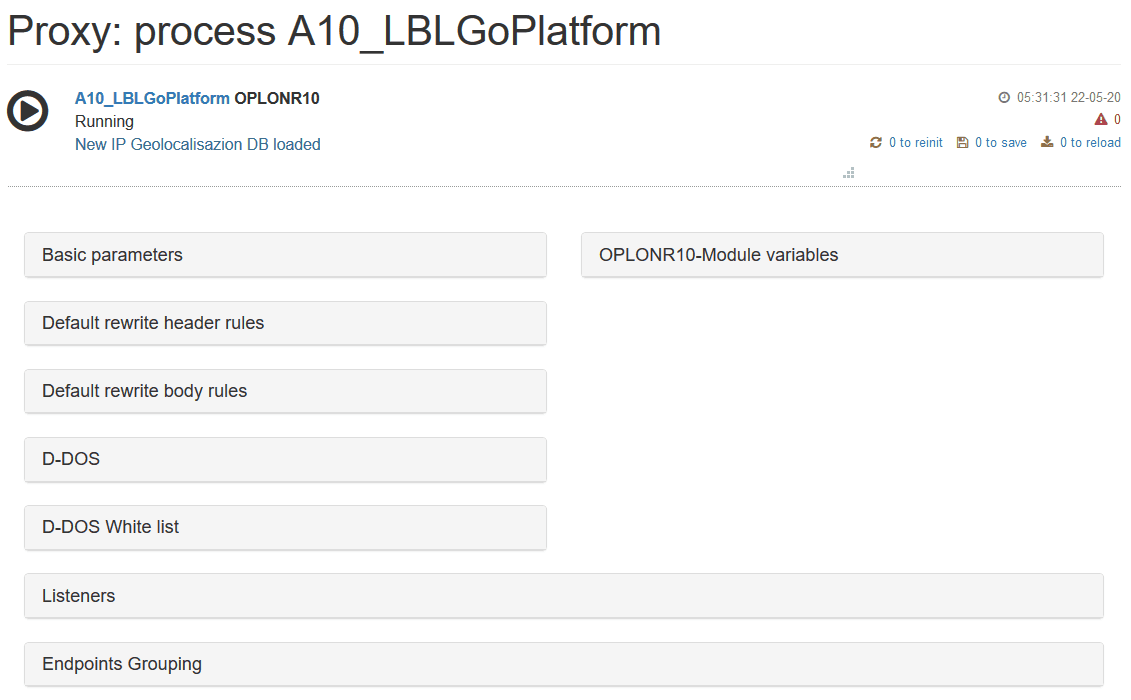
And what is visible to a user with the EMEA Resource Group:
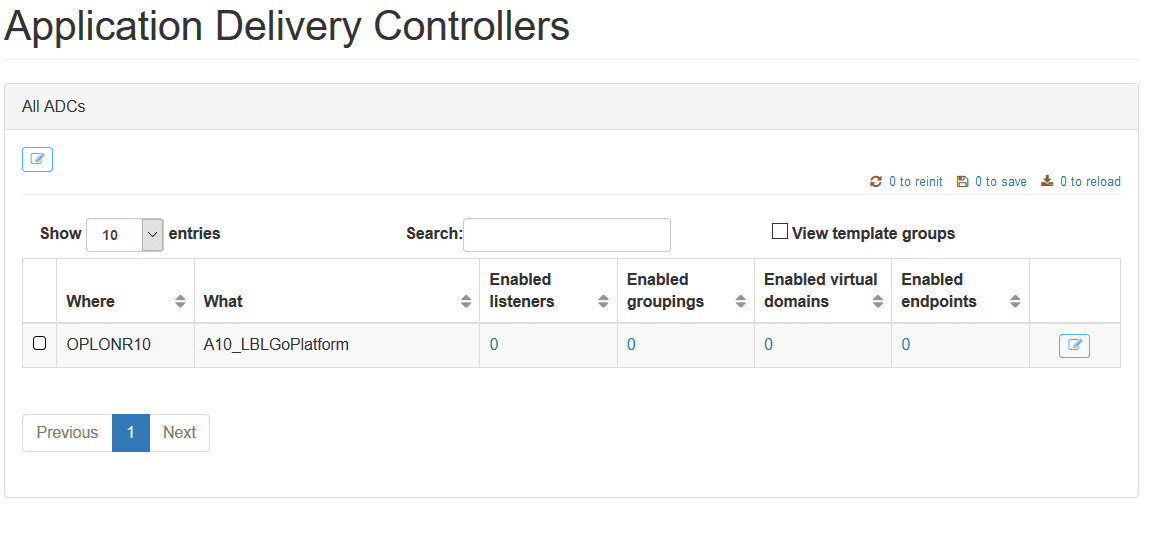
All common parts, such as node variables, will no longer be visible or editable.
User with root privileges without a Resource Group assignment:
User with the EMEA Resource Group:
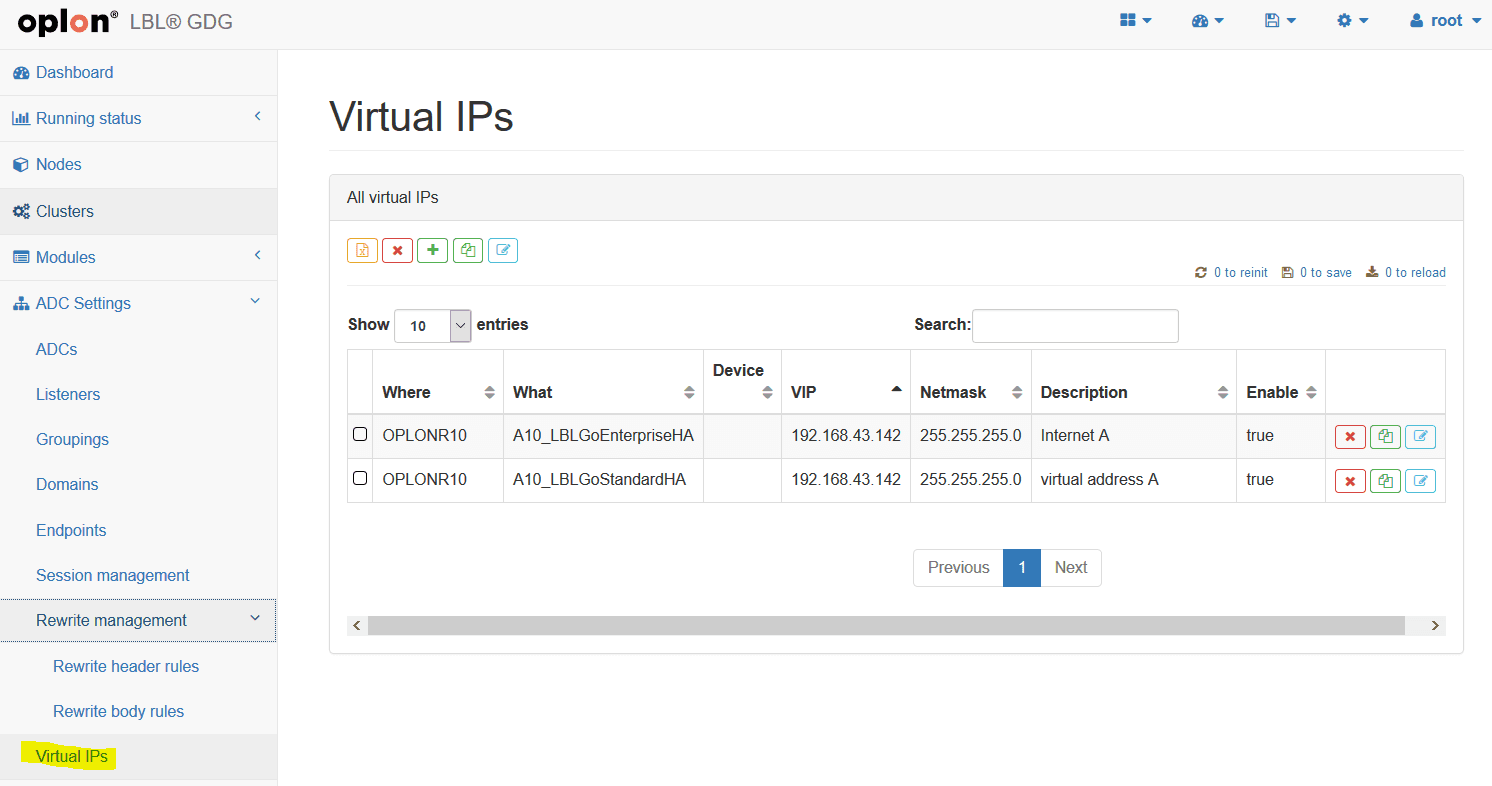
Some features, such as creating virtual addresses, will also not be available to a user with a Resource Group:
User with root privileges without a Resource Group assignment:
User with the EMEA Resource Group: