ACME SSL certificates
ACME Protocol
The ACME protocol (Automatic Certificate Management Environment) is a protocol to automate interactions between Certification Authorities and user web servers, allowing the generation and deployment of digital certificates in a simple and cost-effective way.
The ACME protocol is maintained by the IETF and promoted by the Internet Security Research Group, which provides a free Certification Authority service for generating digital certificates of the Domain Validation type.
This service, called Let’s Encrypt, is generally associated with the ACME protocol.
The ACME protocol provides several mechanisms for issuing a digital certificate with domain validation (DV). The mechanism usually used is called the HTTP challenge, in which:
-
After a private key is created, a CSR (Certificate Signing Request) containing a valid domain name is generated.
-
The CSR is sent to the Let’s Encrypt CA service.
-
The CA asks you to publish a file containing a key on the domain specified by the CSR. This key must be reachable at a URL that is also specified by the service.
-
After publishing, the CA service verifies the existence of the key.
-
If successful, the CA sends the certificate, which can then be published.
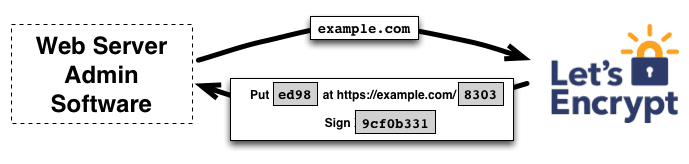
Figure 1 HTTP Challenge, source https://letsencrypt.org/how-it-works
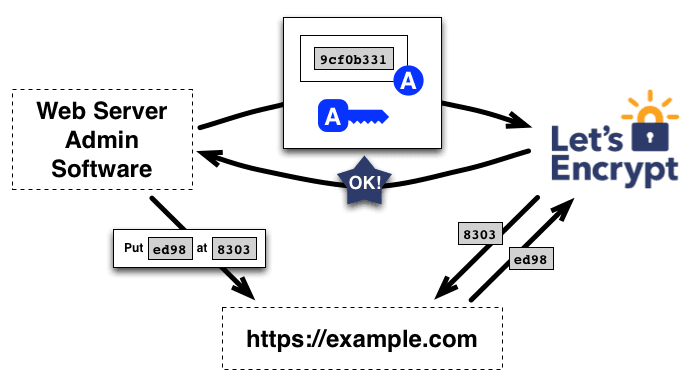
Figure 2 HTTP Challenge, source https://letsencrypt.org/how-it-works
Oplon Global Distributed Gateway and ACME
As an ADC that performs SSL termination and SSL offloading, Oplon Global Distributed Gateway is ideally placed for applying the ACME protocol and the HTTP challenge.
To take advantage of this feature, you must enable a rewrite rule.
The rewrite rule must be inserted in a group/virtual domain/endpoint connected to a listener on port 80.
The rule intercepts the CA verification requests and responds with the correct key for the domain to be validated.
Oplon CSR ACME Setup
In order to take advantage of the digital certificate generation feature
through the ACME protocol, you must enable the LBLHttpAcmeChallengeCsr
rewrite rule in the ADC module through which the domain to be validated
is provided.
From the ADC Settings menu, select Rewrite management > Rewrite header rules.
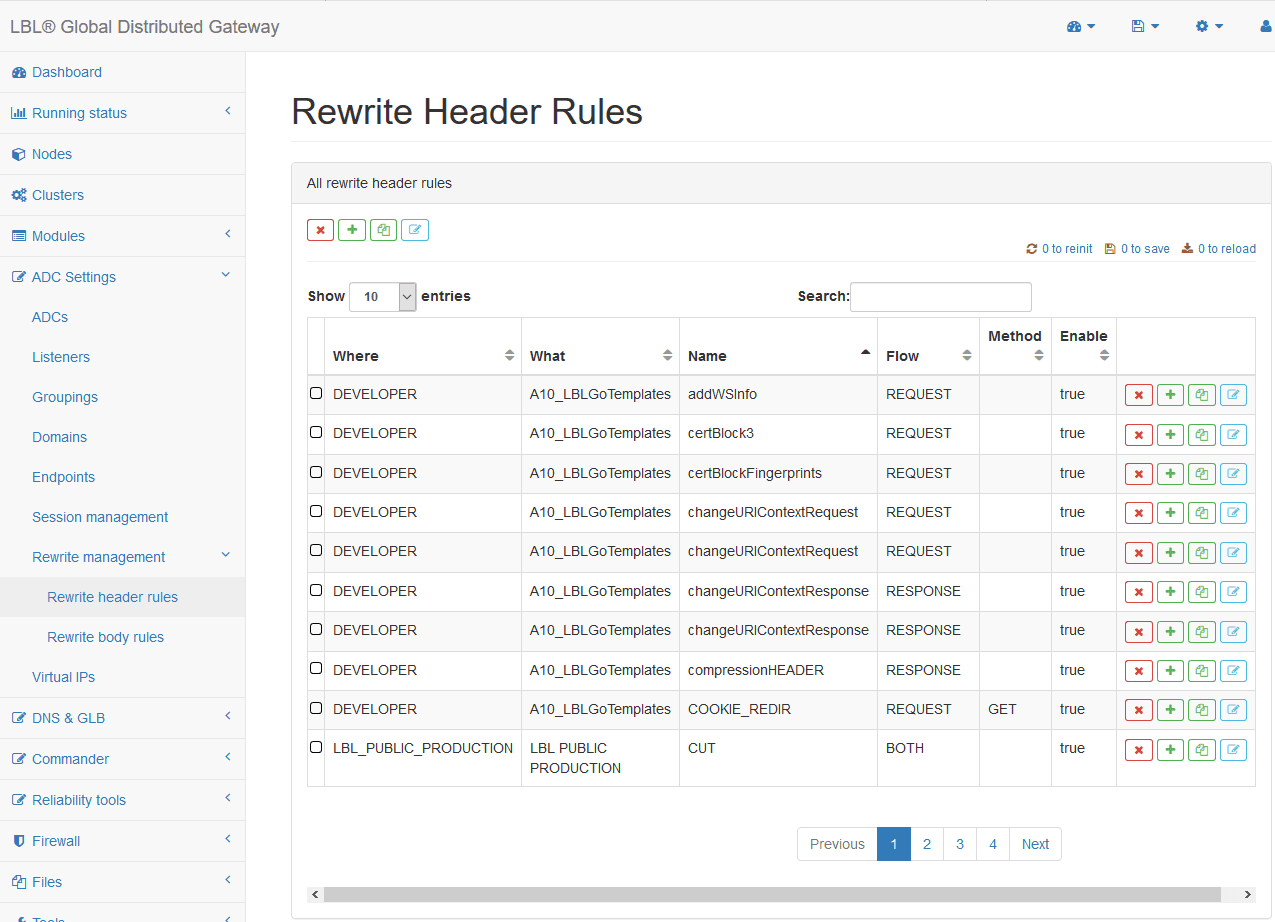
Figure 4 ADC Settings > Rewrite management > Rewrite header rules
In the Search field, search for the LBLHttpAcmeChallengeCsr rule.
You can simply use acme as the filter.
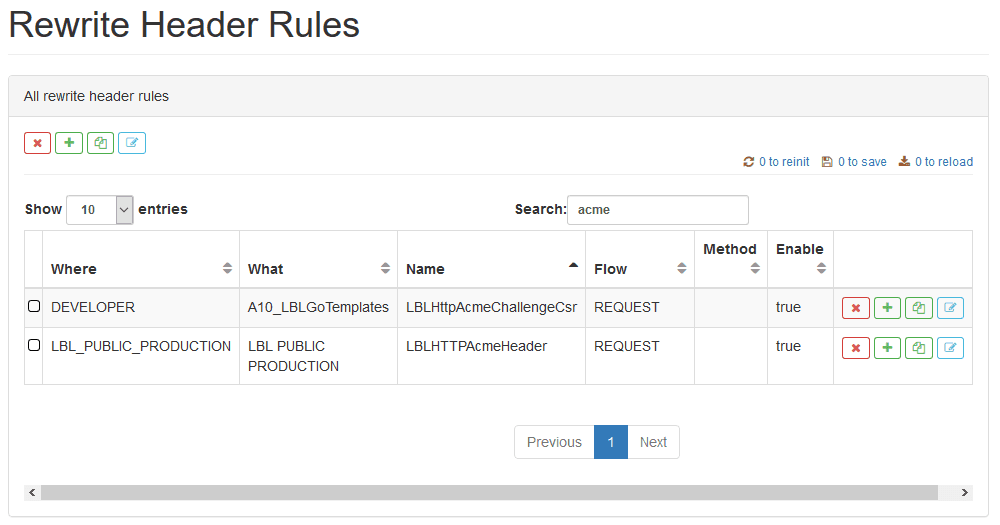
Figure 5 Searching for LBLHttpAcmeChallengeCsr using acme as the filter.
Select the LBLHttpAcmeChallengeCsr rule of any template module and copy
it to the balancing module that provides the services of the domain to be
validated.
You must now apply the rule to the balancing module.
From the ADC Settings menu, select ADCs.
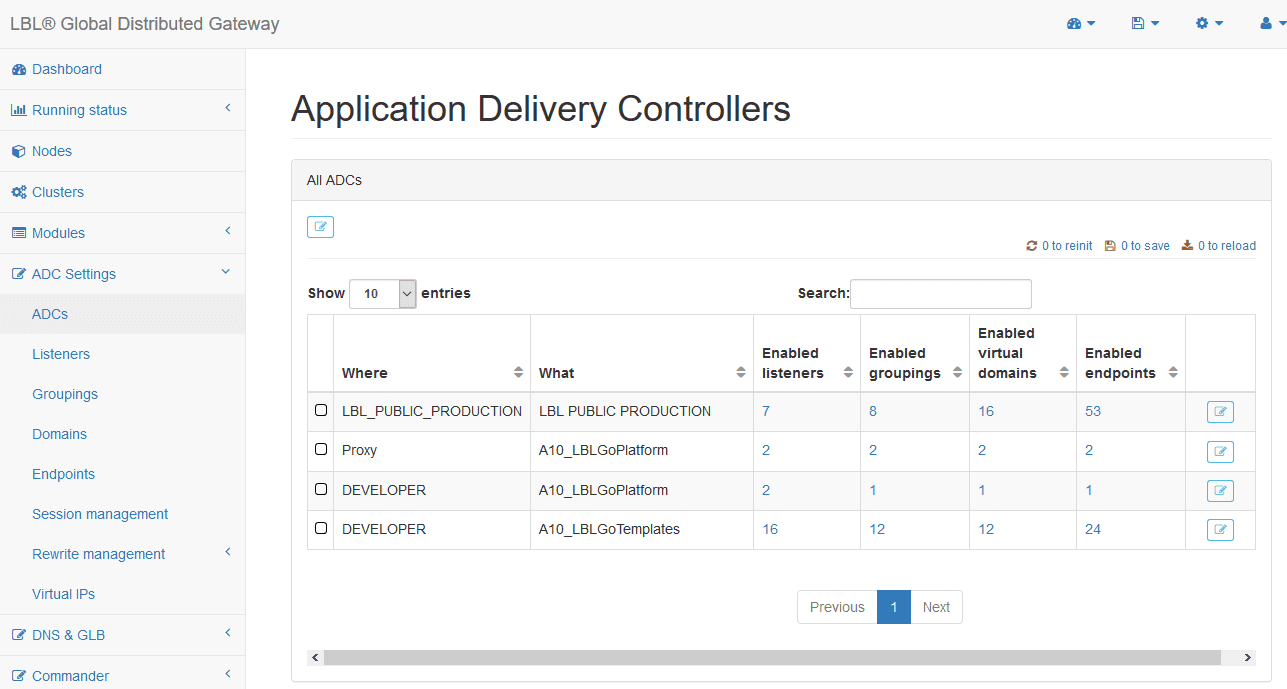
Figure 6 ADC Settings > ADCs
Open the configuration form of the ADC module.
Open the Default rewrite rules panel and enter LBLHttpAcmeChallengeCsr
in the rewriteHeaderRules parameter.
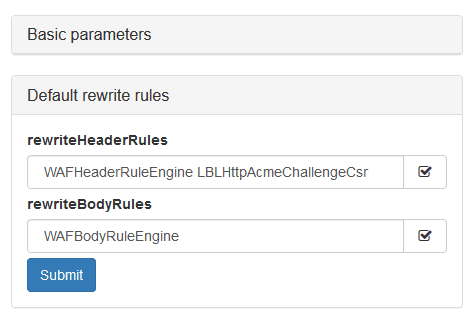
Figure 7 Inserting the LBLHttpAcmeChallengeCsr rule in the default rewrite rules of an ADC
Save your changes and reinitialize the ADC module using the links in the upper right.
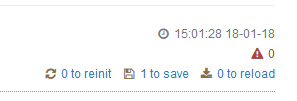
Figure 8 Save and reinitialization notification links
SSL Certificate Generation
From the menu, select Files > Keystores.
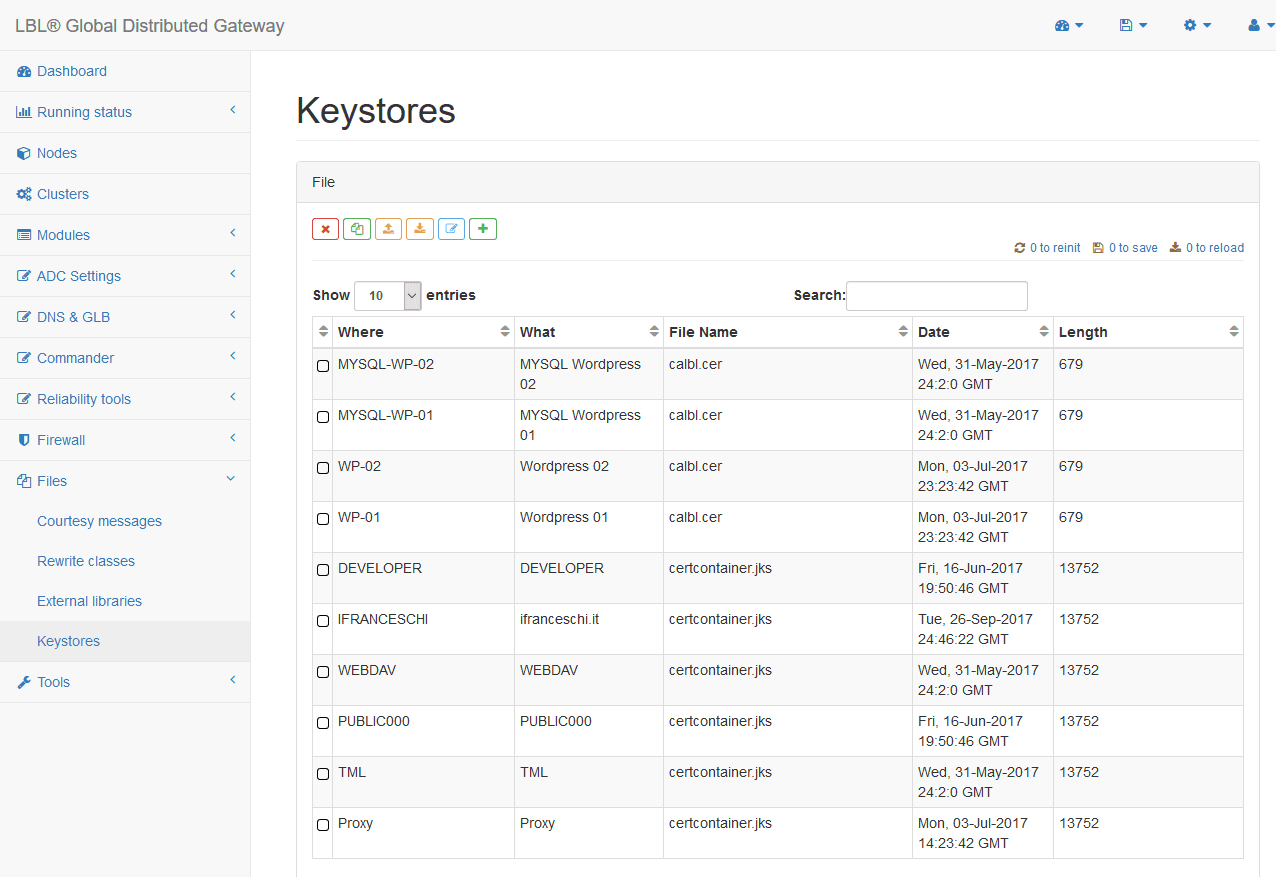
Figure 9 Files > Keystores menu to get the list of available keystores
The view lists all keystores, containers of digital certificates.
Select the correct keystore and click the edit button.
To edit it, you must enter the keystore password.
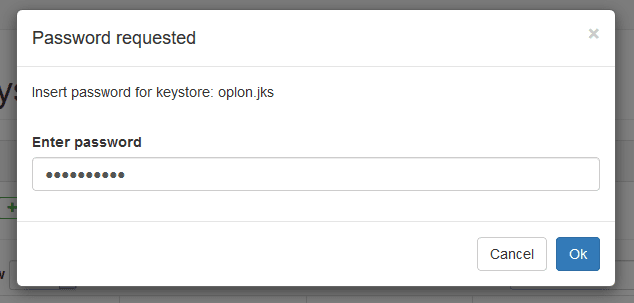
Figure 10 Entering the keystore password.
To generate a new certificate, click the button

For domain validation, simply enter the domain name in the Common name CN field.
In the Option alias password field, enter the same password that you typed for the keystore.
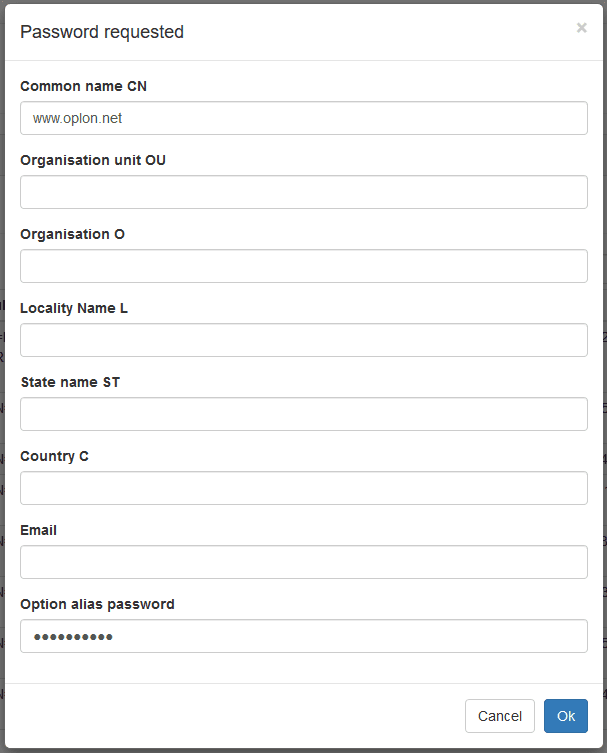
Figure 11 Creating a new certificate. CN and alias password are required
The new certificate is added to the keystore.
The name of the certificate issuer is the same as the name of the domain that you entered, because the certificate is not yet signed by the CA.

Figure 12 Subject and Issuer match in certificates not signed by the CA.
To generate and send the CSR, simply select the certificate you created and click the Generate ACME certification request button.
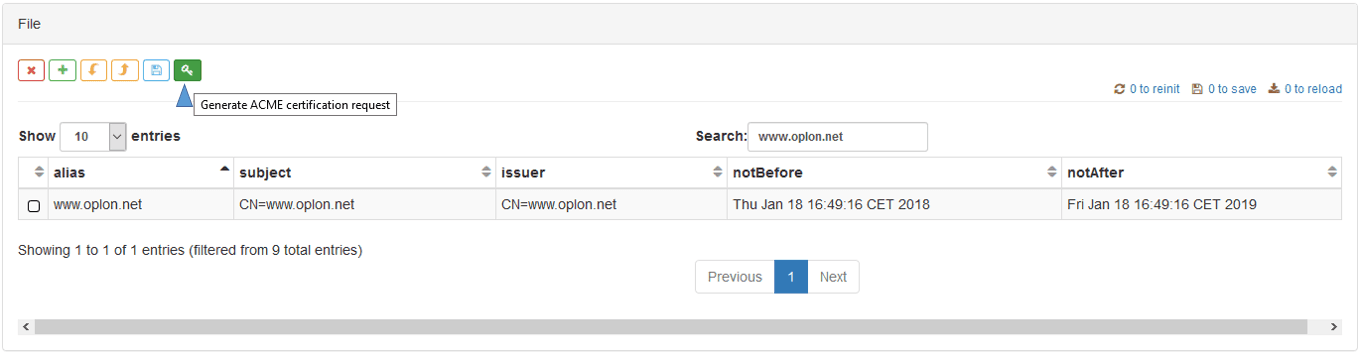
Figure 13 Generating and sending the CSR to Let’s Encrypt for certificate signing
You must enter the alias password to send it.
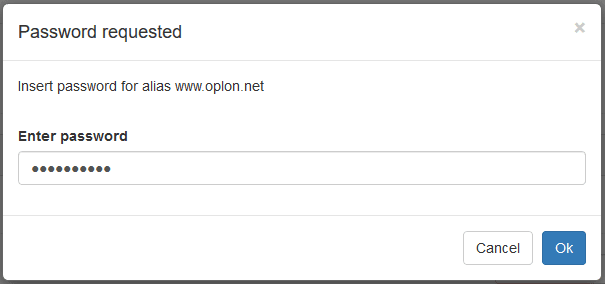
Figure 14 Entering the alias password
The certificate is signed.
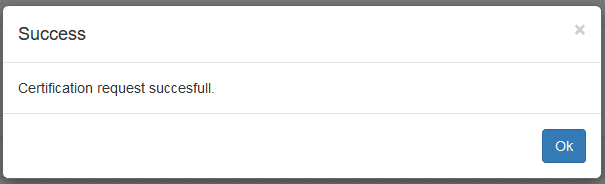
Figure 15 CSR completed successfully.

Figure 16 The issuer name matches the name of the CA
Save the keystore with the save button to confirm your changes.