Certificate management
Introduction - Digital certificates and keystore
Digital certificates
Digital certificates are documents consisting of a private key and a public key that allow encrypted communication between clients and servers. The public key encrypts the message that only the private key can decrypt. The public key is freely transmitted from the server to any software that requires it, for example browsers, while private keys are secret and password protected.
Digital certificates are usually signed by a Certification Authority, which certifies the validity of the public key issuer. In this way, the software that uses the public key is sure that the issuer of the public key is exactly who it claims to be.
A digital certificate not signed by any authority is said to be self-signed. Communication between client and server is still encrypted, but the certificate will not be considered secure.
With Oplon, you can automatically generate self-signed digital certificates, generate certification requests, which are required by authorities to sign the certificate, or automatically generate valid certificates using the ACME protocol.
Keystore
Keystores are password-protected files that contain digital certificates. A single keystore can contain one or more digital certificates. Digital certificates within the same keystore must have the same private key password, the so-called alias password.
Oplon supports the following keystore formats: PKCS12, PFX, JKS.
Keystores
To access the keystore management form, select Files > Keystores from the main menu.
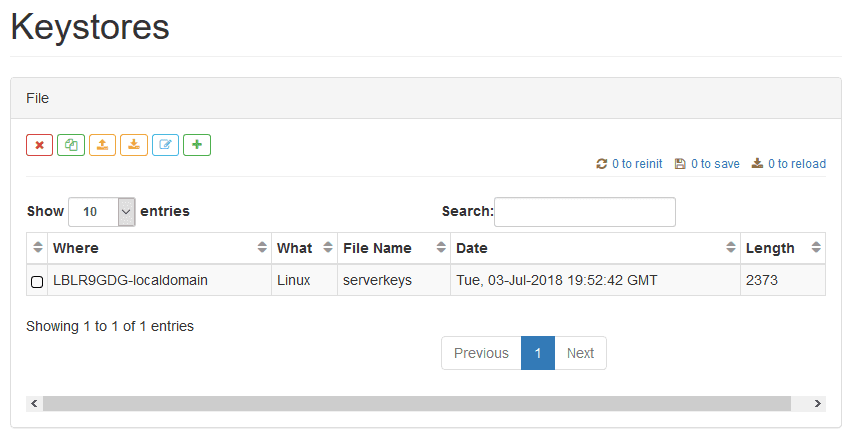

Delete an existing keystore

Copy an existing keystore to another node

Import a keystore
Export a keystore

Edit/view the contents of a keystore

Create a new keystore
When you copy, import, or create a keystore, you are prompted for the
target node.
When creating a keystore, you must enter the name of the new keystore and its
password.
To edit or view the contents of a keystore, you must enter the password
used to create it.
Use defaultpwd as the password for the keystores preinstalled
in Oplon.
Digital certificates
To access the management form of the certificates contained in a keystore, select Files > Keystores from the main menu.
Select the keystore and click the edit button.
Enter the keystore password.
(use defaultpwd as the password for the keystores preinstalled and
provided as examples)
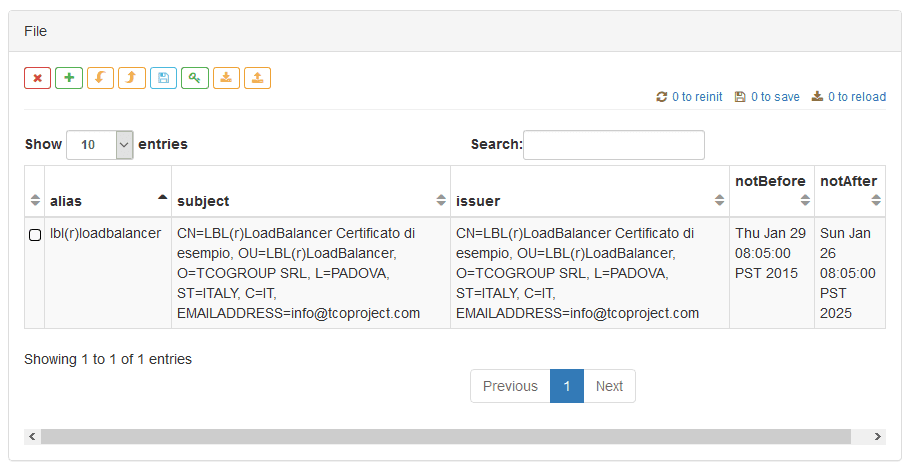
Delete an existing certificate
Create a new certificate

Generate the certification request for the CA
Import the CA reply

Save the changes made to the keystore

Certification request to Let’s Encrypt via the ACME protocol
Export a certificate
Import a certificate
Creating a new certificate
The data required when creating a certificate is:
-
Common name: the domain name of the certificate (required).
-
Subject alternative names: a list of any other domains for which the certificate is valid.
-
Organisation unit OU: organizational unit.
-
Organization: company name.
-
Locality: company city.
-
State: state or province.
-
Country: country code (for example
ITfor Italy). -
Mail: contact email address.
-
Duration Days: certificate validity in days (default 365).
-
Alias password: password linked to the private key (required). Certificates within the same keystore must have the same password.
Certification request.
The certification request (CSR) generates a Base64 text that the certification authority needs to sign the certificate. The CSR is sent to the certification authority, which responds with a similar text (the CA reply) that must be imported into the certificate.
Import CA Reply.
You can import the CA reply directly into the certificate. The CA reply must contain the public certificates of all CAs involved in the signing process.
ACME Certification Request.
The certification request is generated and the CA reply is imported automatically, through the ACME protocol.
Export
Exports the certificate to PKCS12/PFX or PEM formats. In the case of PKCS12/PFX, a new password is required that will be used for both the keystore and the alias.
Import
You can import a certificate in PEM format into the keystore. You will be prompted for a new alias password.
The panel with the save and reinitialization links shows any operations that need to be done for the changes to take effect.

Save and reinitialization notification links