MFA End User Guide
To create an MFA user you need to register at https://super.oplon.cloud/2fa/signup .
Registration
-
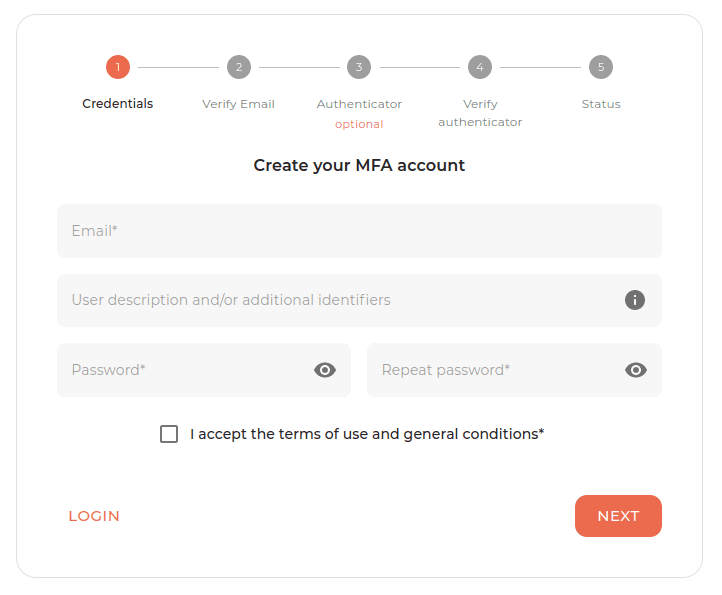
Enter username, email and a password that meets the constraints.
-
Enter the code sent by email and then verify the email.
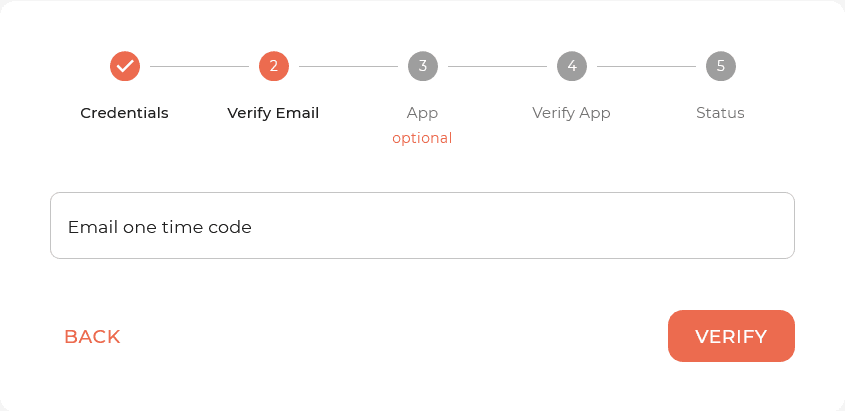
Oplon Authenticator (or any other Authenticator app) can also be registered later by accessing the MFA dashboard via email.
-
Registration of the Oplon Authenticator app (steps 3 and 4 are optional): to proceed, download the application, scan the QR code and click the verify button in the browser.
-
To complete the app registration procedure, enter the One Time Code (OTP) generated by the authenticator app into the browser.
MFA Dashboard
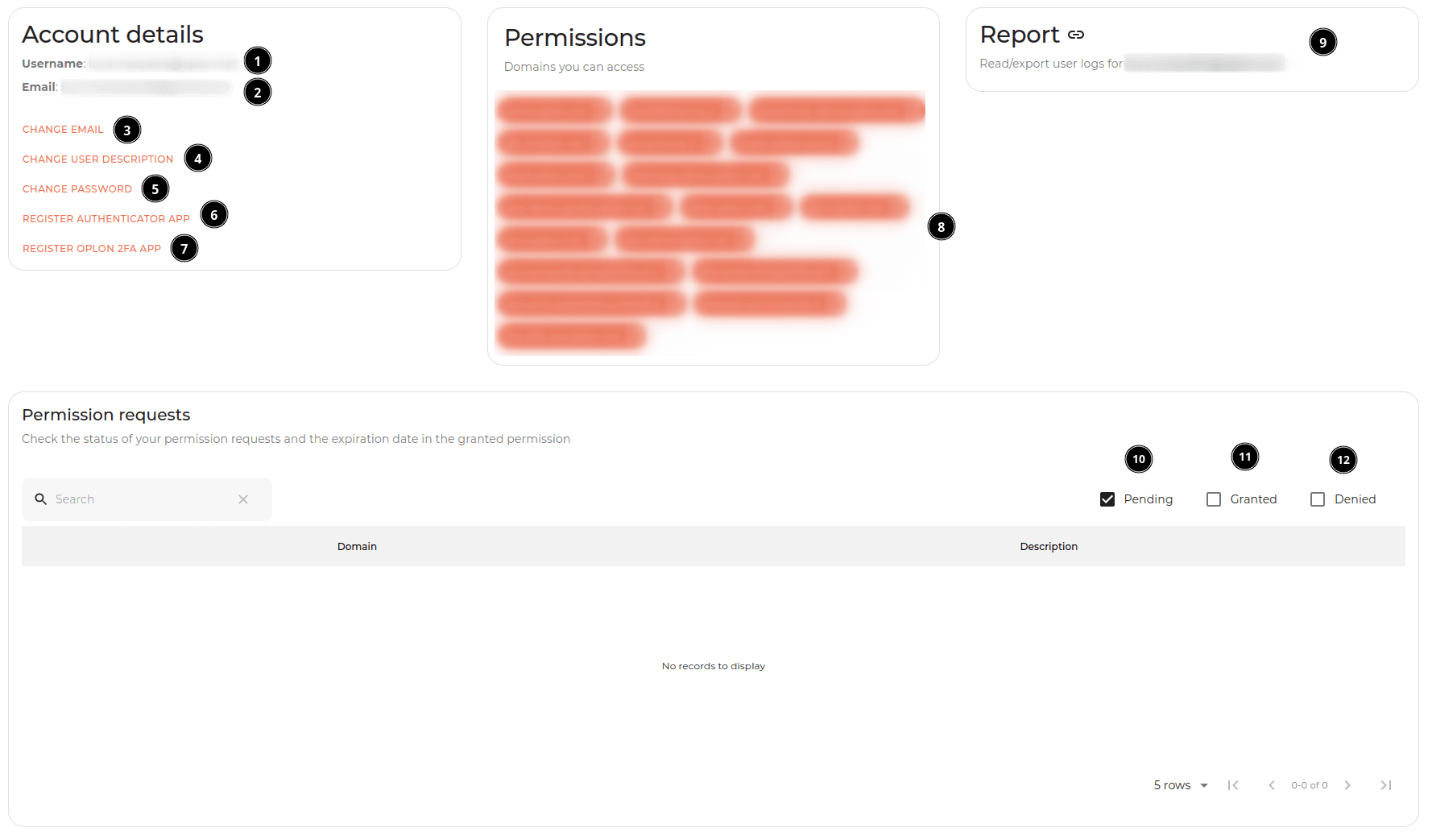
Dashboard legend:
- Username
- Change email
- Change user description
- Change password
- Change authenticator app and secret
- LEGACY: Change the 2FA app to register and verify a new app (and de-register the previous one if it exists)
- List of domains to which the user has access
- User activity log
- Pending permission requests
- Granted permission requests
- Denied permission requests
Login and permission request
To request permission, simply visit the MFA-protected resource you want to access. The resource will redirect you to https://super.oplon.cloud/2fa/login .
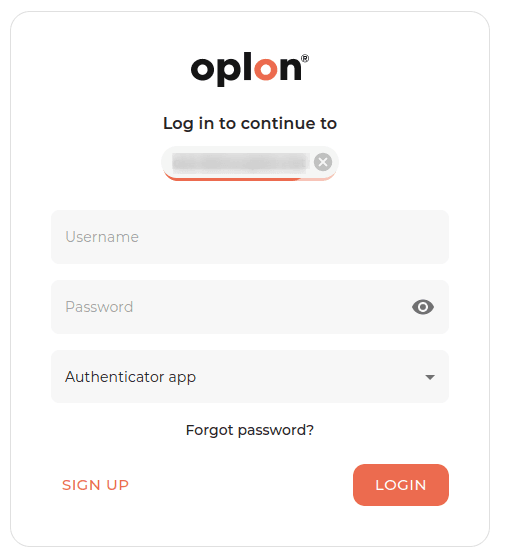
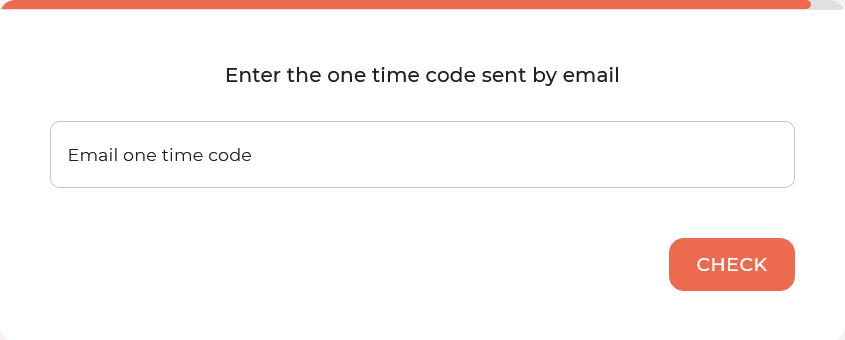
After entering the username and password, you proceed to the second authentication factor (app or email).
Authenticator app and email:
The dashboard will then show an alert to request permission from the manager:

Click Request permission to send the permission request to the manager. As soon as the manager accepts the request, the user is notified by email.
Login with permission already accepted
After the manager has accepted the permission, you can access the resource simply by visiting the MFA-protected resource and logging in with two-factor authentication.