Active Directory Guide
This guide describes how to connect an AD (Active Directory) server. The goal is to use this server as an Identity Provider instead of the Oplon server. To do this, the SOC (Super Oplon Cloud) needs to synchronize its users with those of the AD.
Setup
To set up access with Active Directory, you must:
- Create a connection to the AD in the RAG module;
- Add a rewrite rule and token in the ADC;
- Add a URL and token in SOC (Super Oplon Cloud);
- Synchronize users.
All users in the AD server whose email field is not populated will not be considered in the synchronization procedure.
If a user is already registered as an MFA user, they will be converted to an AD user: this means they will have to use their AD credentials instead of their MFA credentials.
If a user is not already registered as an MFA user, a new user will be created with the email address present in ADUC (Active Directory Users and Computers) and set as an AD user in SOC.
Connection with AD
The module that allows connection with the AD is RAG (Remote Access Gateway). Go to Modules > RAG services and click the edit button of the RAG you want to connect to the AD.
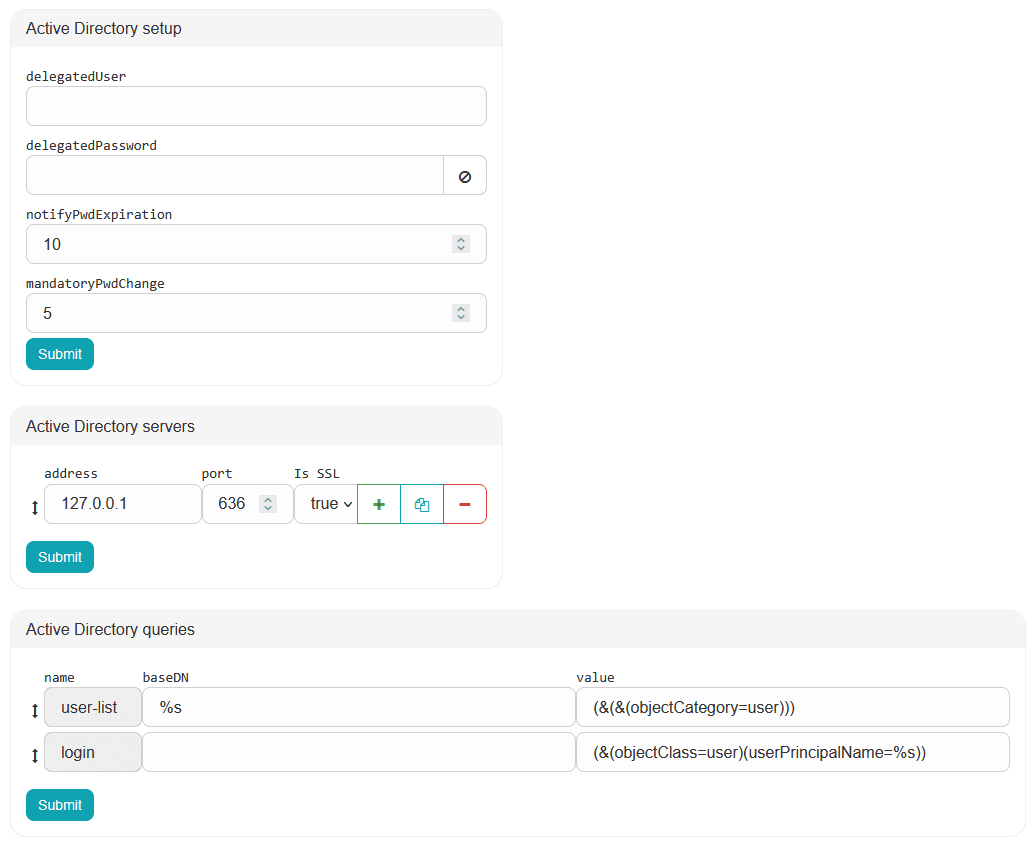
In the Active Directory servers panel, enter the IP address and port of the AD.
In the Active Directory setup panel, enter the credentials of an AD user with administrator permissions (the username is the AD userPrincipalName field).
This allows synchronization with SOC (Super Oplon Cloud) and self-service password reset.
To notify the user when the password expires, there are two attributes:
- notifyPwdExpiration: after logging in, the user will be redirected to their SOC account and notified of the expiration, but will still be able to access the resource they requested by clicking the SKIP button;
- mandatoryPwdChange: after logging in, the user will be redirected to their SOC account and forced to change their password.
Self-service password change is only possible over SSL.
The Active Directory queries panel contains the queries used to log in AD users and to synchronize them with the SOC.
Tip: do not change the default queries.
Rewrite header
To accept only calls coming from SOC, the rewrite header rule checks whether a token is present in the request (login or sync).
If that token matches the token set in the rewrite, the request passes; otherwise it is blocked.
There is a template called LBLHTTPHeaderTokenAuth that you must apply only to the endpoint pointing to /ad on port 2222 of the virtual domain that handles OSA.
Set the TOKEN_AUTH variable of the rewrite to a value of your choice (sufficiently complex), which must then also be entered in the OSA interface as described in the Active Directory URL section.
Make sure that there is no WAF checking header length or special characters, otherwise synchronization will fail.
Active Directory URL
In the OSA interface, go to Tenant > Active Directory. Click the + button in the Manage Active Directory table and fill in the two attributes:
- Url: HTTPS URL of the ADC on which the rewrite header rule is applied; its path must end with
/ad. Example:https://mydomain/ad; - Token: must be equal to the value of the
TOKEN_AUTHvariable of the rewrite header.
Click Save.
These two values are used by Super Oplon Cloud in the call to the ADC.
User synchronization
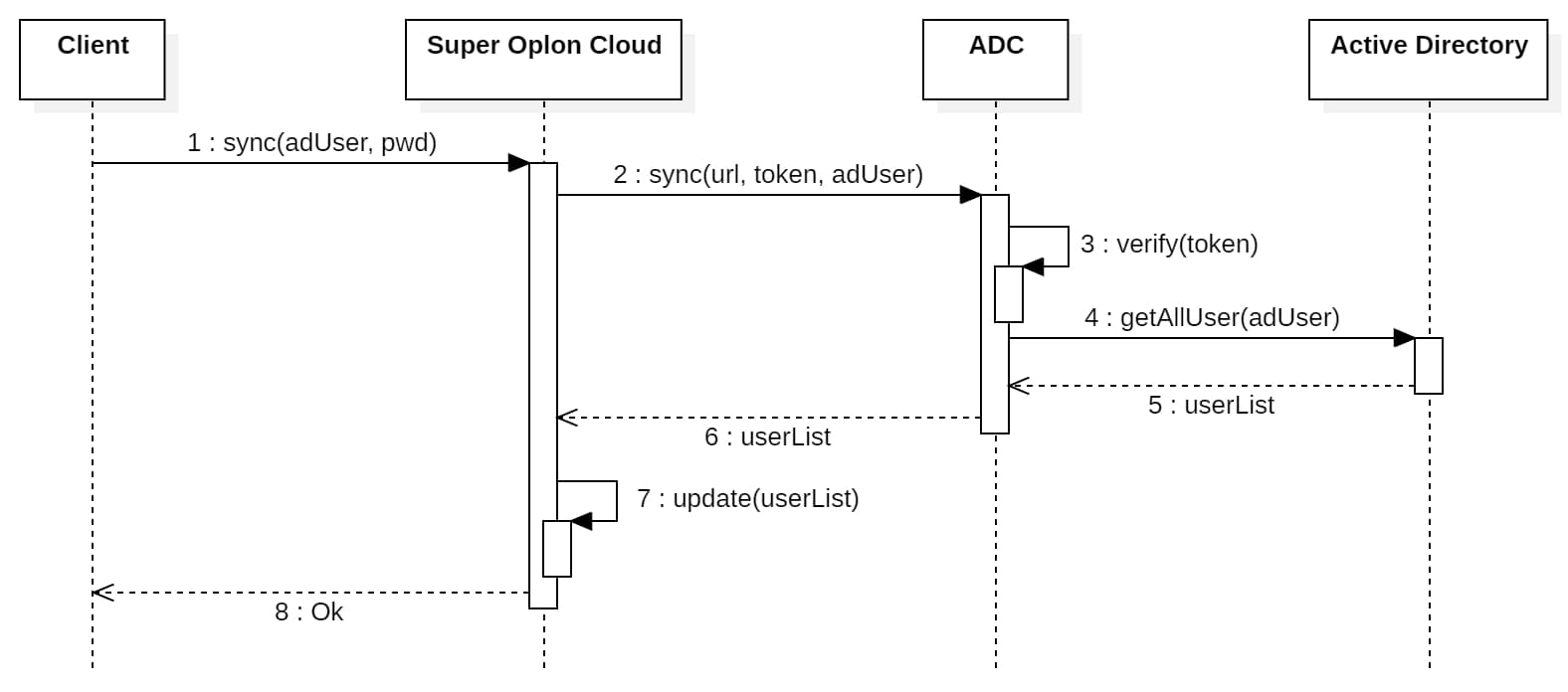
To synchronize users—that is, to update the AD user information in SOC—simply click the Sync users from AD button in the row of the Manage Active Directory table, then enter the Active Directory username and password configured in the RAG module (as described in the Connection with AD section). If everything has been set up correctly and there is no firewall blocking the request, all AD users with a populated email field will appear in the Manage Active Directory users table. At this point, only the users listed in this table will be able to log in using their Active Directory email and password. All others will log in using MFA credentials.
User synchronization is covered in more detail in the dedicated section of the MFA tenant guide, here.
Login
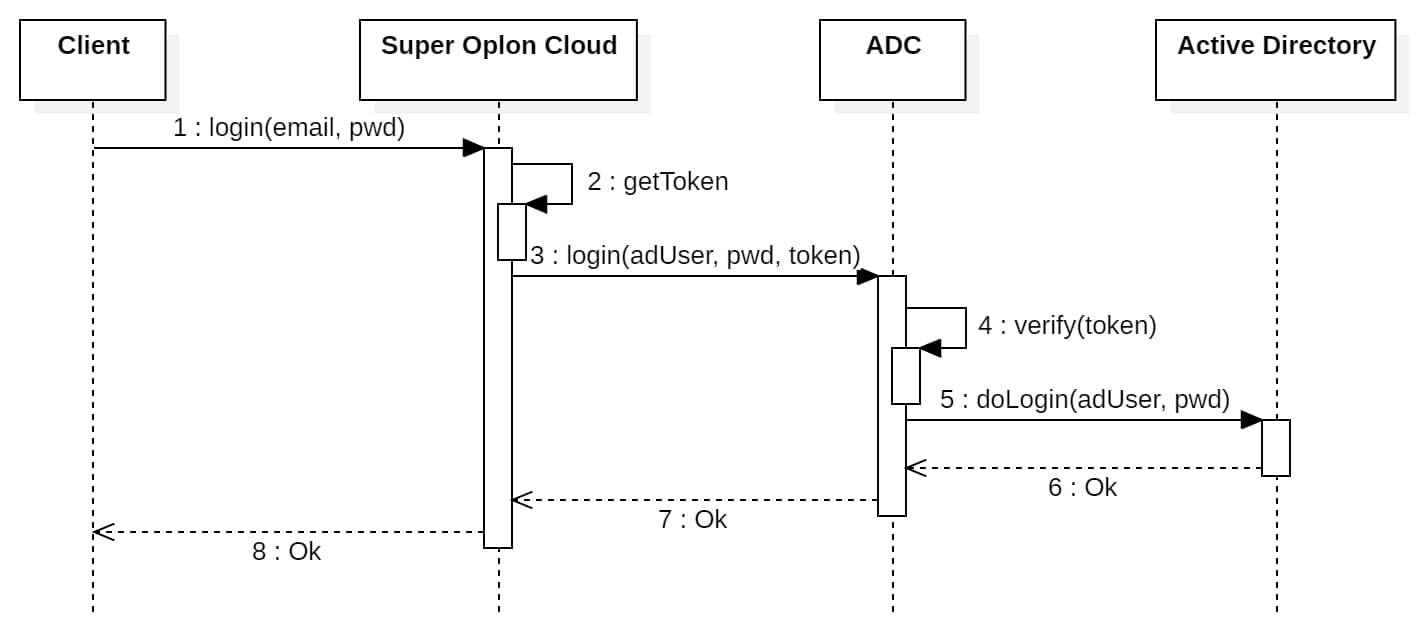
To log in, an AD user must enter their email address (not the username) and their AD password. All users who are not in the Manage Active Directory users table are MFA users and therefore log in with their MFA credentials.
Self Service
To allow users to reset their password via Self Service, you must set up a delegated user. If PSOs (Password Settings Objects) are configured, you must enable reading of some PSO information.
Password reset
To enable this function, you must delegate permission for password reset in the ADUC (Active Directory Users and Computers) console:
- Right-click the OU or domain in ADUC and select Delegate Control from;
- Click Next;
- On the Users or Groups page, click Add, select the user or group to delegate, click OK and then Next;
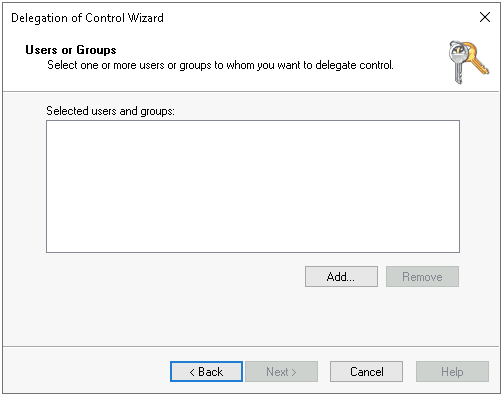 Figure 4: Select delegated users/groups
- Select Create a custom task to delegate and click Next;
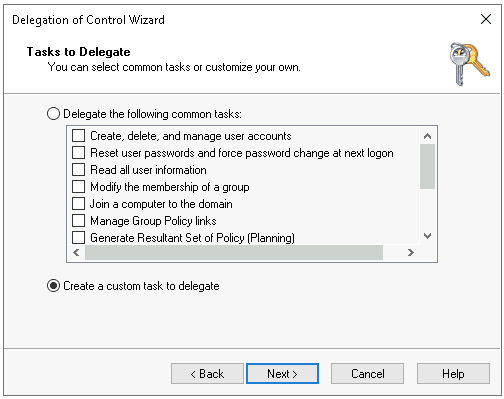 Figure 5: Task to delegate
- Select Only the following objects in the folder. In this list, select User objects and click Next;
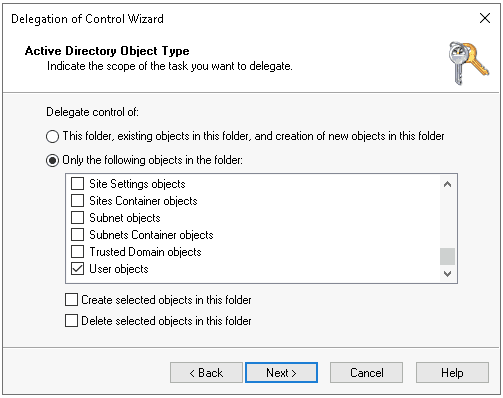 Figure 6: Task scope
- Click General and select Property-specific. In this list, select Reset password, Read pwdLastSet and Write pwdLastSet. Click Next and then Finish.
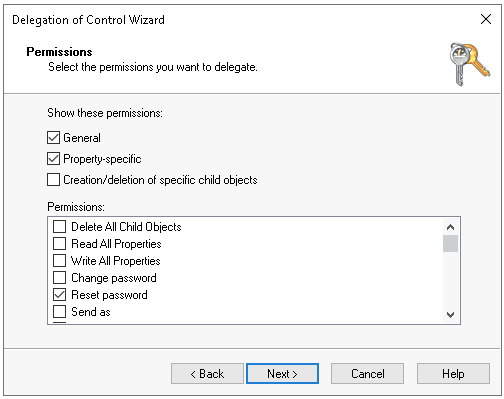 Figure 7: Permission to reset
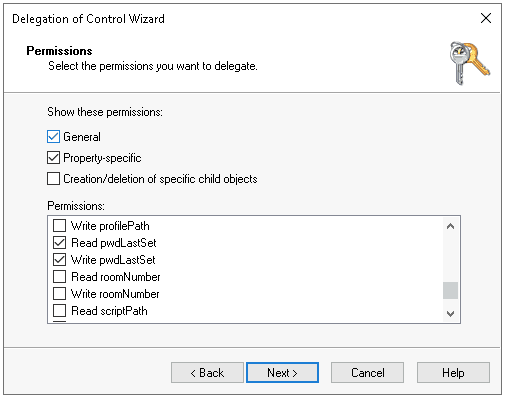 Figure 8: Read and write permissions
Enabling password policy (PSO)
To enable this function, you must enable the PSO reading permission in the ADUC (Active Directory Users and Computers) console:
- Right-click the OU or domain in ADUC and select Delegate Control from;
- Click Next;
- Click Add, select the user or group for which you want to enable PSO reading, click OK and then Next;
Figure 9: Select delegated users/groups
- Select Create a custom task to delegate and click Next;
Figure 10: Task to delegate
- Select Only the following objects in the folder. In this list, select msDS-PasswordSettings objects and msDS-PasswordSettingsContainer objects. Click Next;
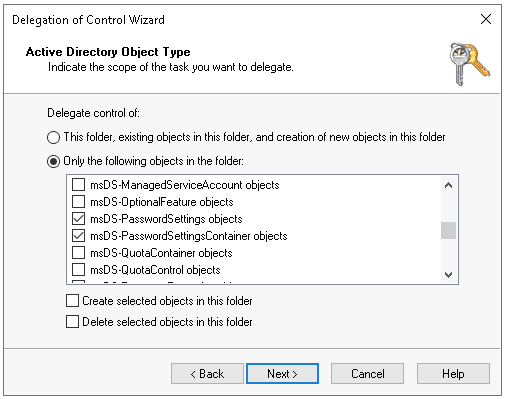 Figure 11: Select permissions
- Make sure General is checked and select the Read permission. Click Next and then Finish.
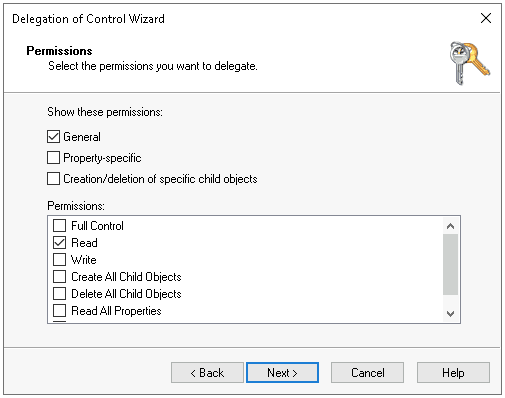 Figure 12: Read permissions
Notes
- If a user, as their password approaches its expiry date, does not see the number of days remaining until the password expires in their personal area under the Change Password section, check that the Password never expires box is not checked for that user in the account properties in Active Directory.
Password rotation
- For password rotation, the delegated user must have the permission to change passwords;
- If the delegated user does not have permission to change the password, there are two possible solutions:
- Add high-privilege groups (e.g. Domain Admins, Administrators, Enterprise Admins) to the delegated account;
- Add the delegated account to the AdminSDHolder object and explicitly grant it the Reset Password permission.