MFA Tenant Guide
The tenant is the person responsible for the managers. They can create and manage manager roles.
There are two Tenant sections:
- Manage: page to manage domains and managers;
- Active Directory: page to manage Active Directory.
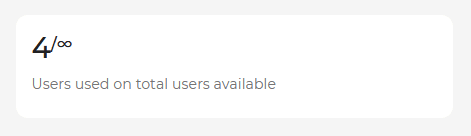
The panel on figure 2 shows how many users have been enabled and the limit of users who can be enabled.
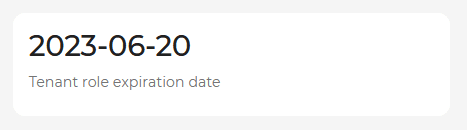
The panel on figure 3 shows the tenant expiration date. After this expiration date, both tenant and all users managed by the tenant will no longer be able to access the resources protected by MFA.
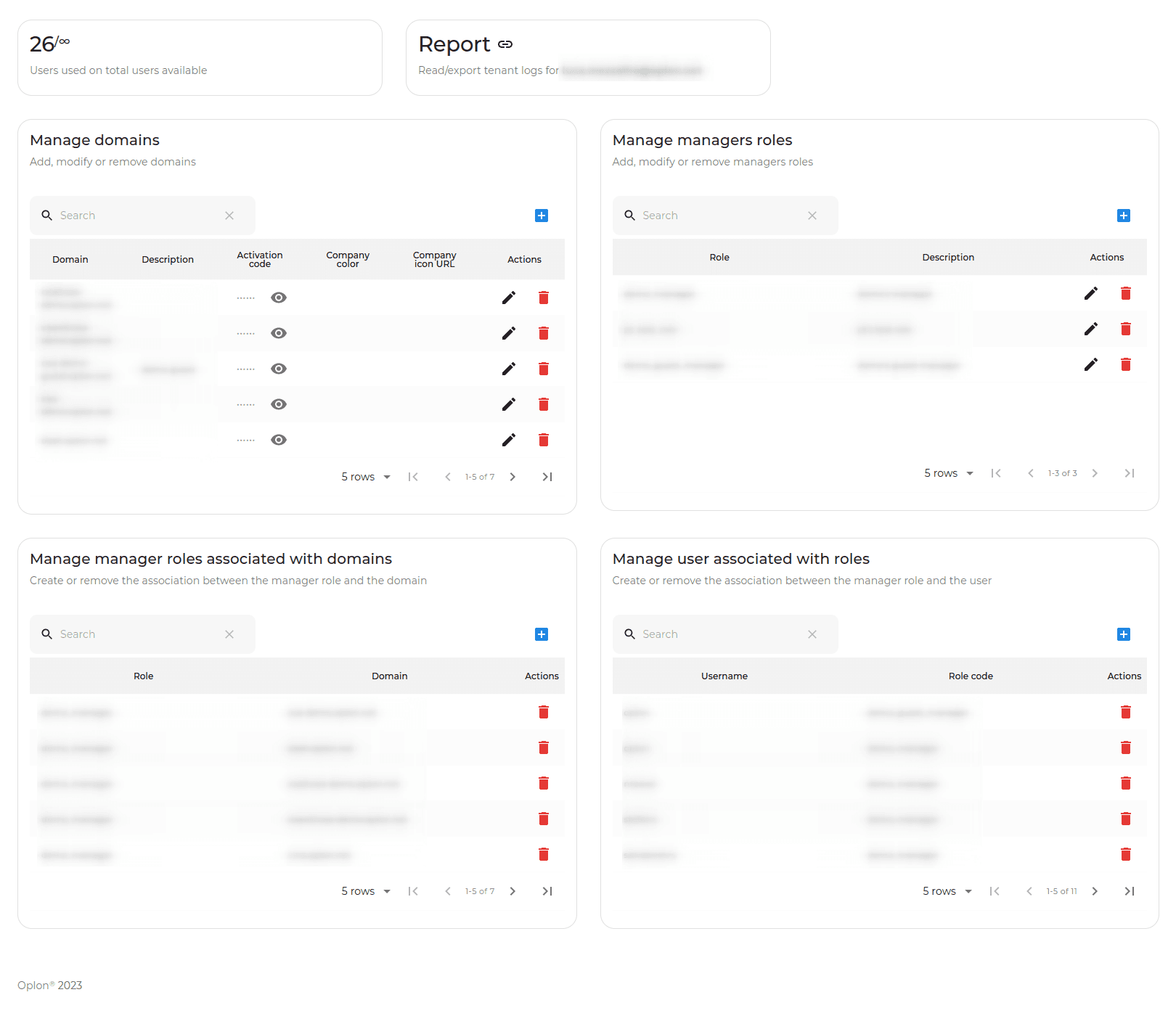
Manage
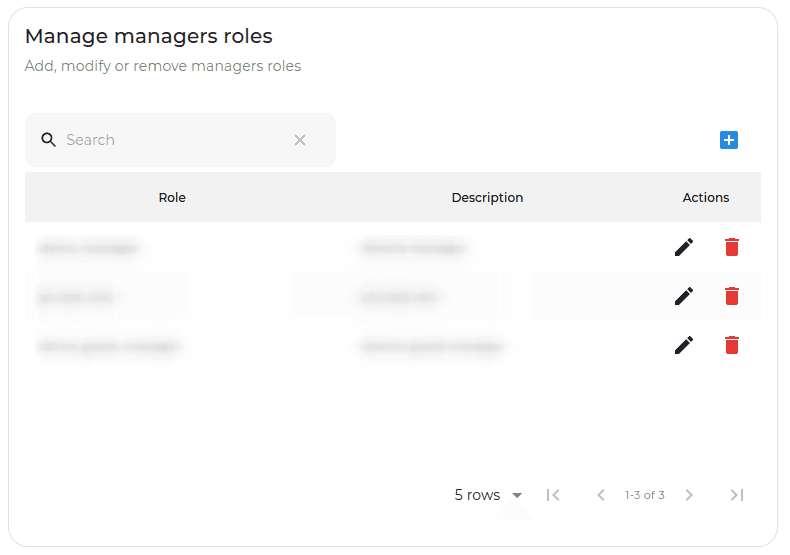
Manage roles
In this panel the Tenant can create a role by clicking the button  and entering:
- Role: name that uniquely identifies the role;
- Description: role description.
Once a role has been entered, it is possible to modify its description by clicking the pencil icon  or to delete it by clicking on the trash can icon
 .
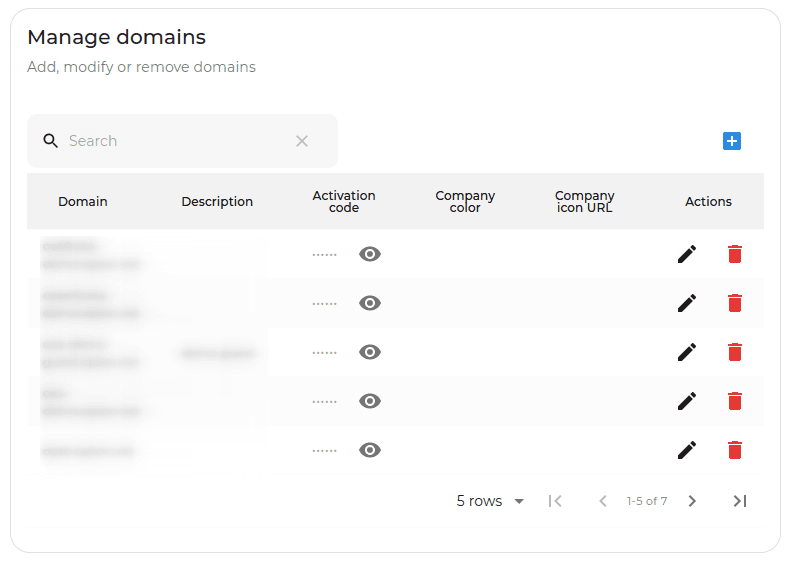
Manage domains
In this panel the Tenant can add a domain that they manage by clicking the button and entering:
- Domain: domain name;
- Description: domain description;
- Activation code: it is used to verify that the Tenant is the person who actually manages that domain. The code entered must be the same as the code of the rewrite header rule inserted in Oplon ADC;
- Company color: color of the login page interface;
- Company icon URL: URL of the icon that replaces the Oplon logo on the login page.
Once a domain has been entered, it is possible to modify its description by clicking the pencil icon or to delete it by clicking on the trash can icon .
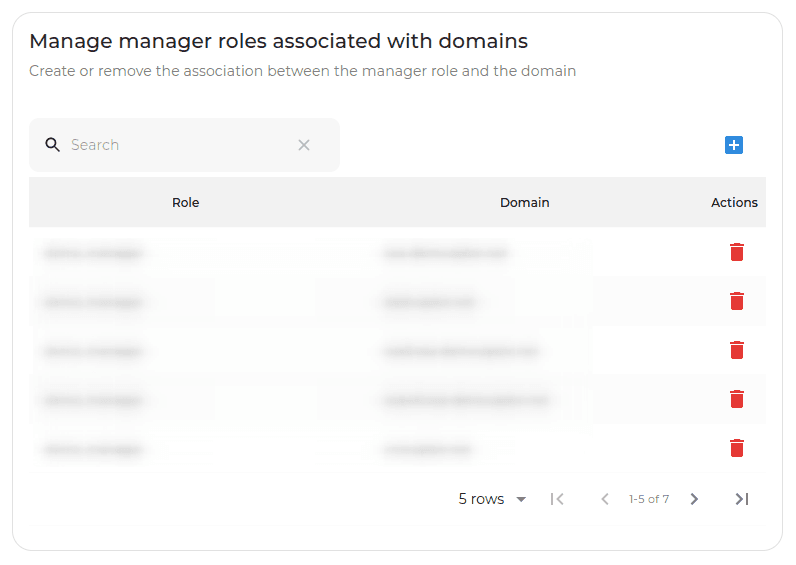
Manage roles domains
In this panel the Tenant can associate a role to a domain by clicking the button and entering:
- Role: name that uniquely identifies the role;
- Domain: domain name.
Once a domain-role has been entered, it is only possible to delete it by clicking the trash can icon .
NB: A role can manage multiple domains.
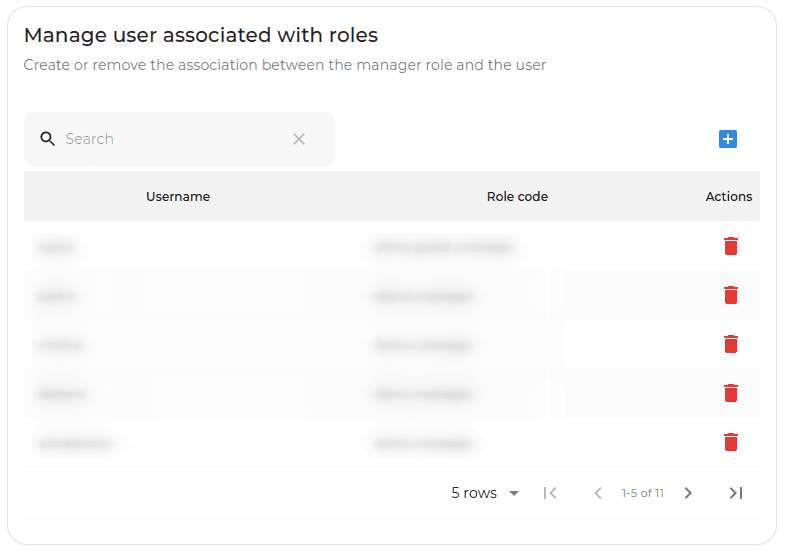
Manage users roles
In this panel the Tenant can associate a user to a role by clicking the button and entering:
- Username: username;
- Role: name that uniquely identifies the role.
At this point, the user to whom a role has been associated will have the possibility to access an additional page to manage the permissions and requests for the domain permissions associated with that role.
Once a user-role has been entered, it is only possible to delete it by clicking the trash can icon .
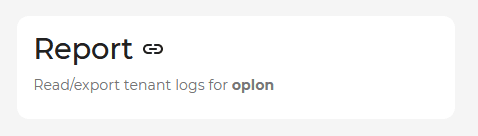
You can also view the reports of the managers you manage by clicking the button  .
Report tenant
Clicking the Report panel displays a table with all the operations performed by your account as Tenant:
- Additions, deletions and changes in the Manage roles table;
- Additions, deletions and changes in the Manage domains table;
- Additions and deletions in the Manage roles domains table;
- Additions and deletions in the Manage users roles table.
Active Directory
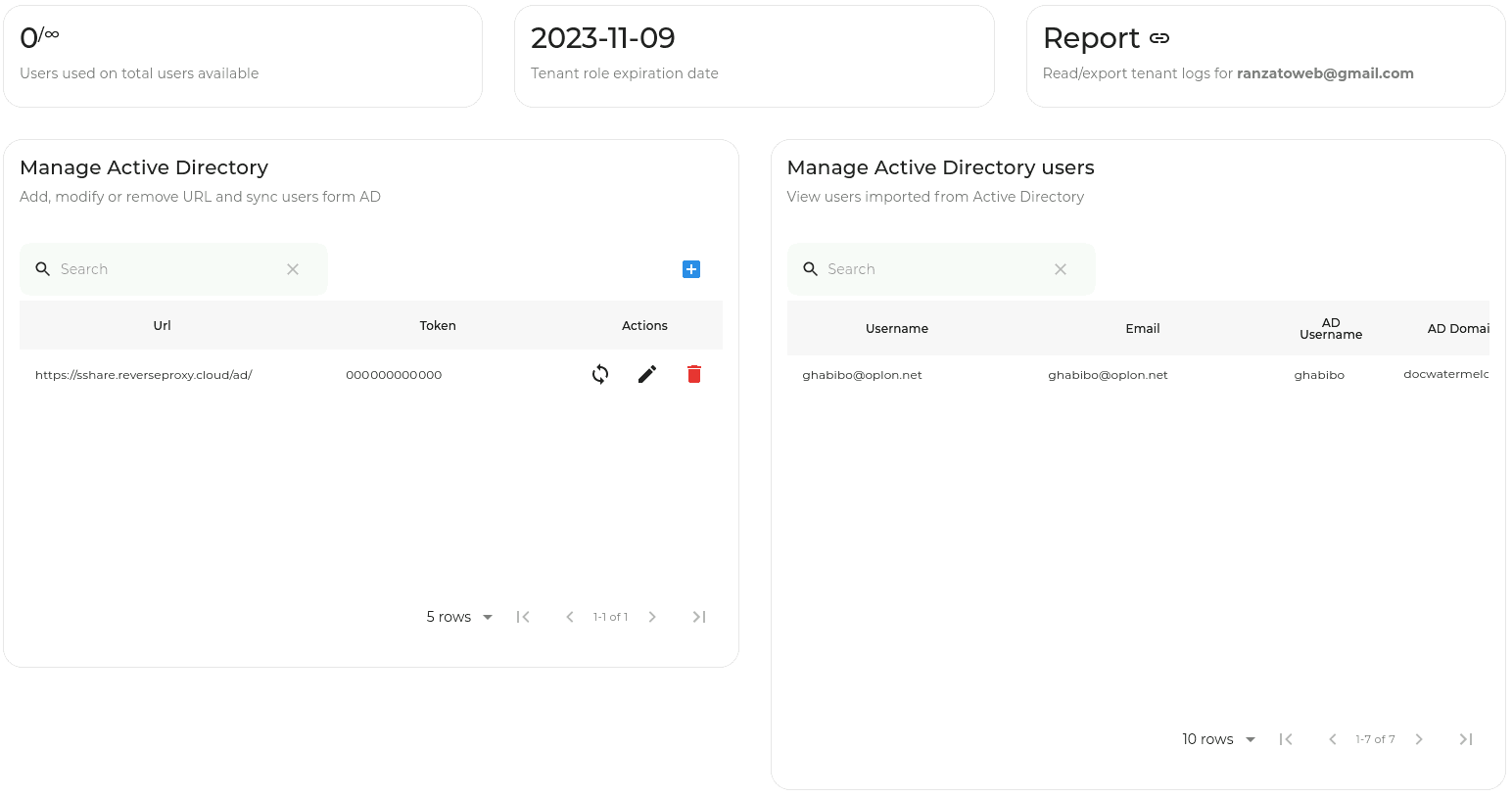
Manage Active Directory
In this panel the Tenant can indicate the URL of the service that exposes the API for Active Directory by clicking the button :
- Url: URL of the service that exposes the API for Active Directory (only one URL is handled; additional ones are ignored);
- Token: token used in the rewrite rule to authenticate API requests to Active Directory.
Clicking the button  opens a modal asking you to enter the login credentials of an Active Directory user to perform the import. Clicking the Import button starts the import of the Active Directory users into MFA.
Only Active Directory users with an email will be added.
Clicking the button lets you change Url and Token.
Clicking the button deletes the row.
Manage Active Directory users
In this panel the Tenant can view some information about all the Active Directory users imported into MFA:
- Username: username used to log in to MFA;
- Email: email;
- AD Username: Active Directory login username;
- AD domain: Active Directory domain.