Multi-Factor Authentication Setup
Prerequisites
- You have downloaded, installed and configured the Oplon Secure Access Virtual Appliance as indicated in this guide.
- Make sure that outbound port
2443is open on the appliance: it is used to communicate withsuper.oplon.cloudand is required for MFA to work correctly.
If, in step 2, you wish to configure a specific outbound firewall rule from the Oplon appliance to super.oplon.cloud on port 2443, ensure that the firewall supports port rules based on FQDN (Fully Qualified Domain Name).
This is important because Oplon’s cloud services are distributed across multiple data centers to ensure high availability.
If the firewall only supports rules based on IP addresses, you will need to allow outbound traffic on port 2443 to any destination IP.
Import Certificate .P12 super.oplon.cloud
Once you have purchased the Multi-Factor Authentication service from Oplon, you will receive a .P12 certificate:
the appliance uses it to communicate with super.oplon.cloud, to verify that the connection is trustworthy and to allow the authorizations of MFA users.
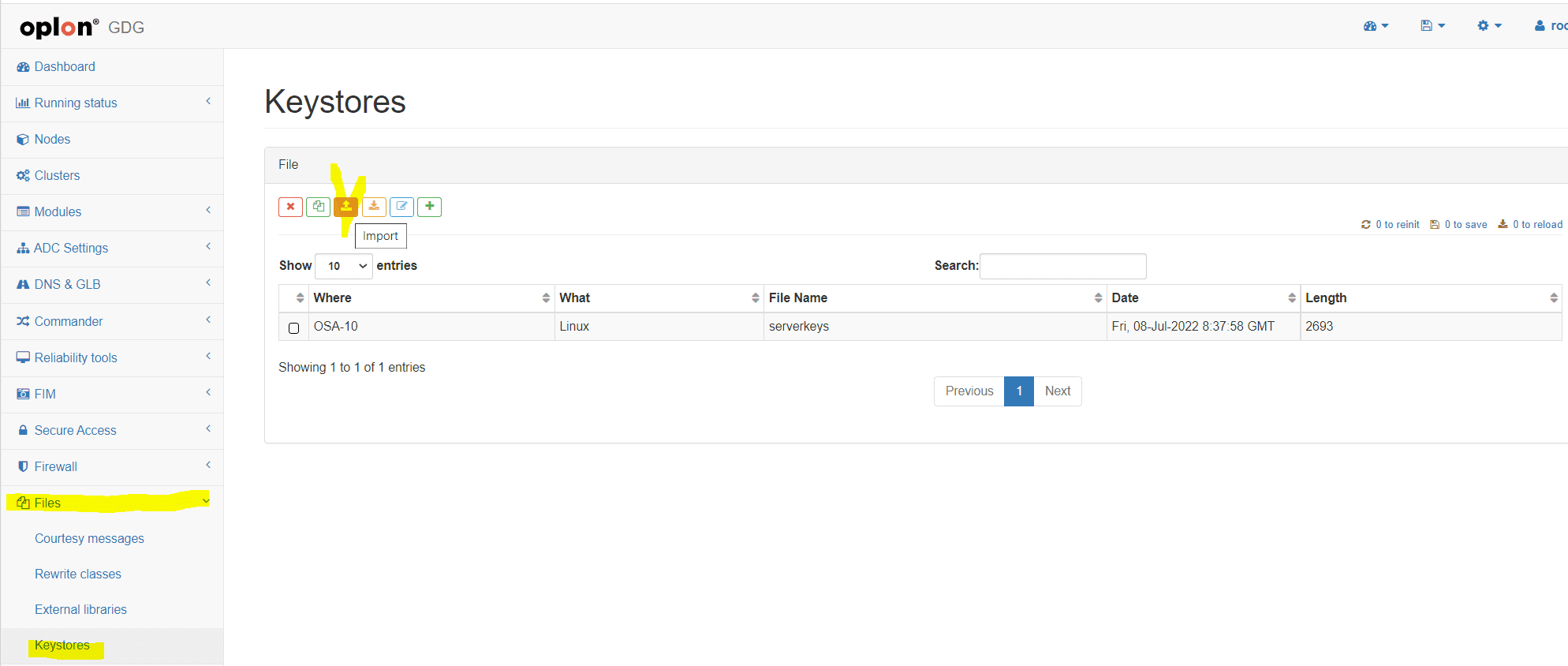
At this point, you can import the keystore into the Virtual Appliance: go to Files > Keystores and click Import.
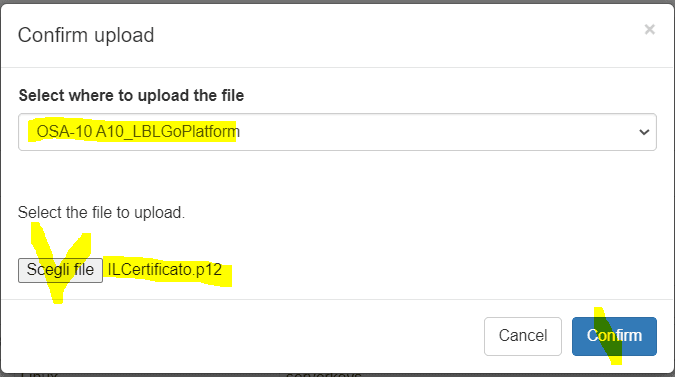
Select the module to upload the file to (A10_LBLGoPlatform), choose the file from the local path where you saved it and click Confirm.
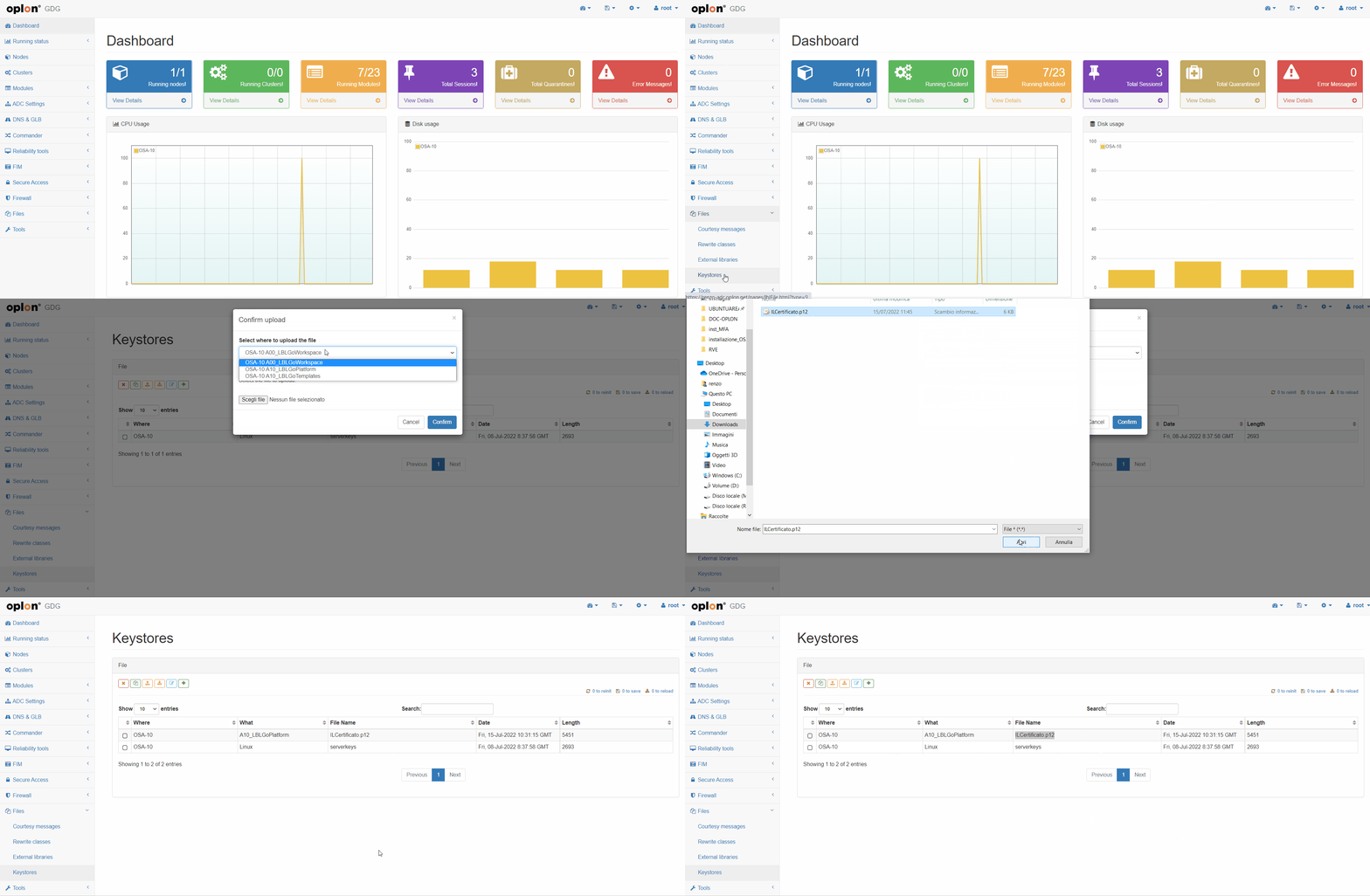
A video of the keystore import into the A10_LBLGoPlatform module
Copying and Configuring MFA Rewrite Rules
- Search for the Rewrite Header Rules: select View template rewrite rules and search for the string
2fain the Search field.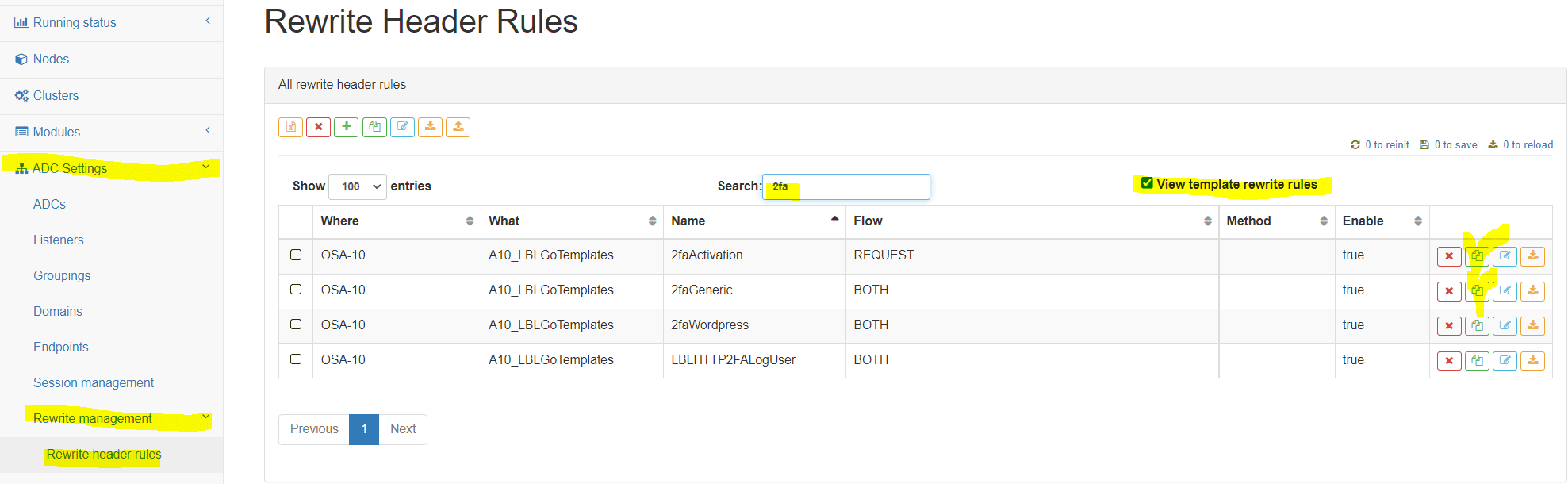
- Copy the Rewrite Header Rules: copy the templates into the
A10_LBLGoPlatformmodule.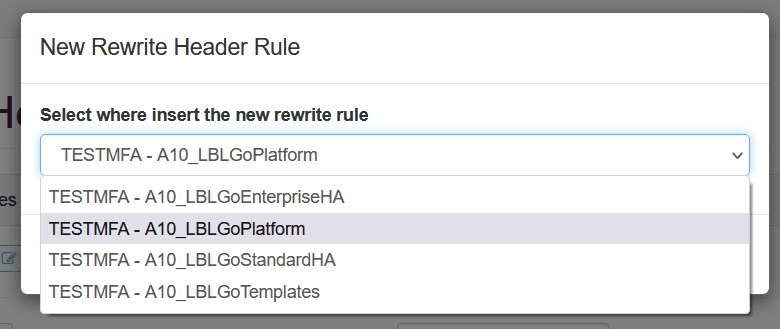
A video of copying the secure Rewrite Header Rules templates into the A10_LBLGoPlatform module
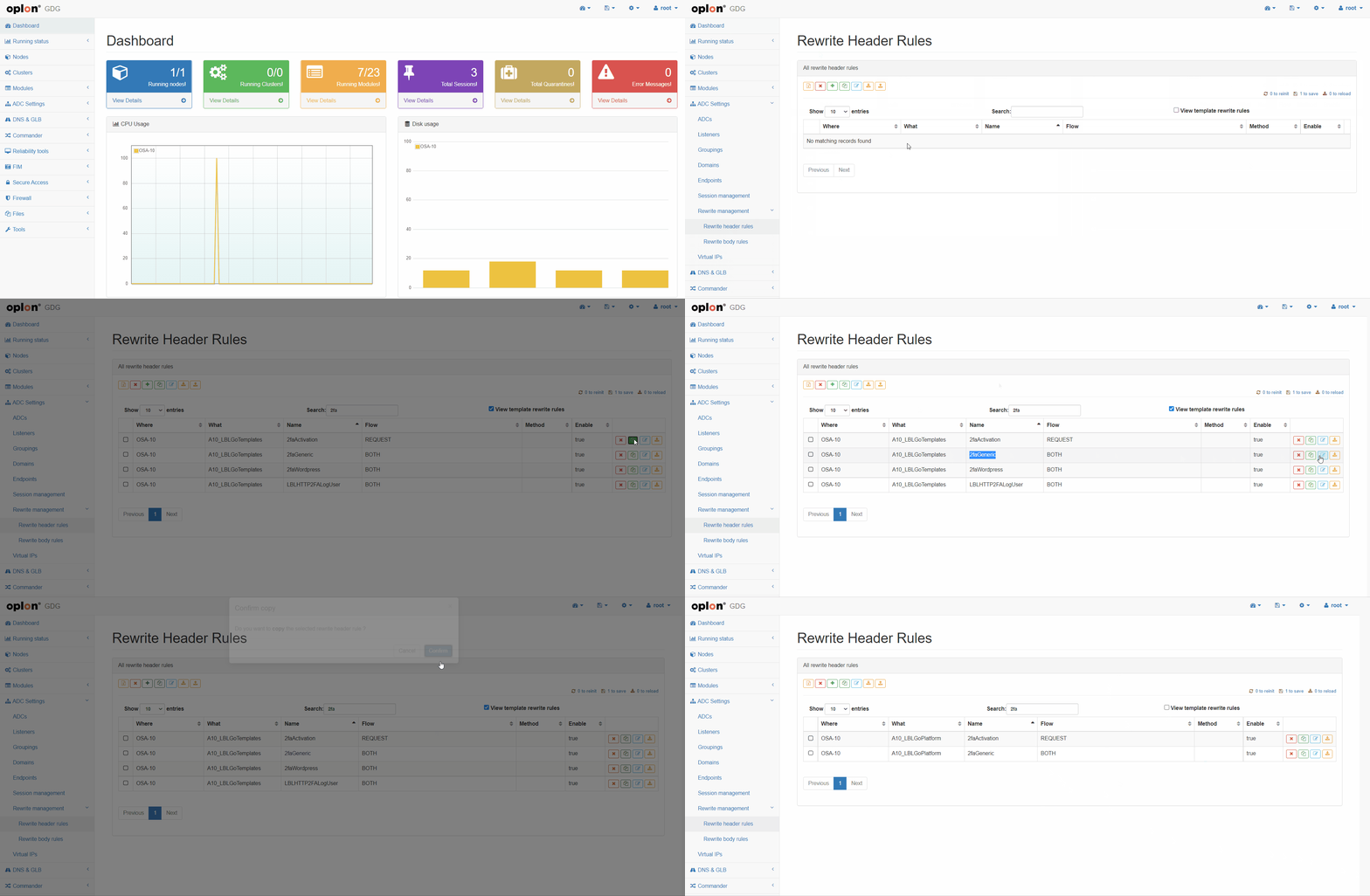
Now configure the rewrite rules that will protect the Oplon Secure Access resources.
Configuration Rewrite Header 2faActivation and ACTIVATION_CODE
Go to the Rewrite Management > Rewrite Header Rules menu and look for the Rewrite Header Rule 2faActivation.
Open the rule for editing, find the ACTIVATION_CODE variable in the Variables section and in Value
enter an activation code of your choice (in the example, ACTIVATIONCODE).

A video of entering the ACTIVATION_CODE in the Rewrite Header Rule 2faActivation
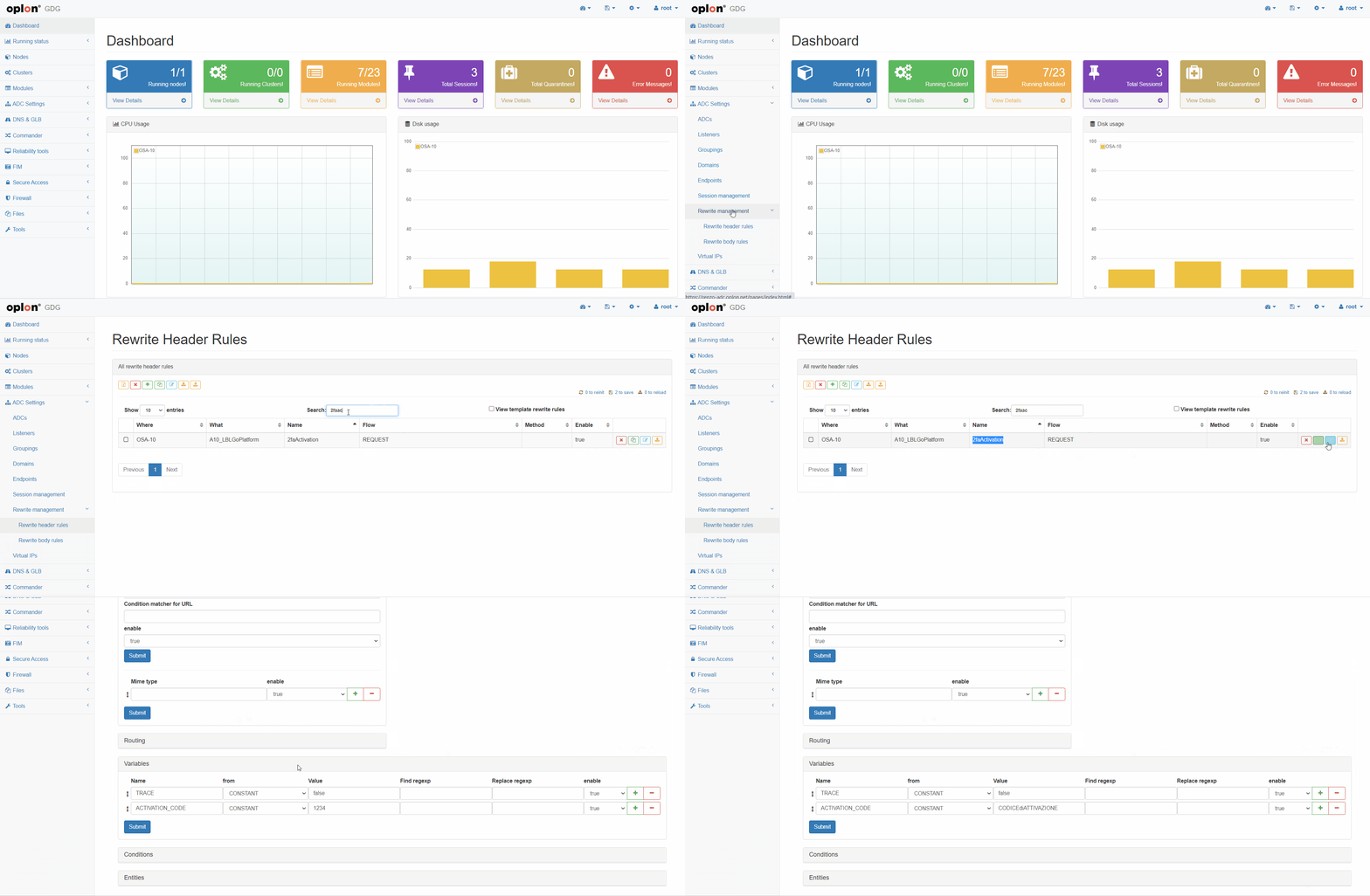
Configuration Rewrite Header Rule 2faGeneric
Go to the Rewrite Management > Rewrite Header Rules menu and look for the Rewrite Header Rule 2faGeneric.
Open the rule for editing, find the Variables section
and enter the appropriate values in the CLIENT_KEYSTORE_NAME variable (in the example, THECertificate.p12)
and in the CLIENT_KEYSTORE_PASSWORD variable (the password received with the certificate).
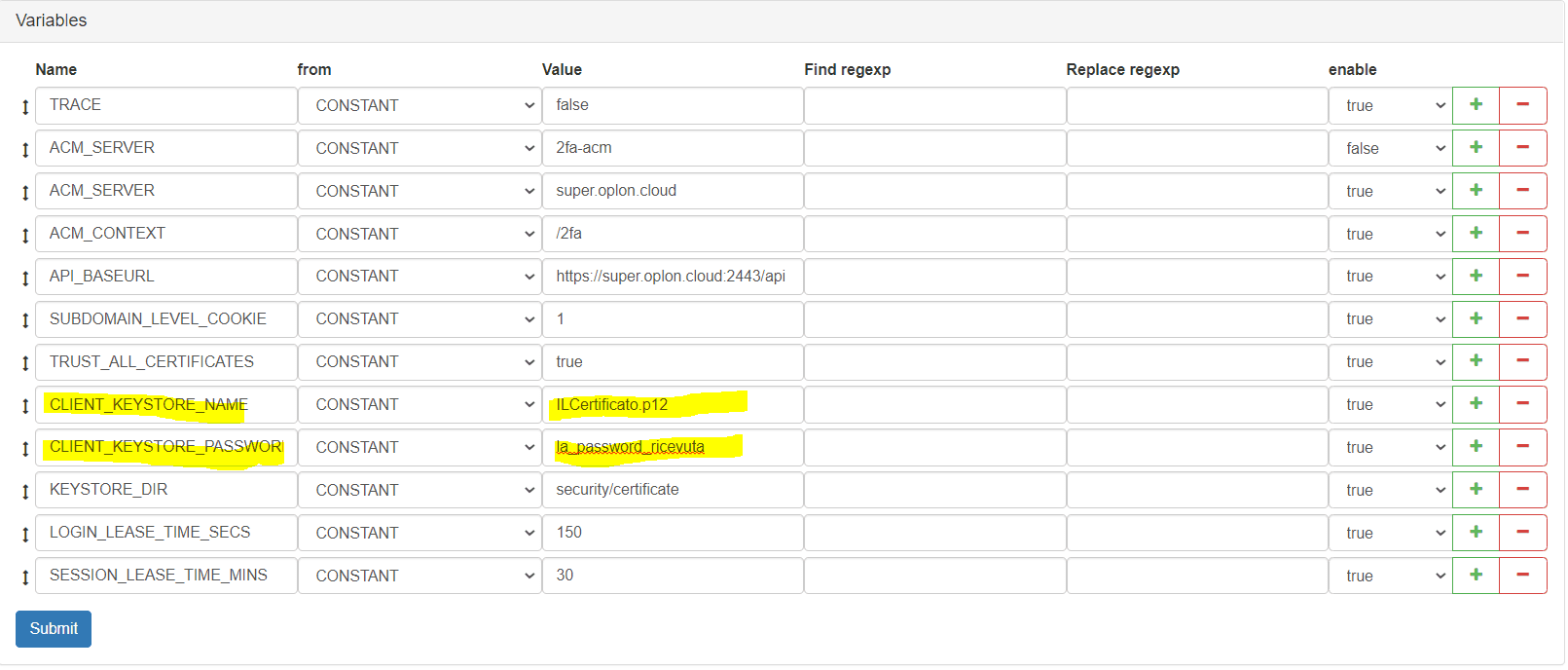
A video of entering the parameters in the Rewrite Header Rule 2faGeneric
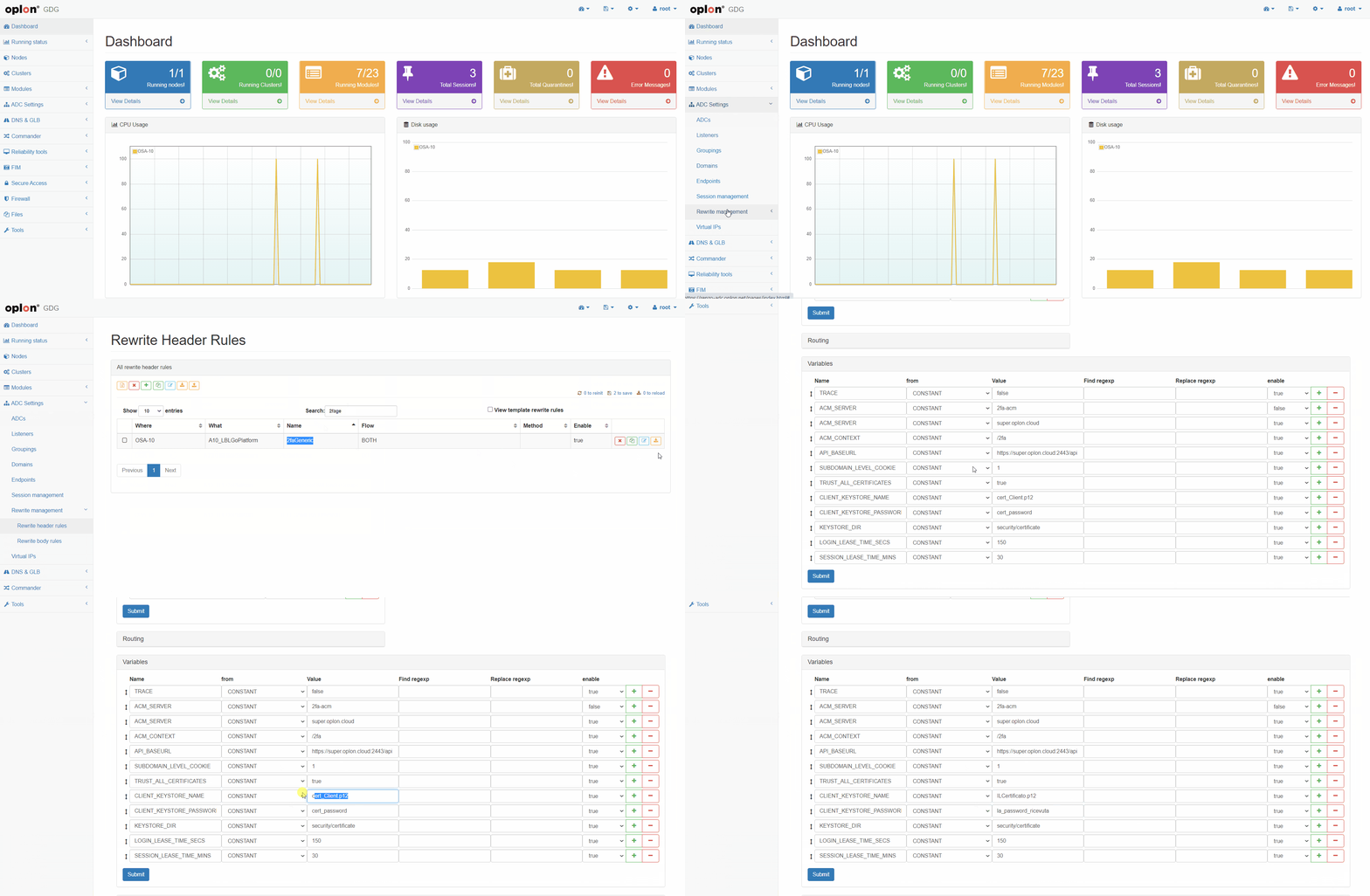
Application of MFA Rules
At this point, decide where to apply them. Rewrites can be applied at the level of:
- ADCs
- Groupings
- Domains
- Endpoints
In this example they are applied at the Domains level; the activation procedure is almost the same for the other entity types.
Ex. How to secure a Domain
At this point you can protect any resource exposed by OSA with Multi-Factor Authentication.
Next, apply the MFA protection rules to a domain,
in this example a_domain.oplon.net.
Domain Search
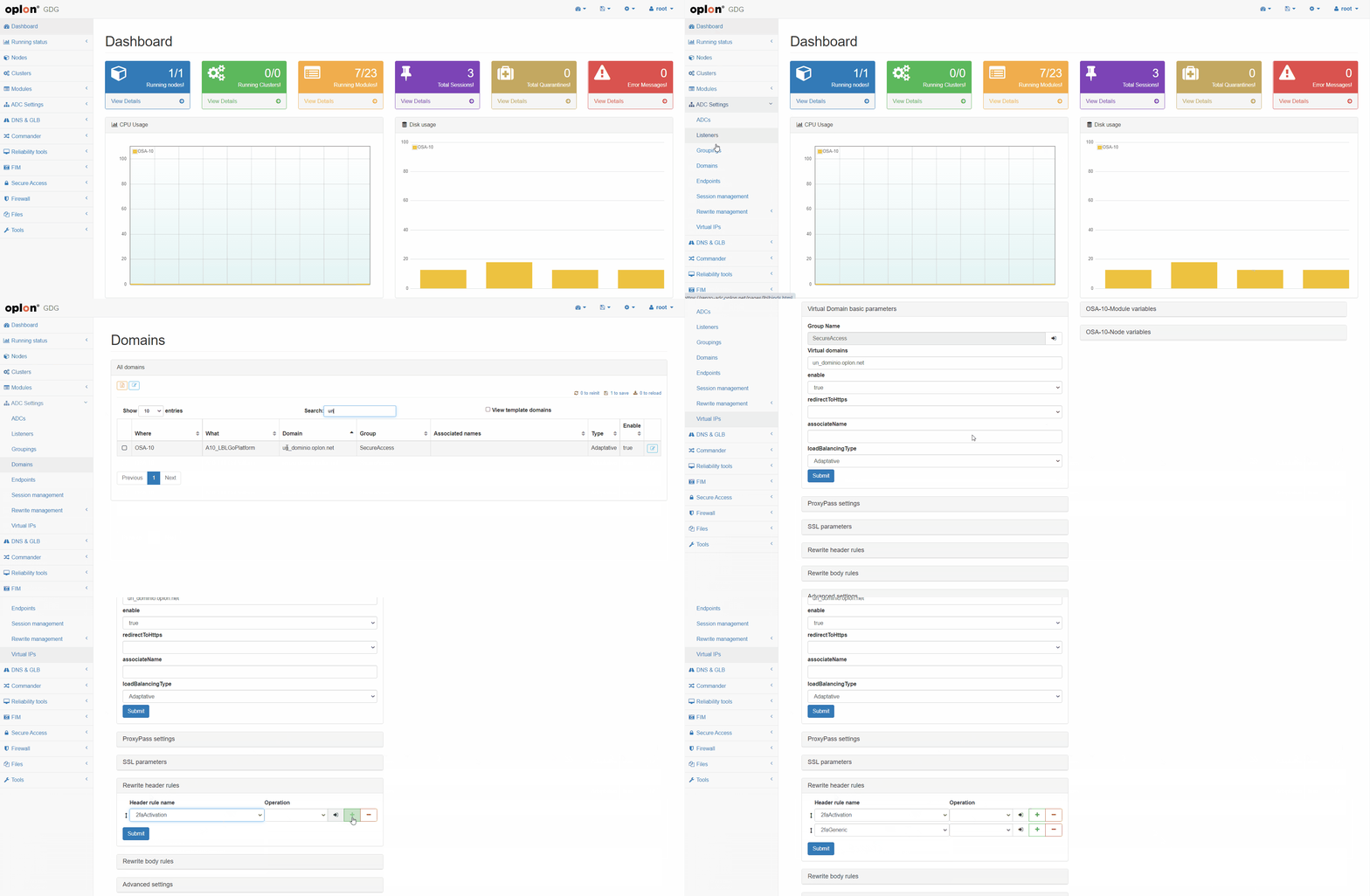
Go to ADC Settings > Domains, search for the domain a_domain.oplon.net and open it for editing.
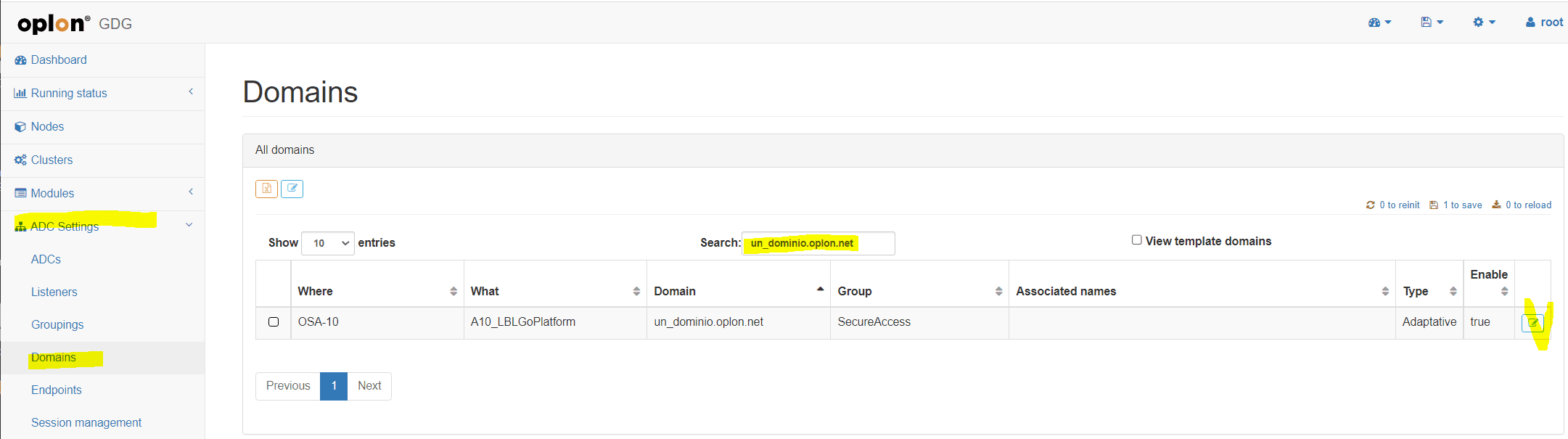
Inserting Rewrite Header Rules
In the domain configuration, find the Rewrite header rules section
and add the two rewrites configured earlier,
2faGeneric and 2faActivation.
Also set the value LAST in the Operation column for 2faActivation.
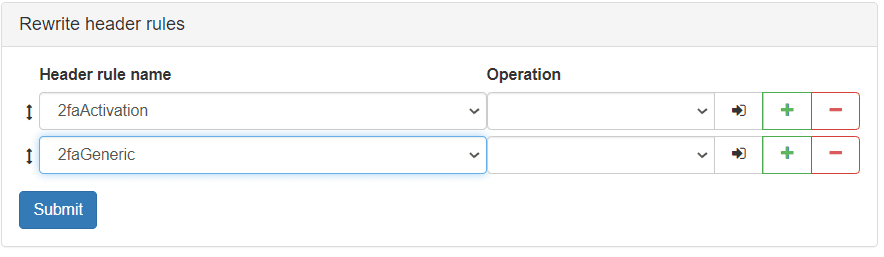
Video: Inserting MFA Rewrite Rules on a Domain
A video of searching for the domain and inserting the 2faGeneric and 2faActivation Rewrite Header Rules