HTTP Data Compression Setup
Notes before installation
Oplon HTTP Data Compression compresses data traffic to optimize bandwidth usage.
With Oplon Application Delivery Controller you can selectively compress individual data streams, contextualized also by mime-type.
This document only covers the configuration of the compression service and the use of the filter rules of the balancing and routing component. For the installation of the Oplon S.A.A.I. components, refer to the installation documents of the individual products.
Introduction
HTTP data compression is achieved through rewrite rules to have maximum expressiveness and flexibility of application.
Oplon Application Delivery Controller uses a refined core-parallel data compression technology. Compression therefore makes the most of the parallelism of modern multicore and multithreaded CPUs, eliminating any synchronization point due to additional hardware outside the CPU.
Setup compression
Setting up compression in balancing and routing processes can be achieved by applying simple rewrite rules that affect and modify content.
The steps to follow are:
a) setting up the header rule
b) setting up the body rule
c) activating the rules on the desired flow
The system already contains the rules needed to compress HTTP/S bodies: simply take them from the templates and use them where necessary.
Setup compression - Header
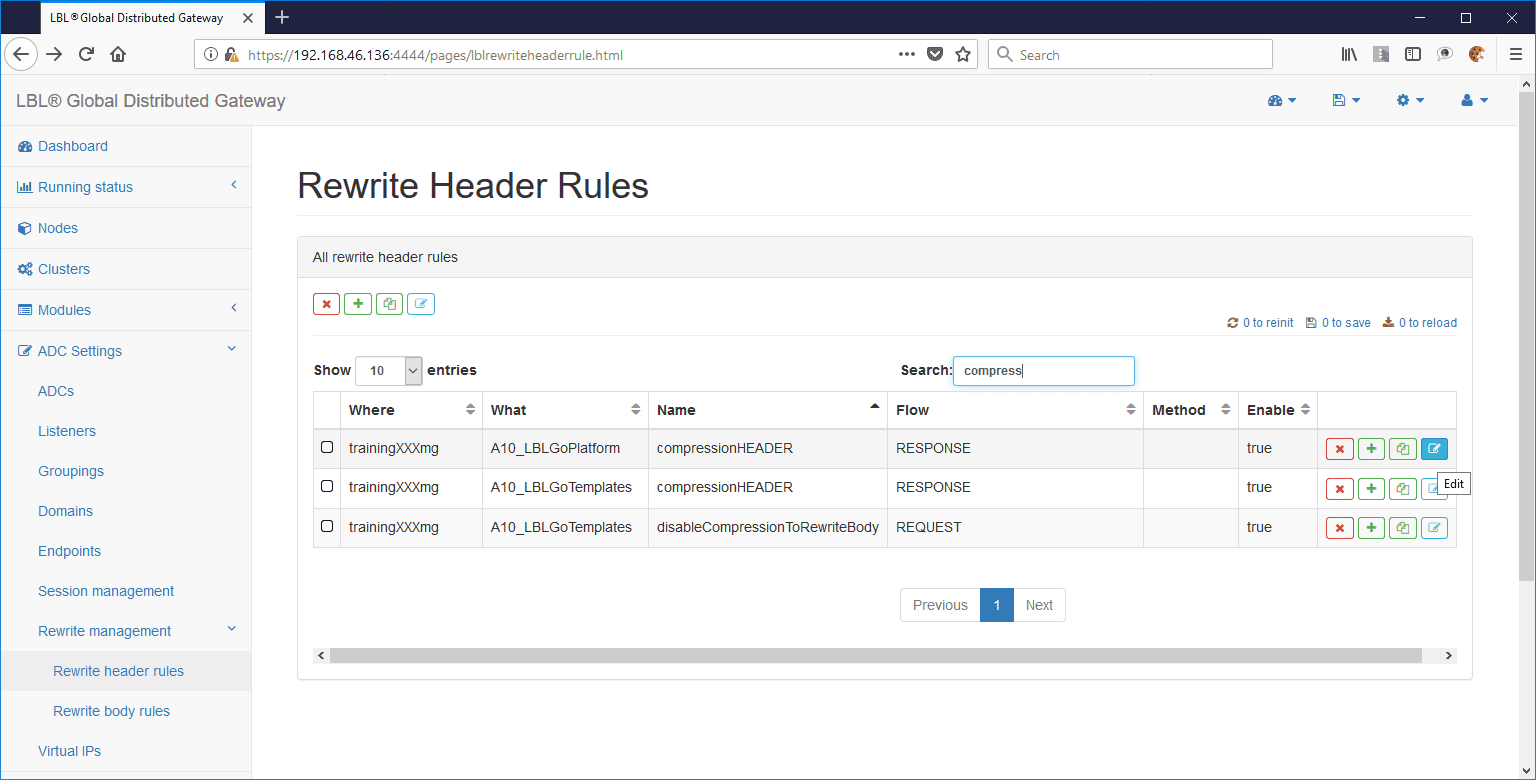
Open ADC Settings > Rewrite management > Rewrite header rules
and type compression in the Search field.
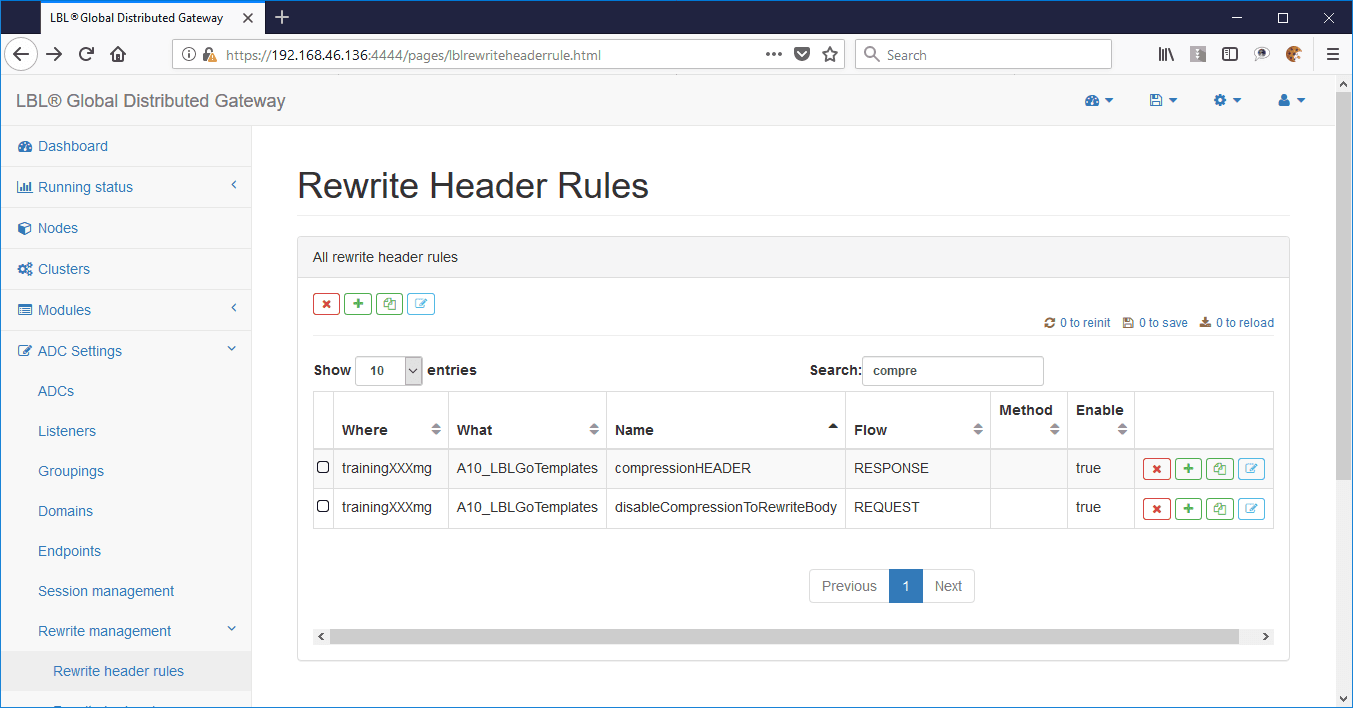
In the example below, you first set up the necessary rewrite rules and then apply them to the data streams.
Data compression takes place in two stages: checking whether the data can be compressed, and then compressing the body data.
This double step is necessary because Oplon Application Delivery Controller must first determine whether the client and server can process compressed data, or whether the data is already compressed at the source and therefore should not be compressed.
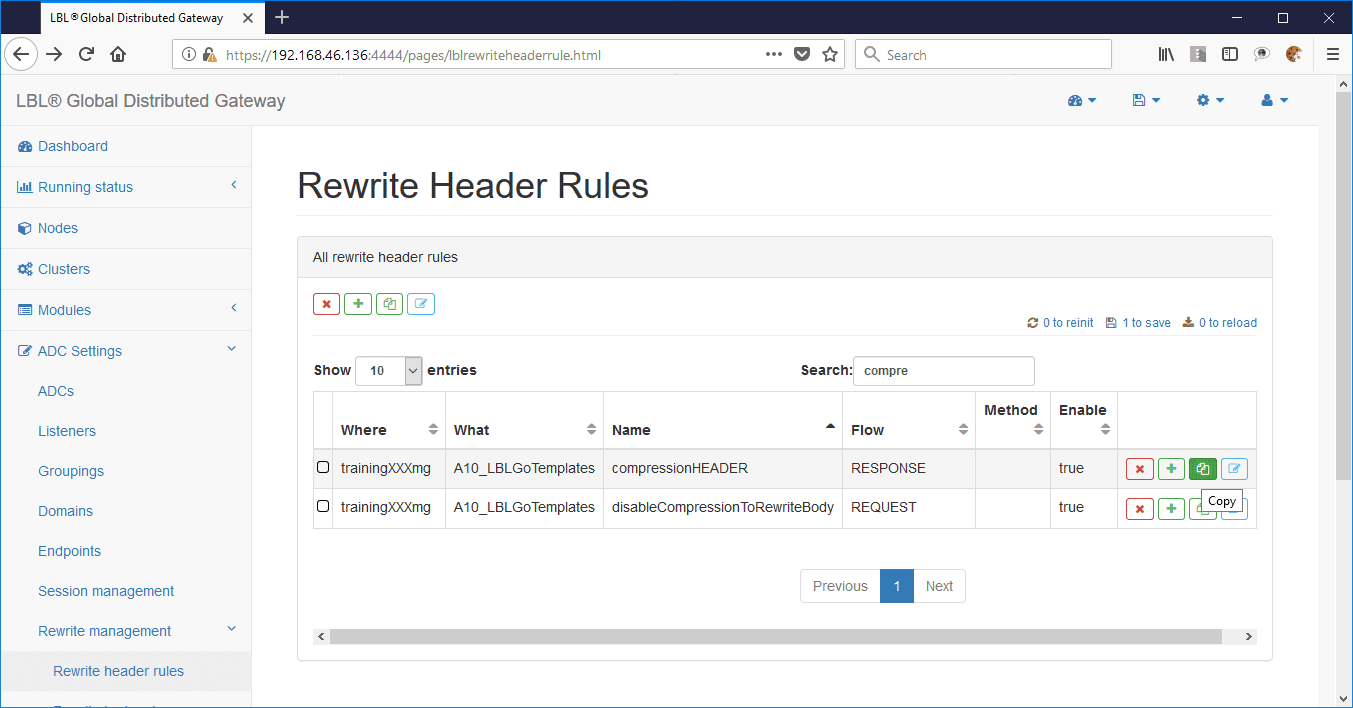
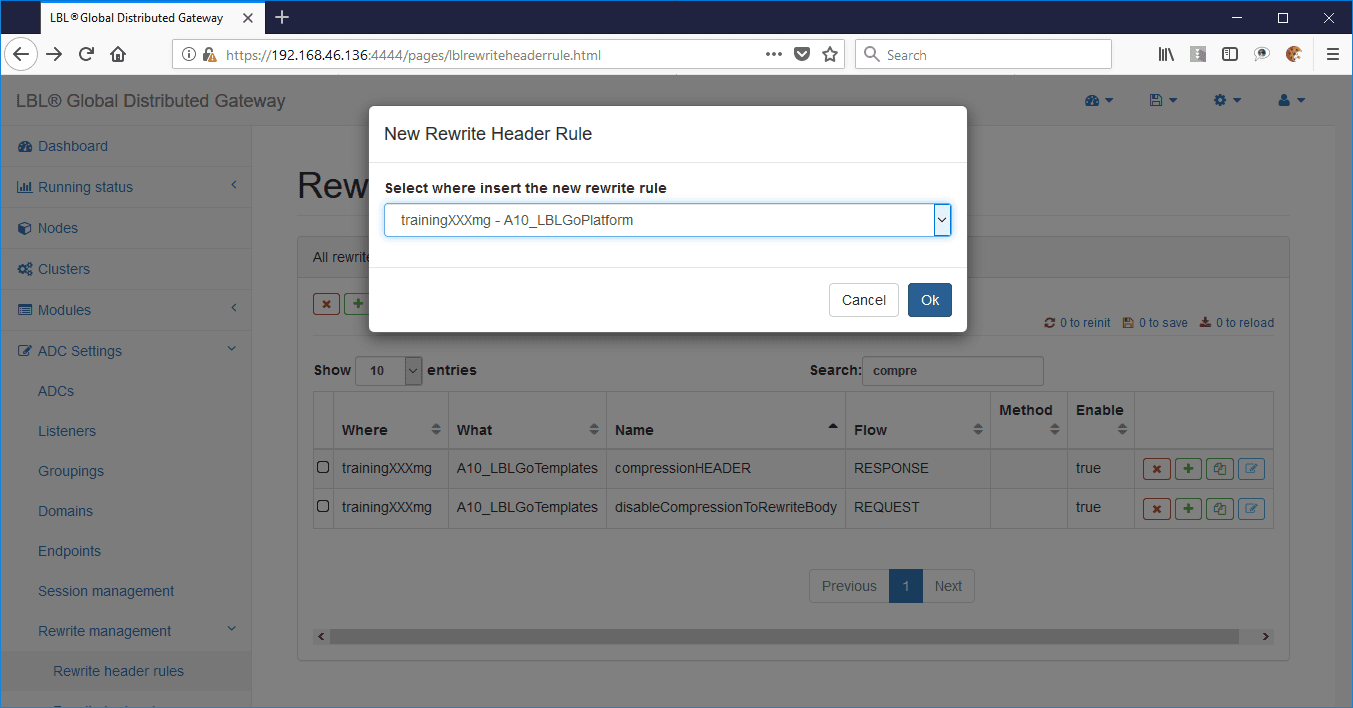
To perform body compression, simply copy the rule from the template (Copy button) to the ADC module where it will be used, for example:
Choosing the module to copy the rule to:
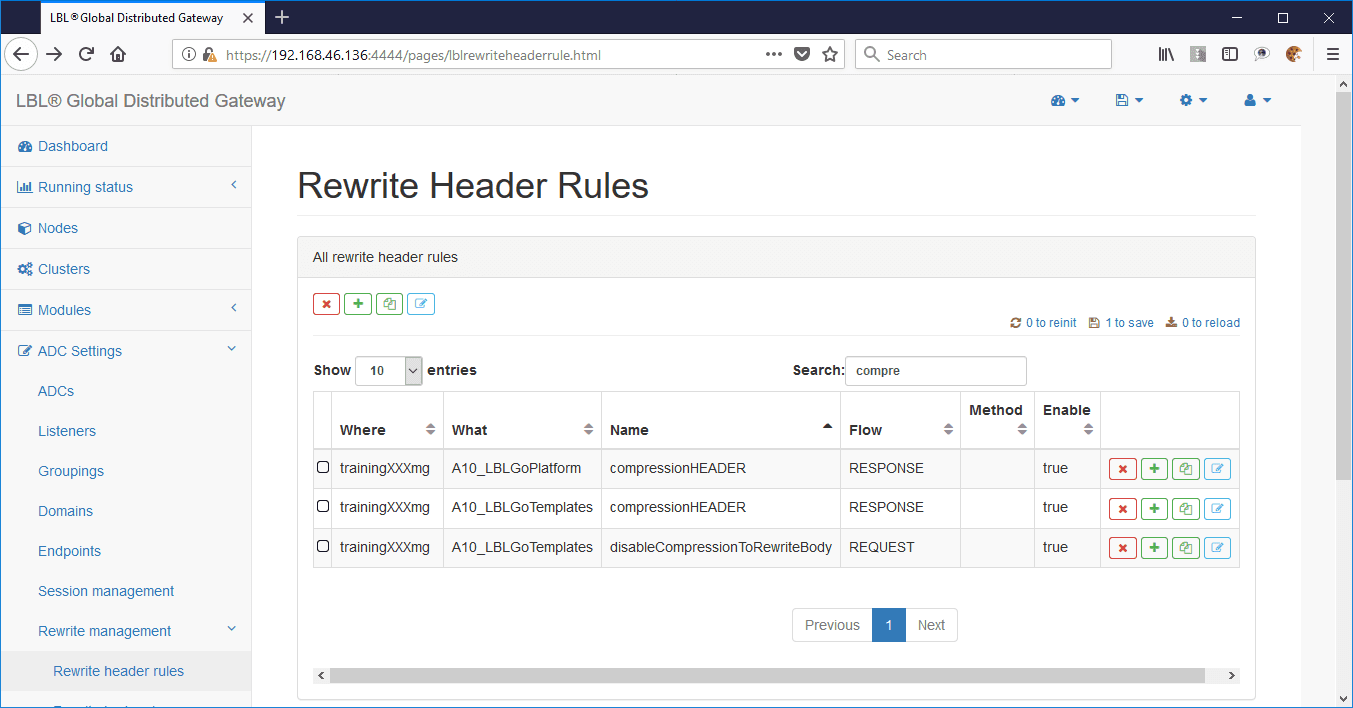
Copy result:
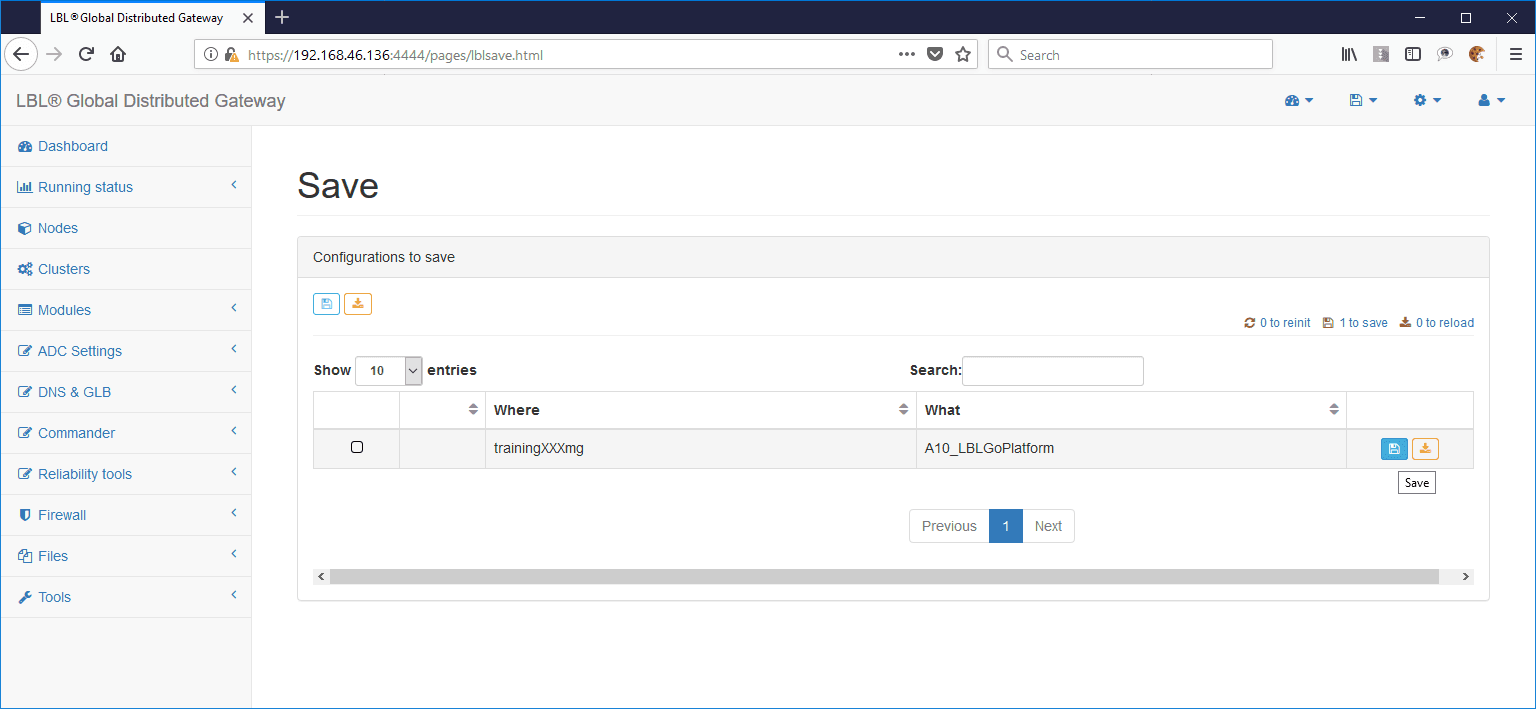
Save the change:
To analyze the rule, simply click Edit and expand the panels:
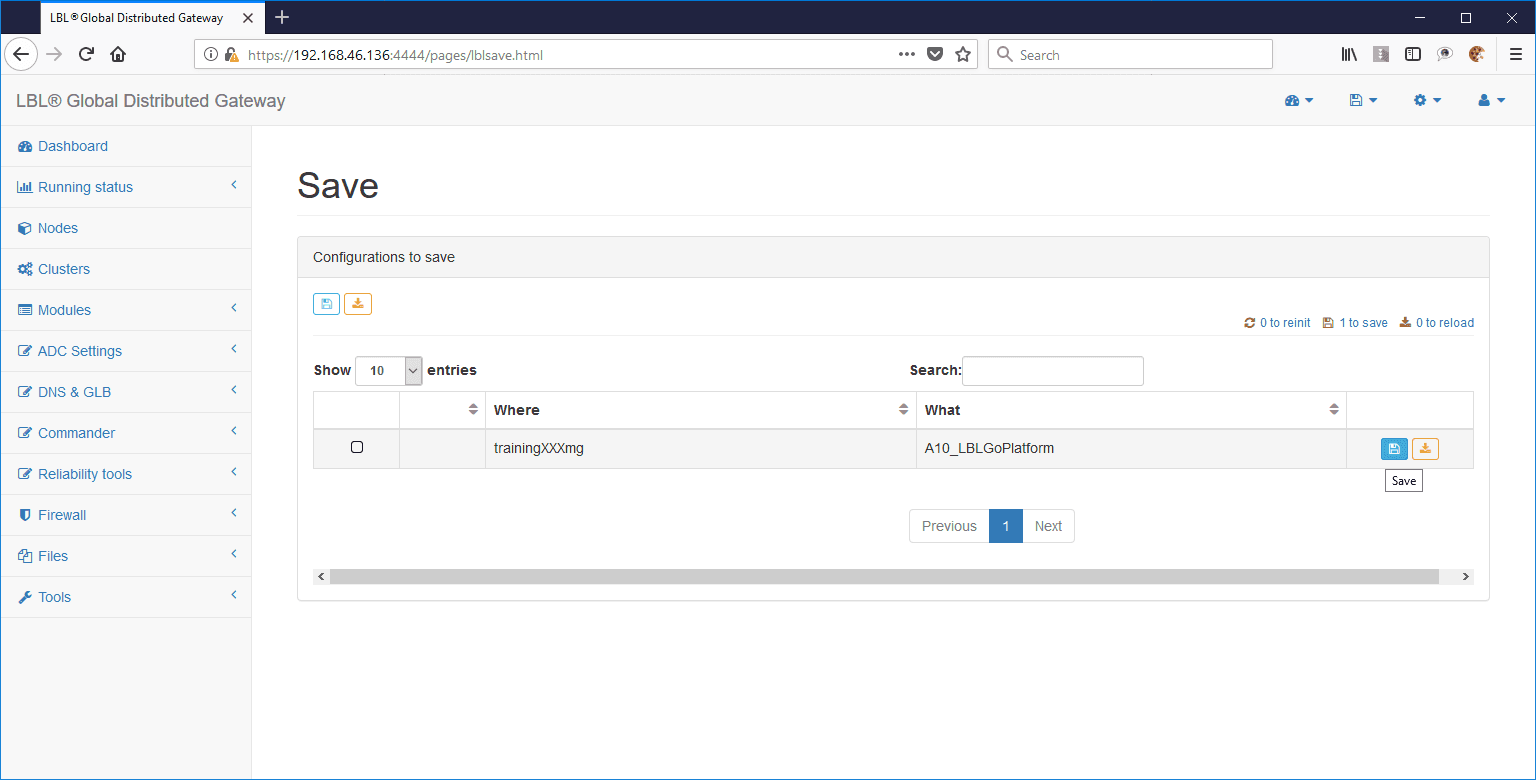
Save the change:
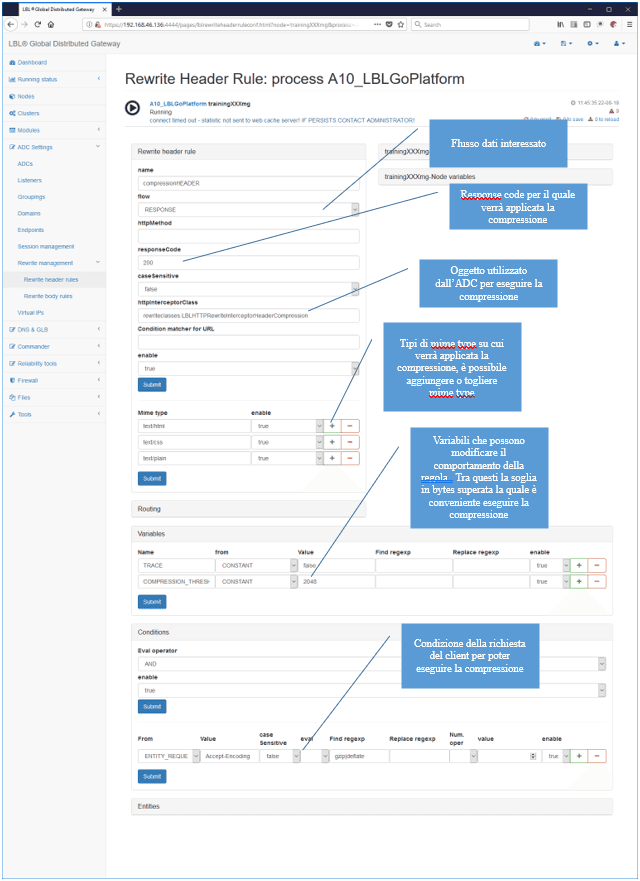
An important parameter is the compression threshold. It is important to compress only if the result is a considerable improvement, that is, a compression of 80% to 90%. These results can only be achieved with objects that are large enough, and in any case larger than 2048 bytes. We recommend not setting the threshold below 2 KB.
Setup compression - Body
After setting up the rewrite rule that determines whether compression is possible, you must set up the BODY rule, which triggers compression while the BODY is streamed.
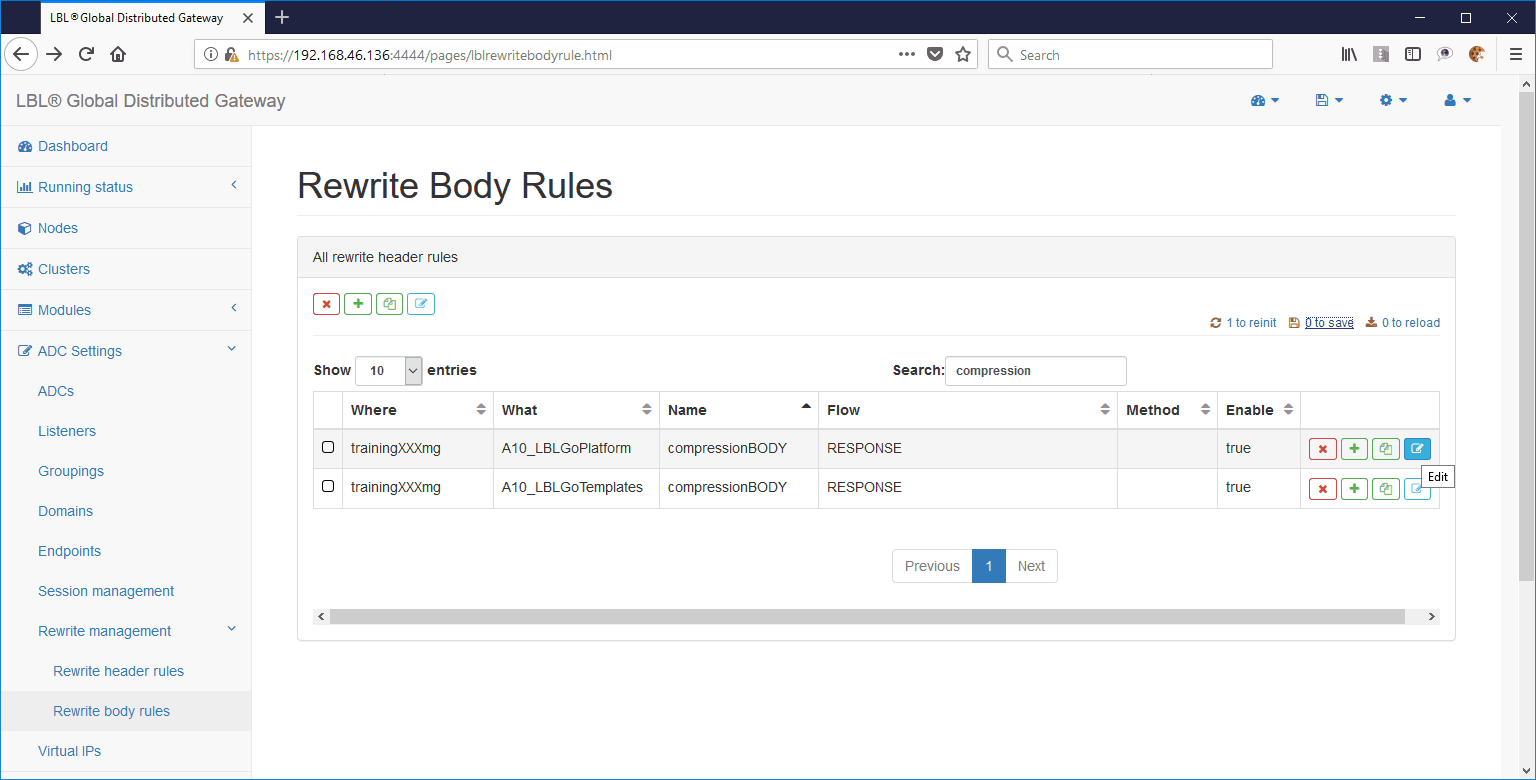
Open ADC Settings > Rewrite management > Rewrite body rules
and type compression in the Search field.
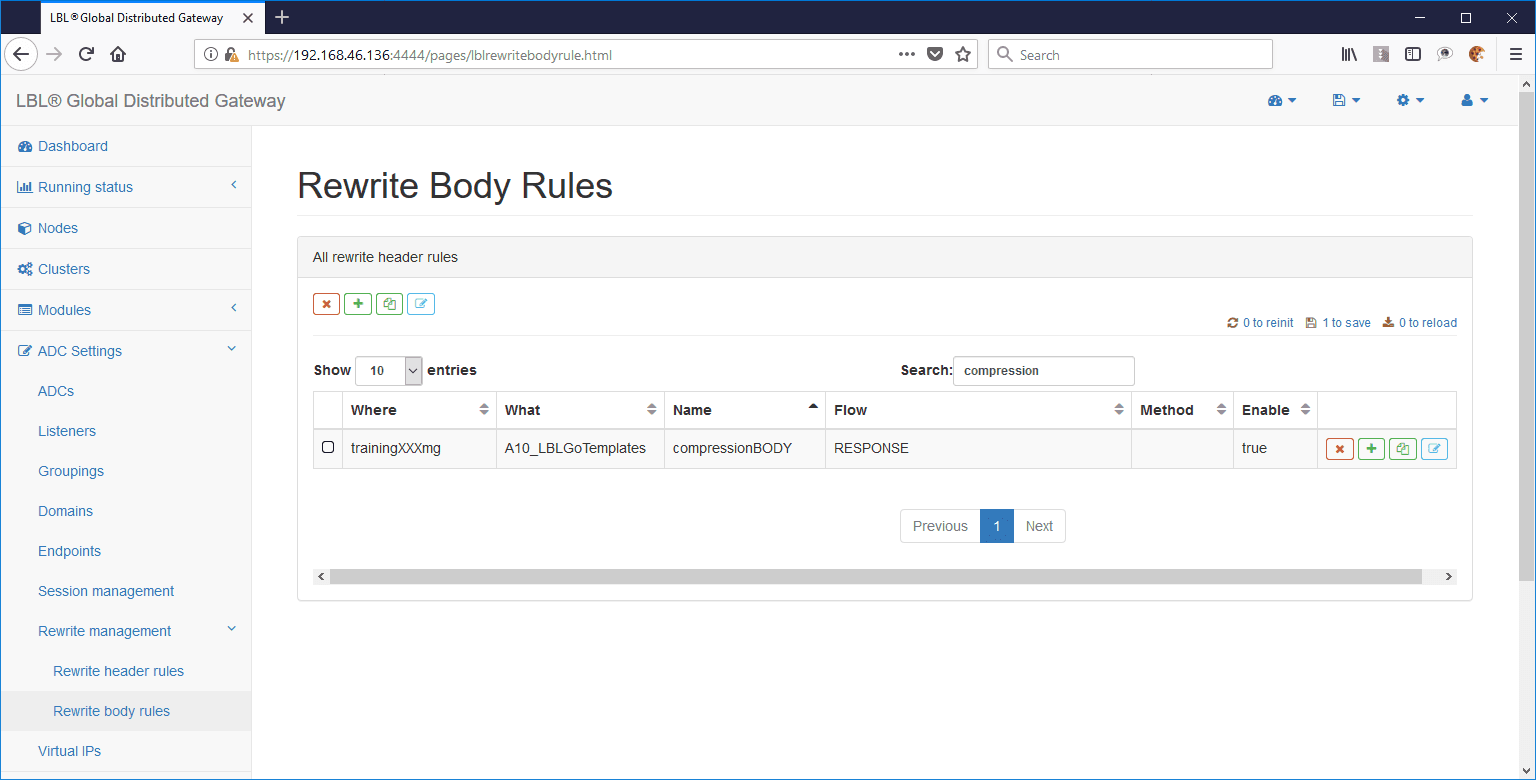
To use the rule, simply copy it from the template into the module to which it should be applied:
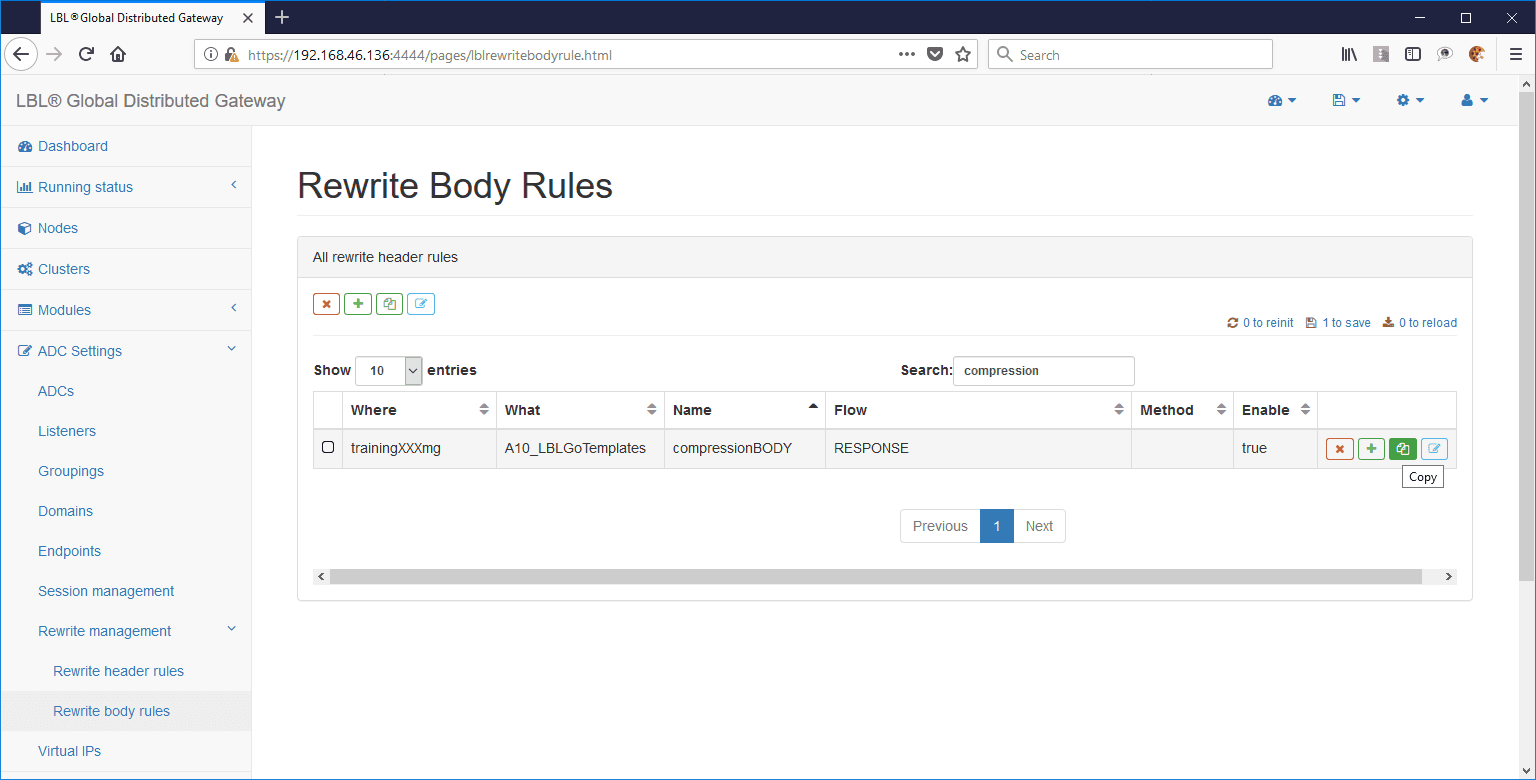
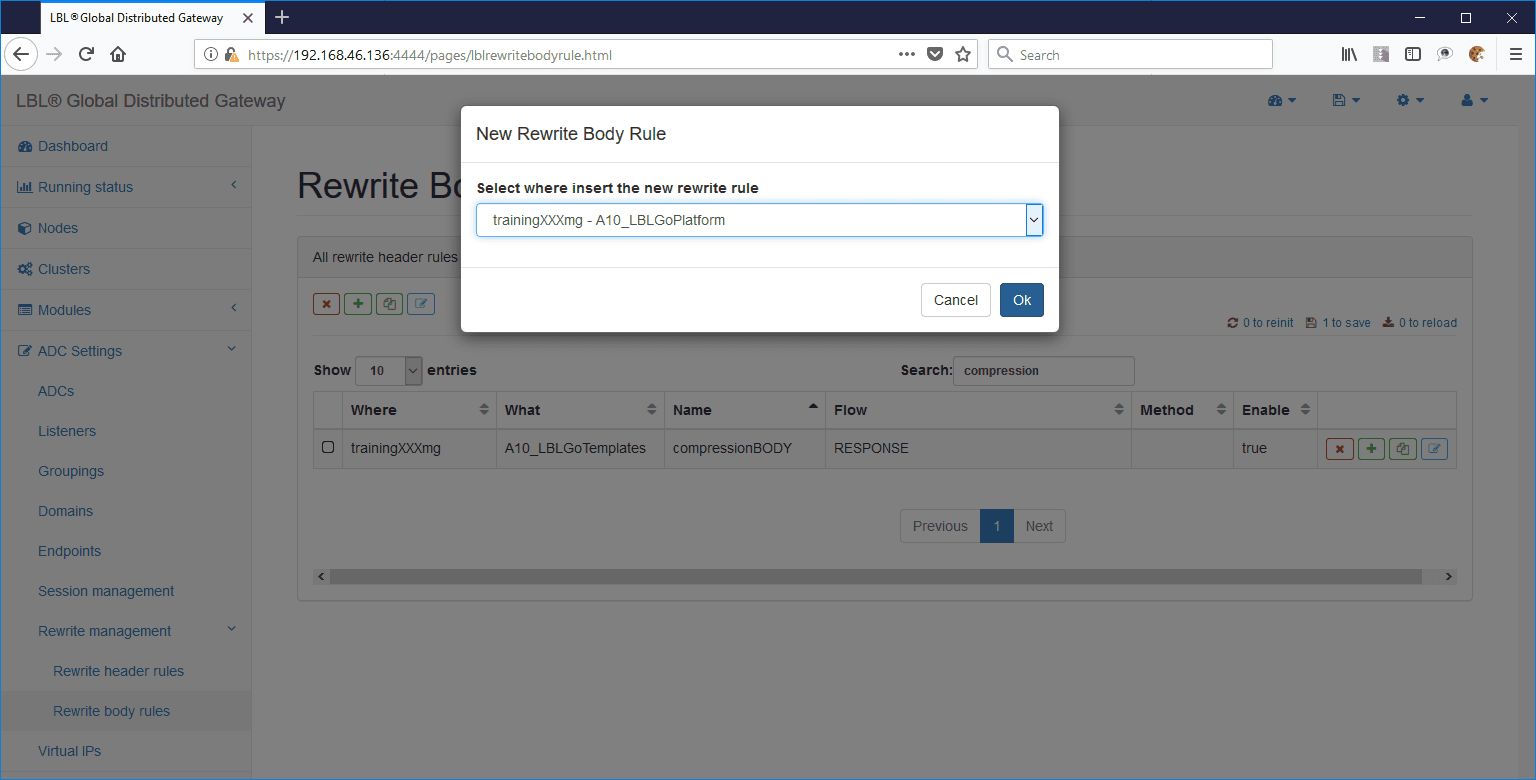
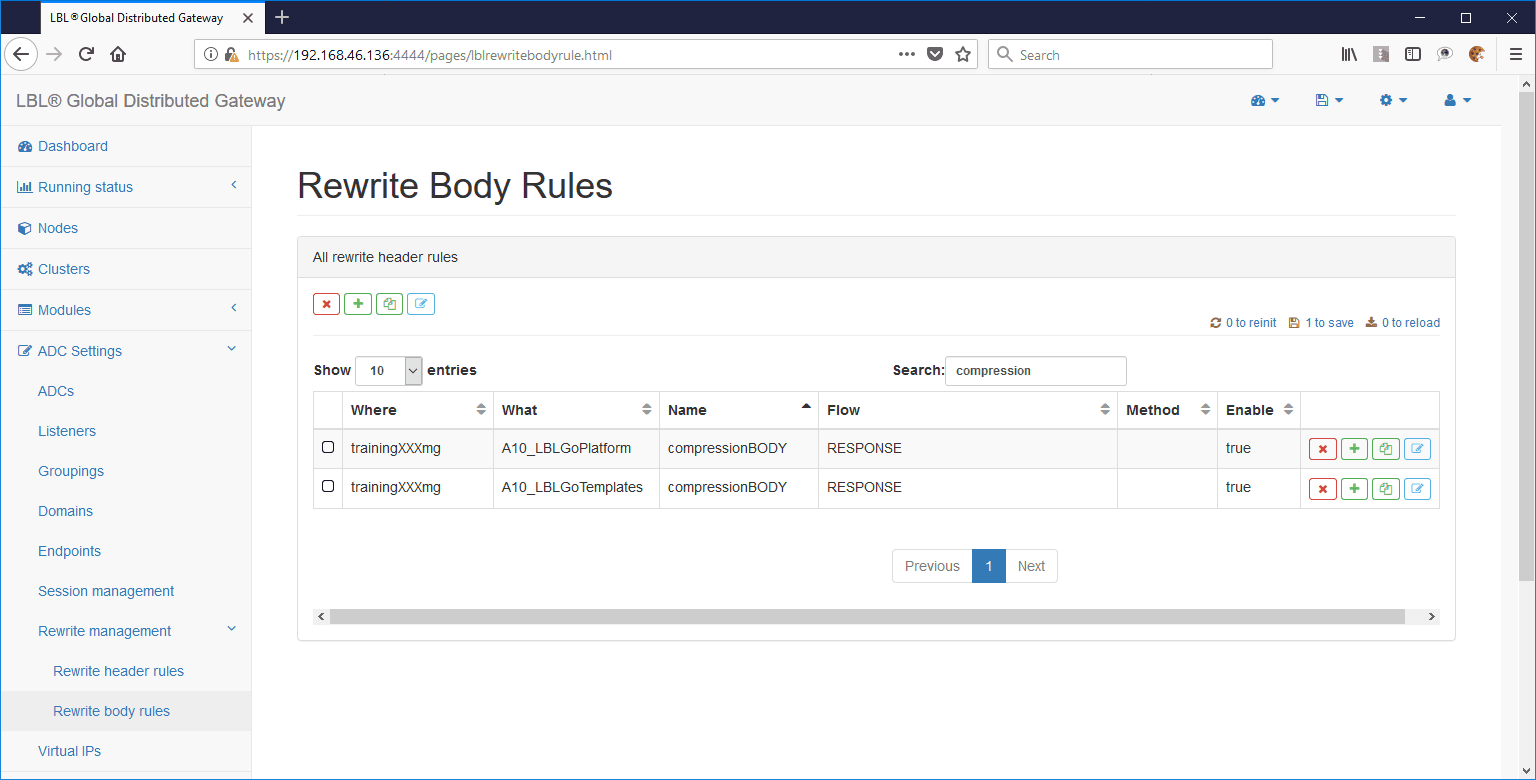
The result will be as follows:
To analyze the rule, simply click Edit:
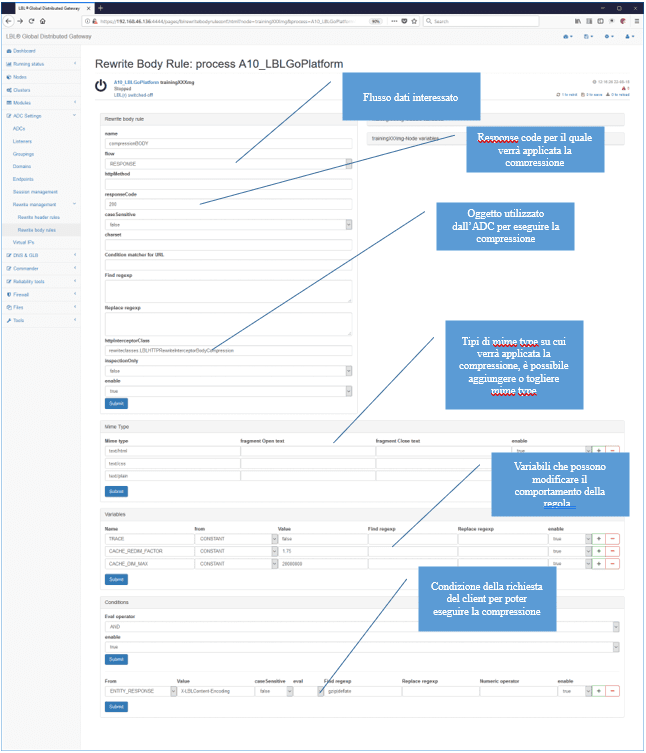
The rule below lists the application conditions, such as the “RESPONSE”
direction and the “200 ok” response code, and then the mime-types on
which compression will be performed. The rule also has two other
parameters: CACHE_REDIM_FACTOR and CACHE_DIM_MAX.
These parameters are used by Oplon Application Delivery Controller
to allocate memory (COW, copy on write) when performing compression.
CACHE_REDIM_FACTOR is the expansion factor of the buffer initially
allocated for compression. CACHE_DIM_MAX is the maximum in-memory
size of the compressed object. Beyond this size, an error is reported
indicating that the maximum compression size has been exceeded.
Setup compression - Apply rules on streams
As with other rewrite rules, once the rules are defined you must associate them with the affected streams for them to be applied. The association is done by selecting the stream on which to apply the rules:
Example of application to all streams of the selected ADC module:
Open ADC Settings > ADCs > Edit > Default rewrite rules and, in the rewriteHeaderRules field, click Select item.
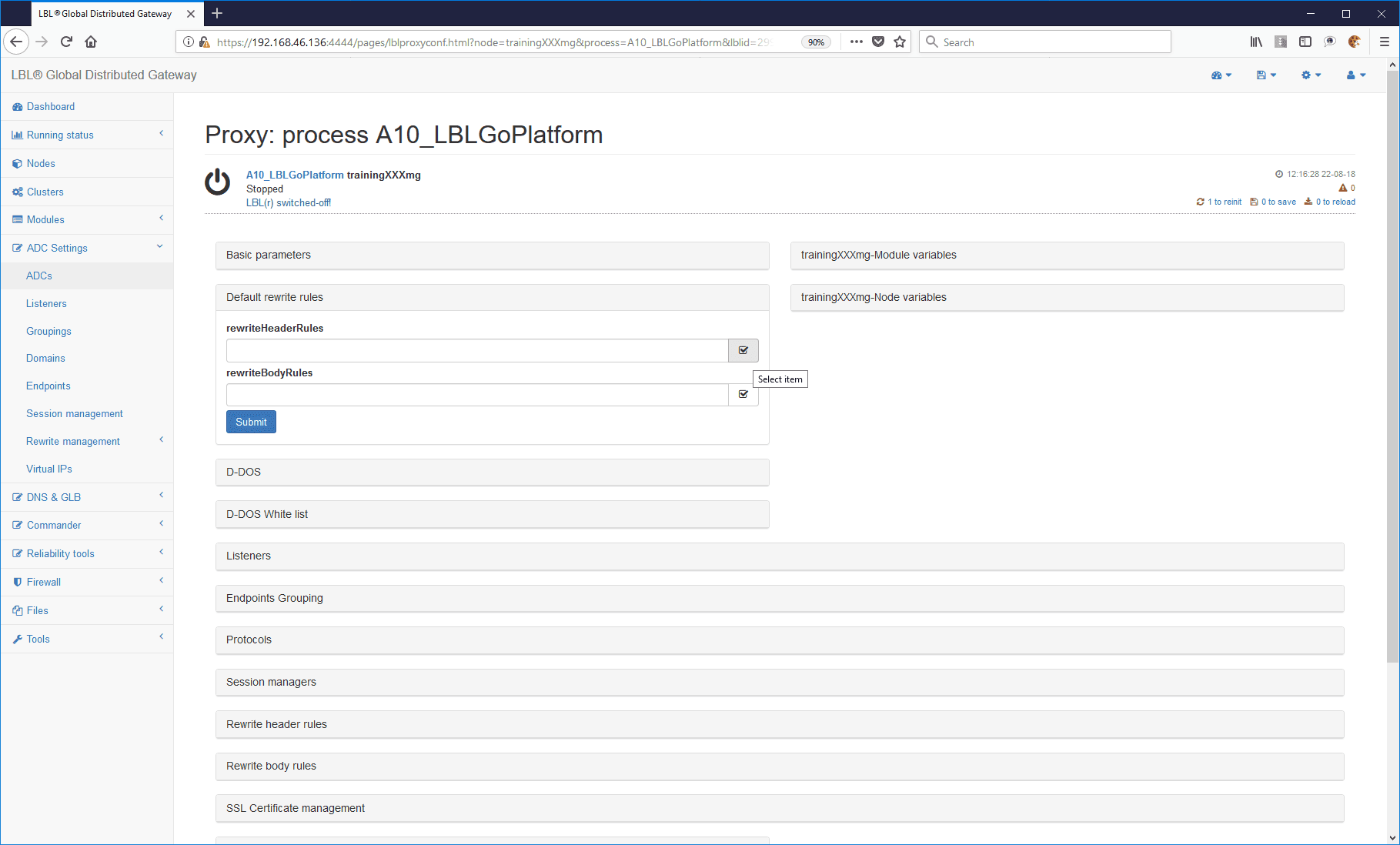
Select the compressionHEADER rule.
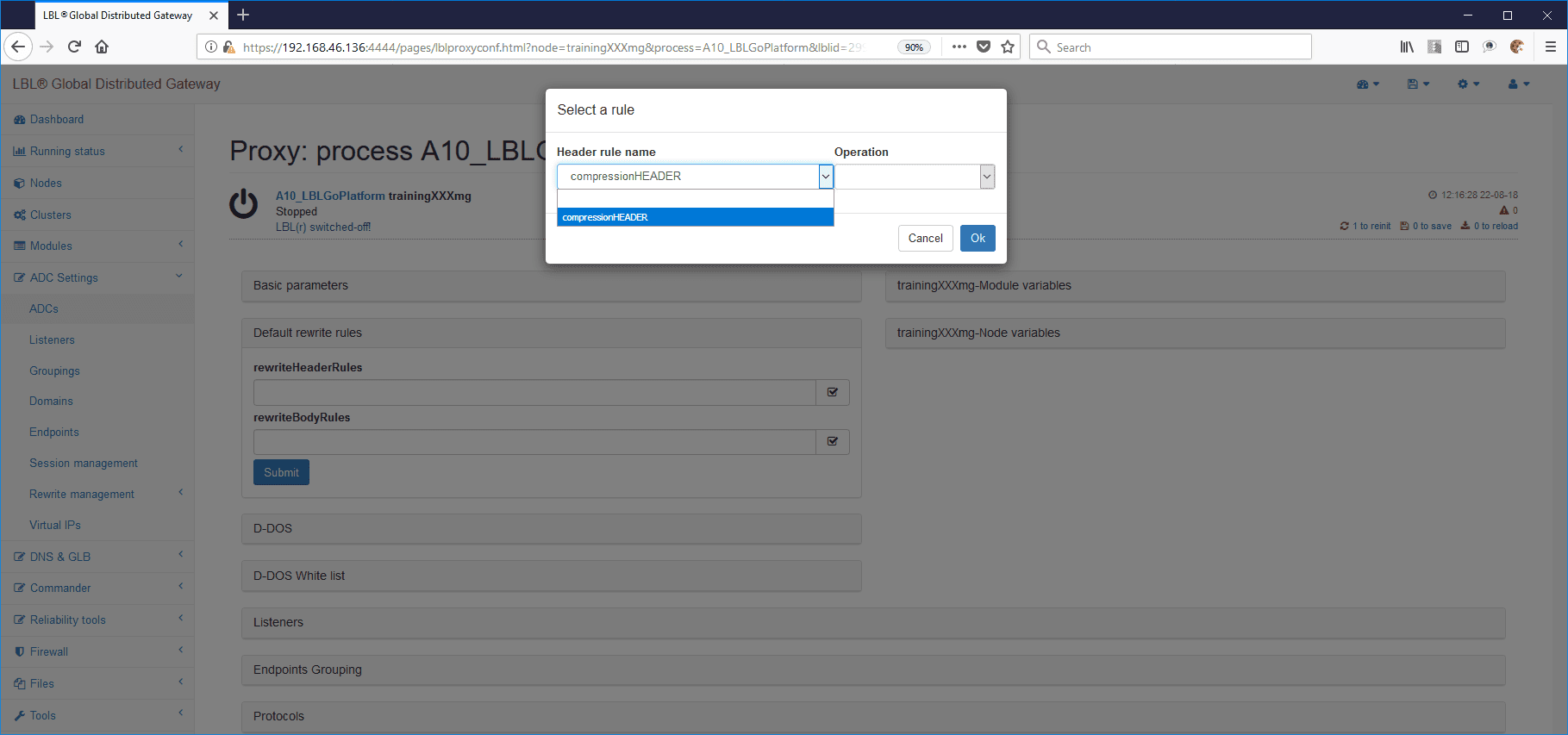
Also select ALWAYS as Operation, so that this rule can run independently of other rules.
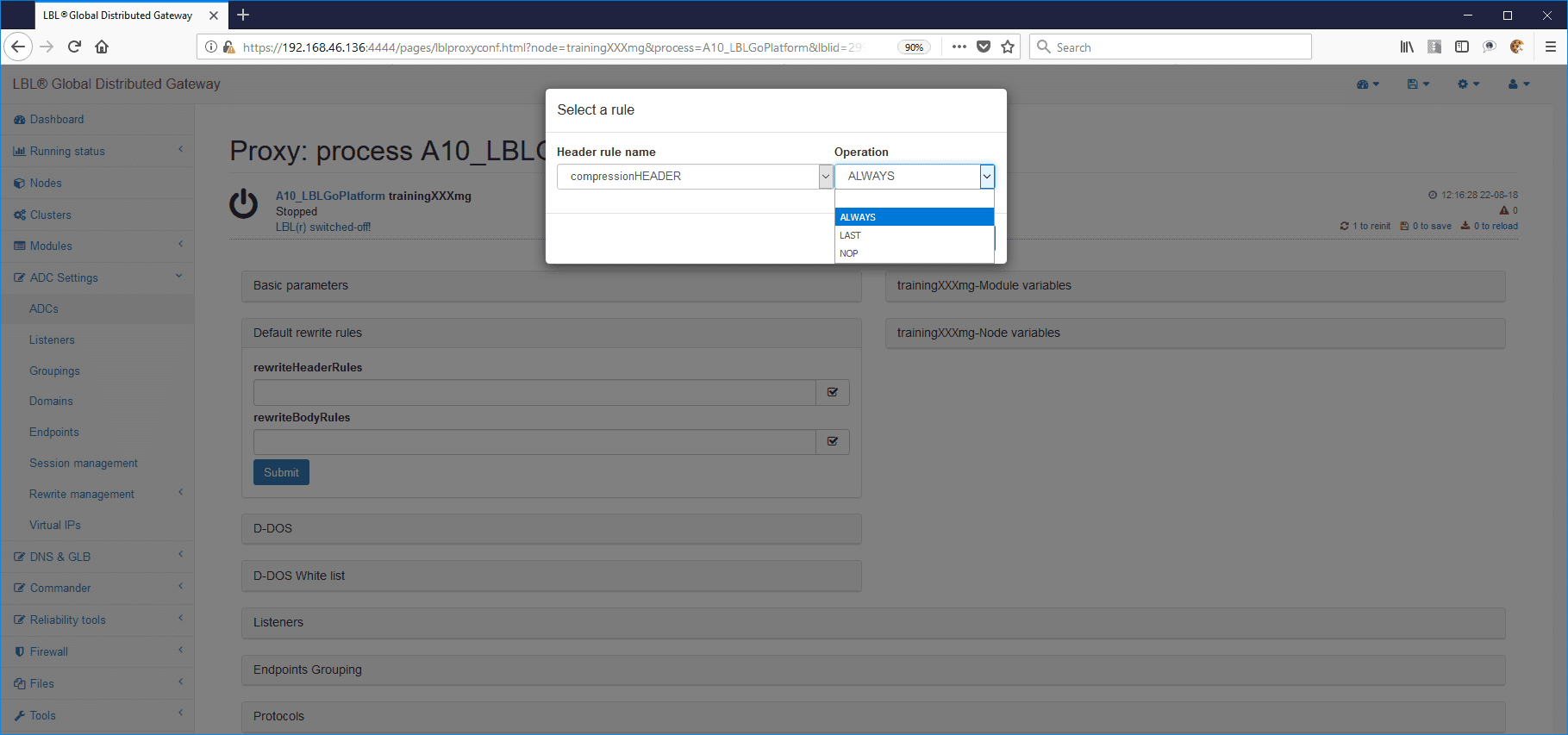
Do the same for the BODY rules.
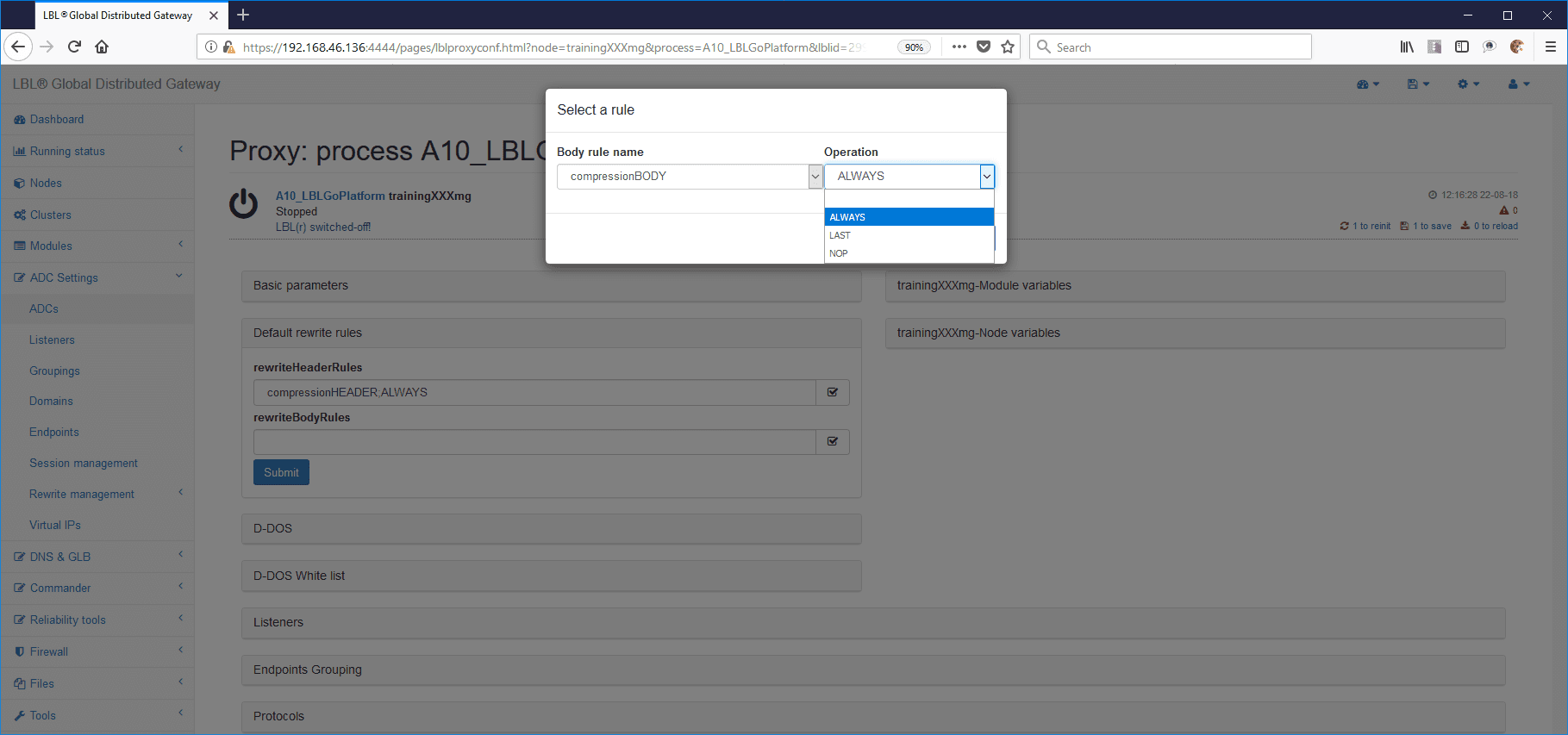
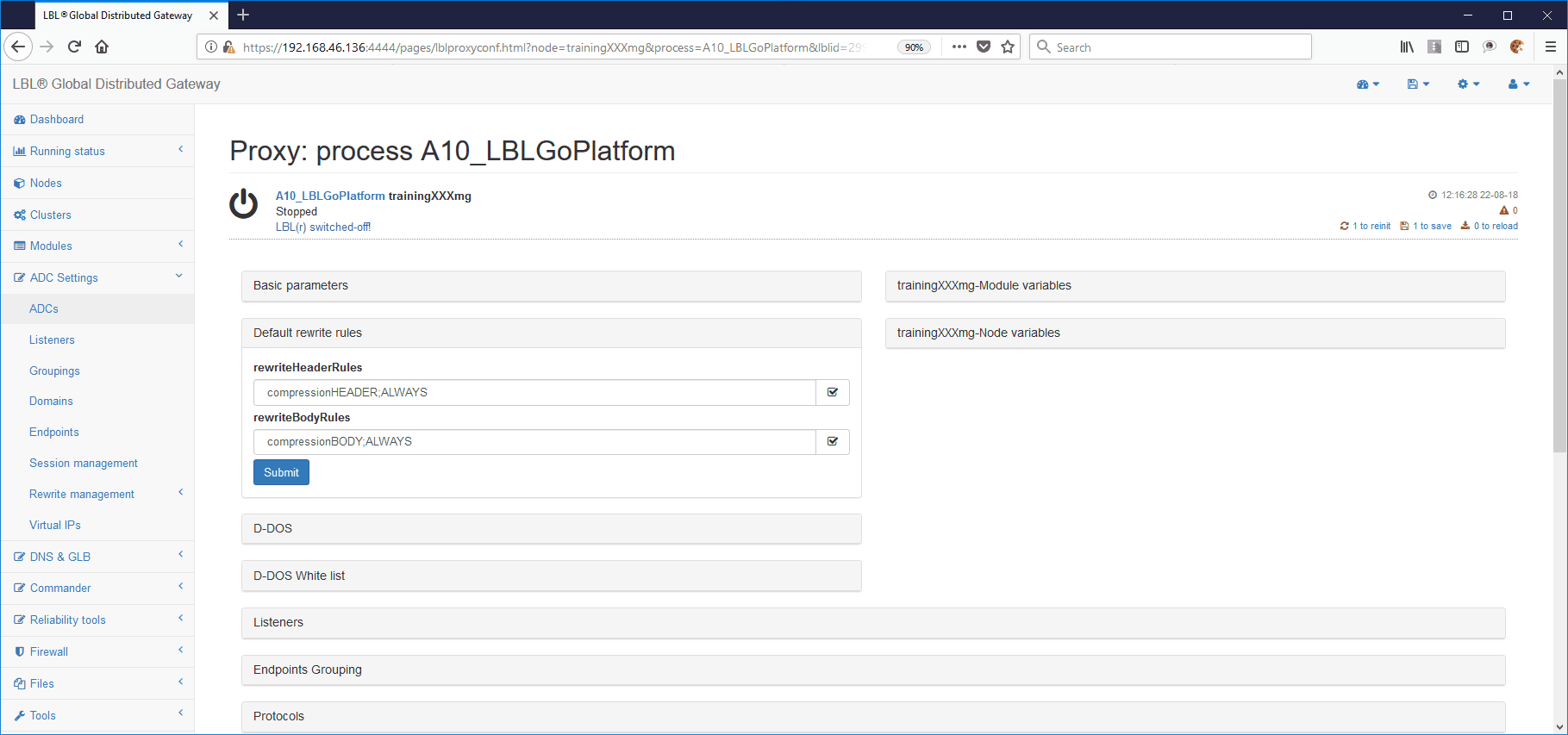
The result should be similar to the following:
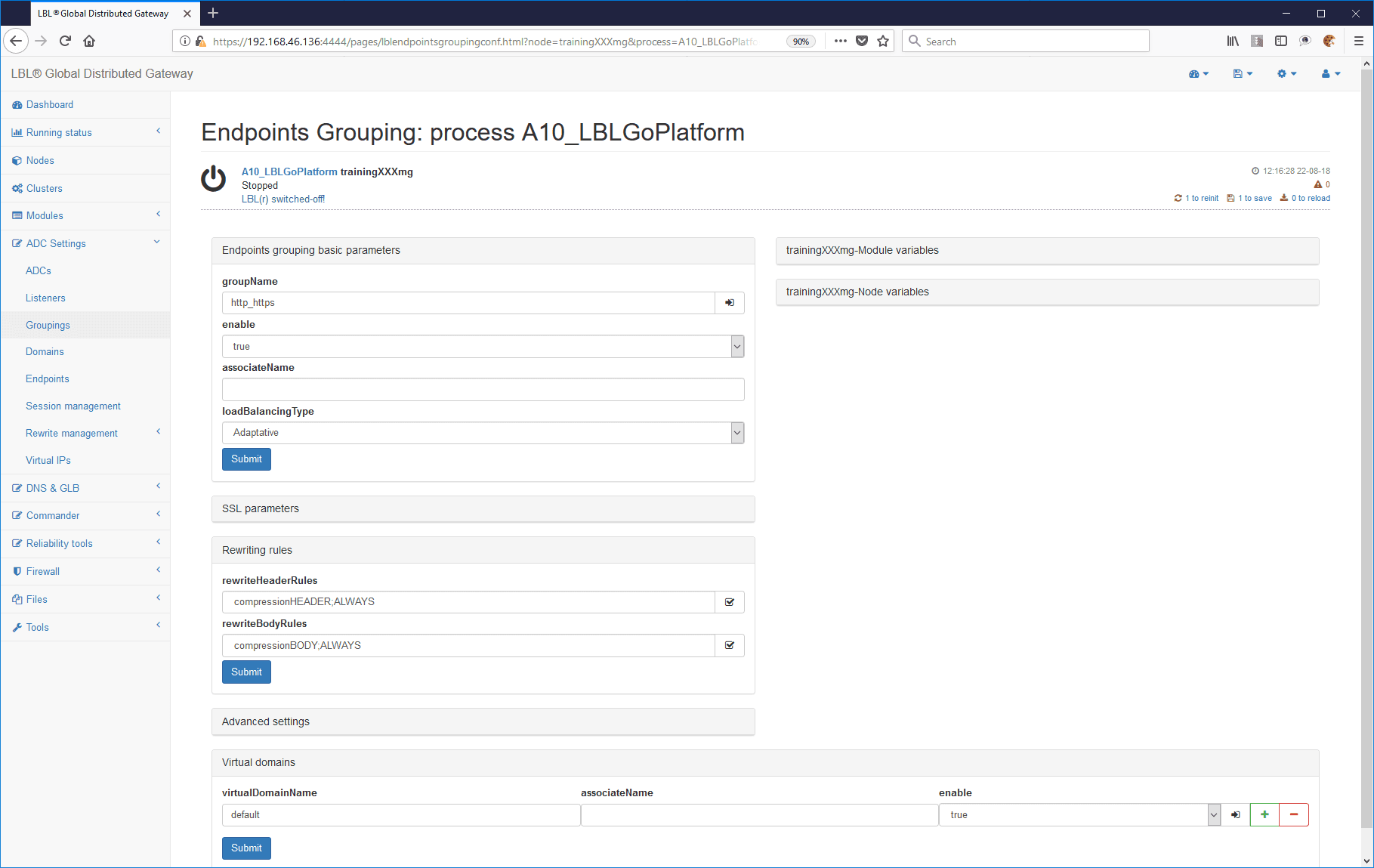
You can also apply the rules to specific sets of streams, such as all the resources in a group:
ADC Settings > ADCs > Edit > Endpoints Grouping > See details
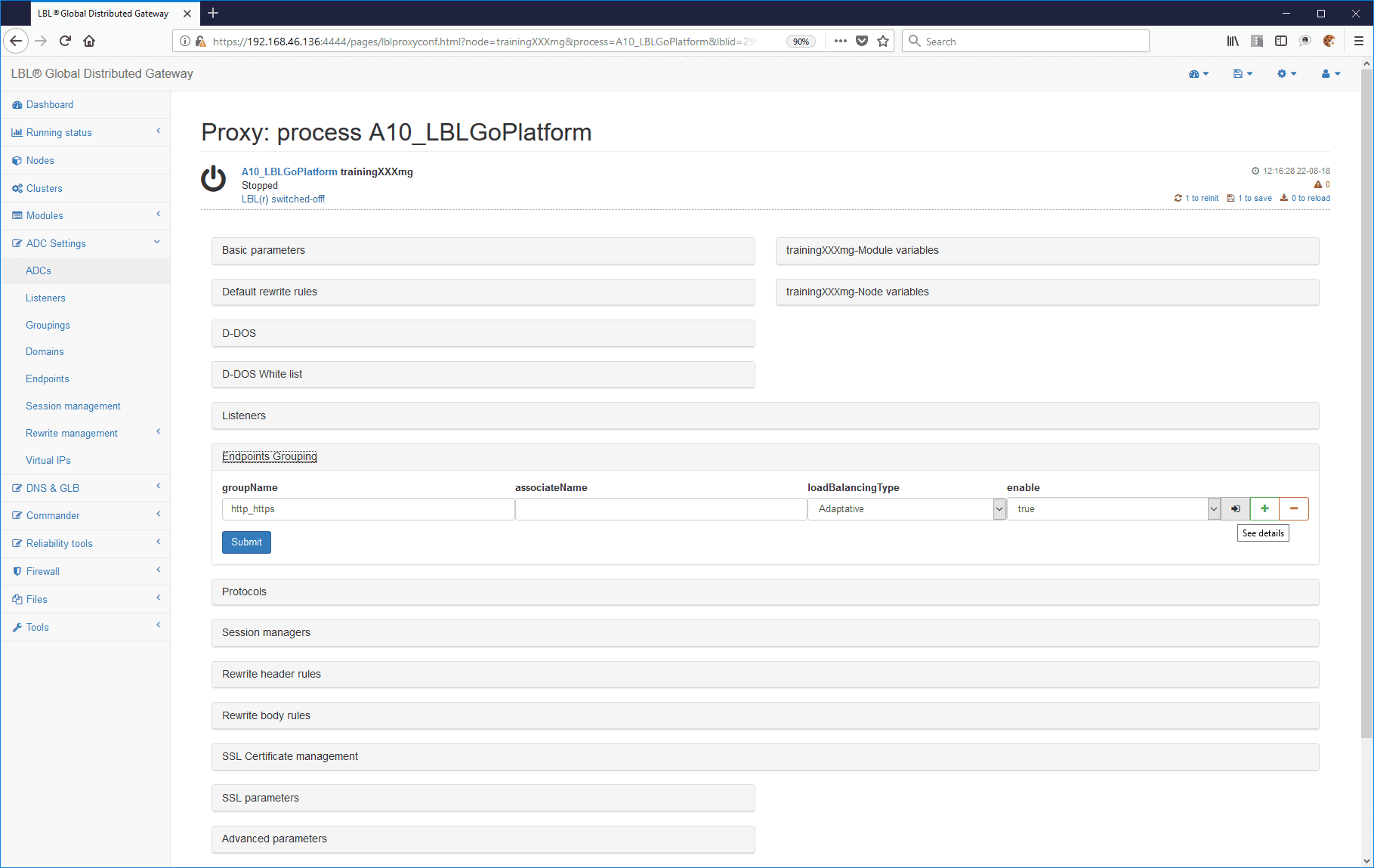
Rewriting rules panel:
Or to all the resources in a single domain:
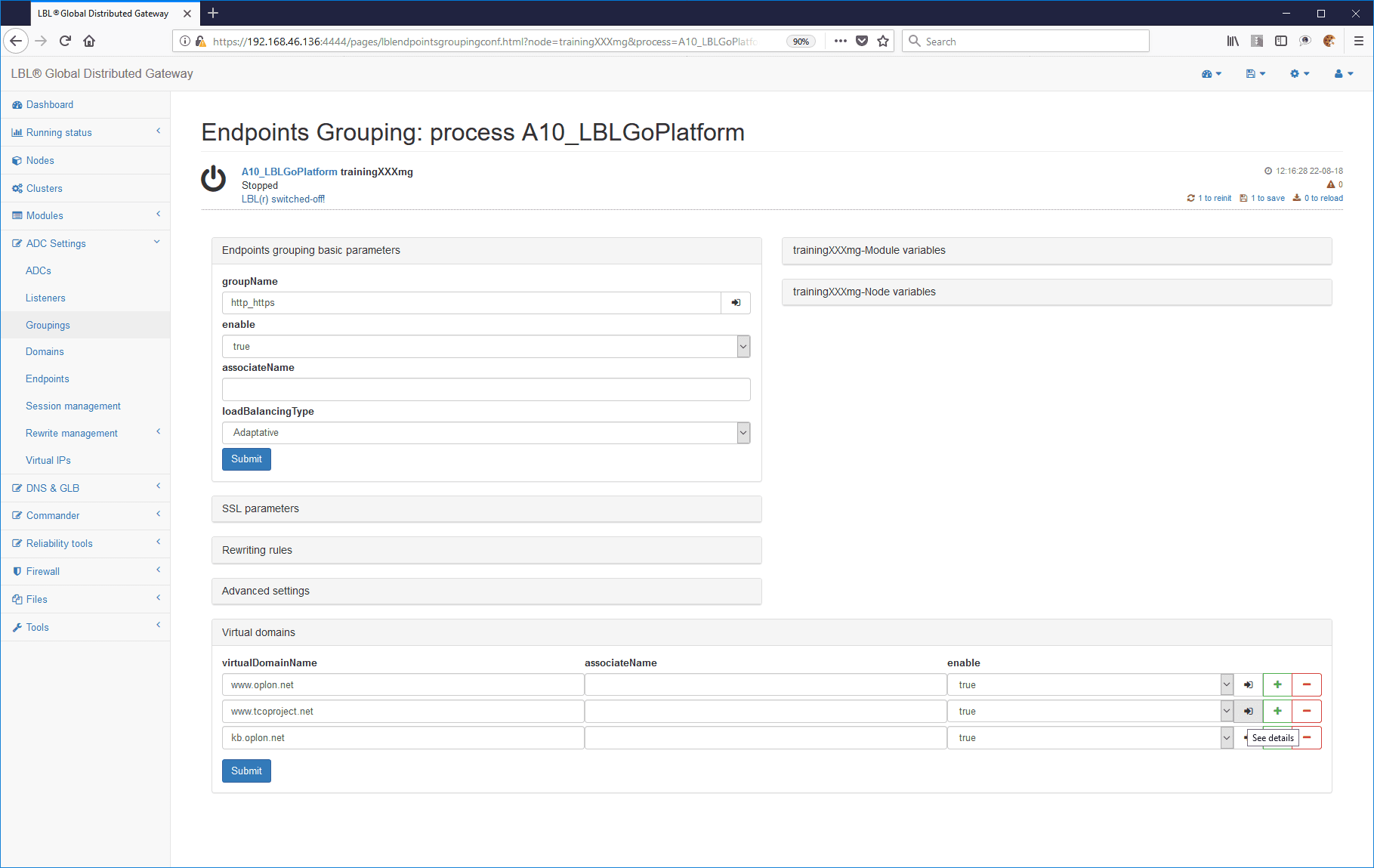
Domain Rewriting rules panel:
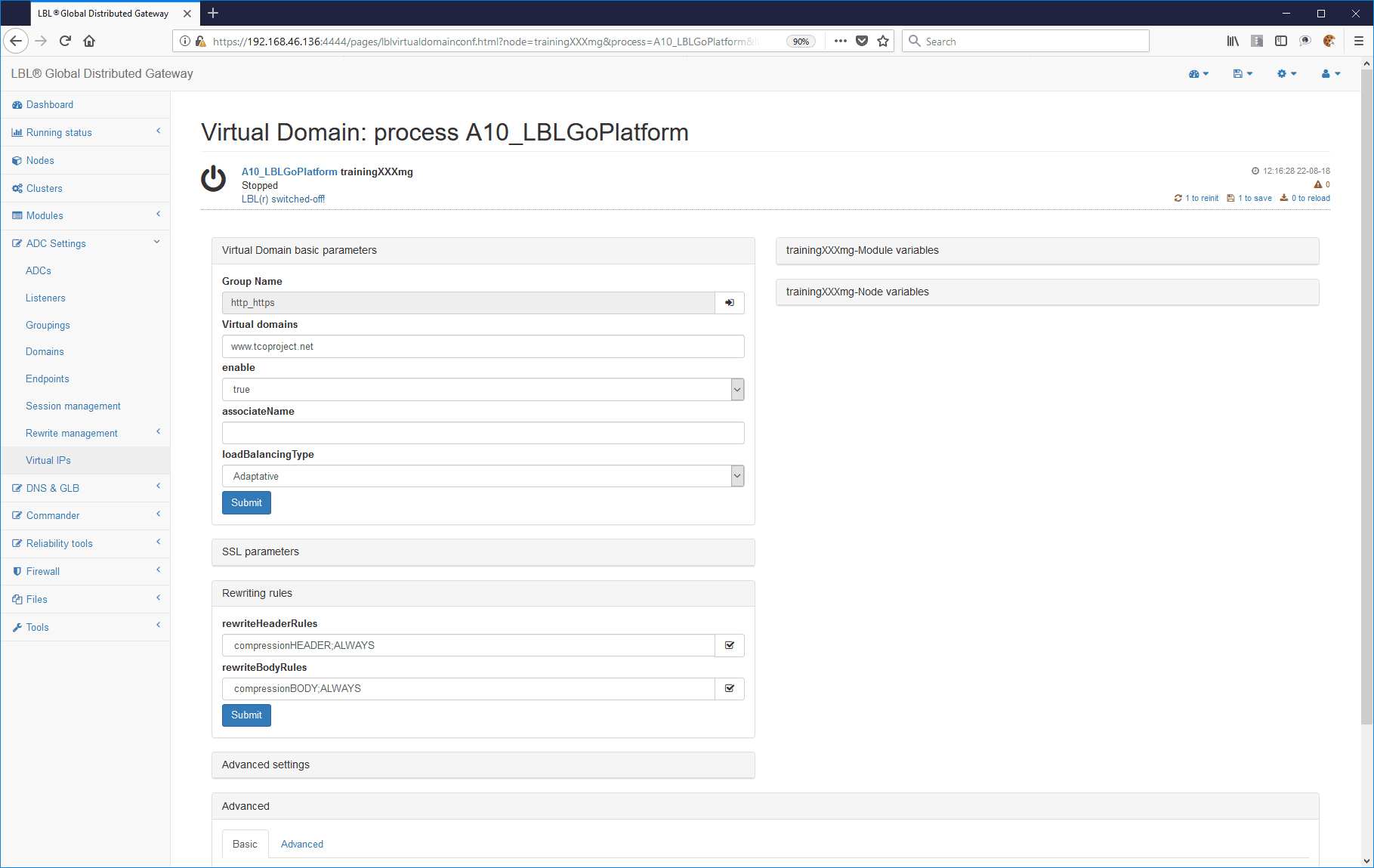
Or to individual endpoints, by going further into See details:
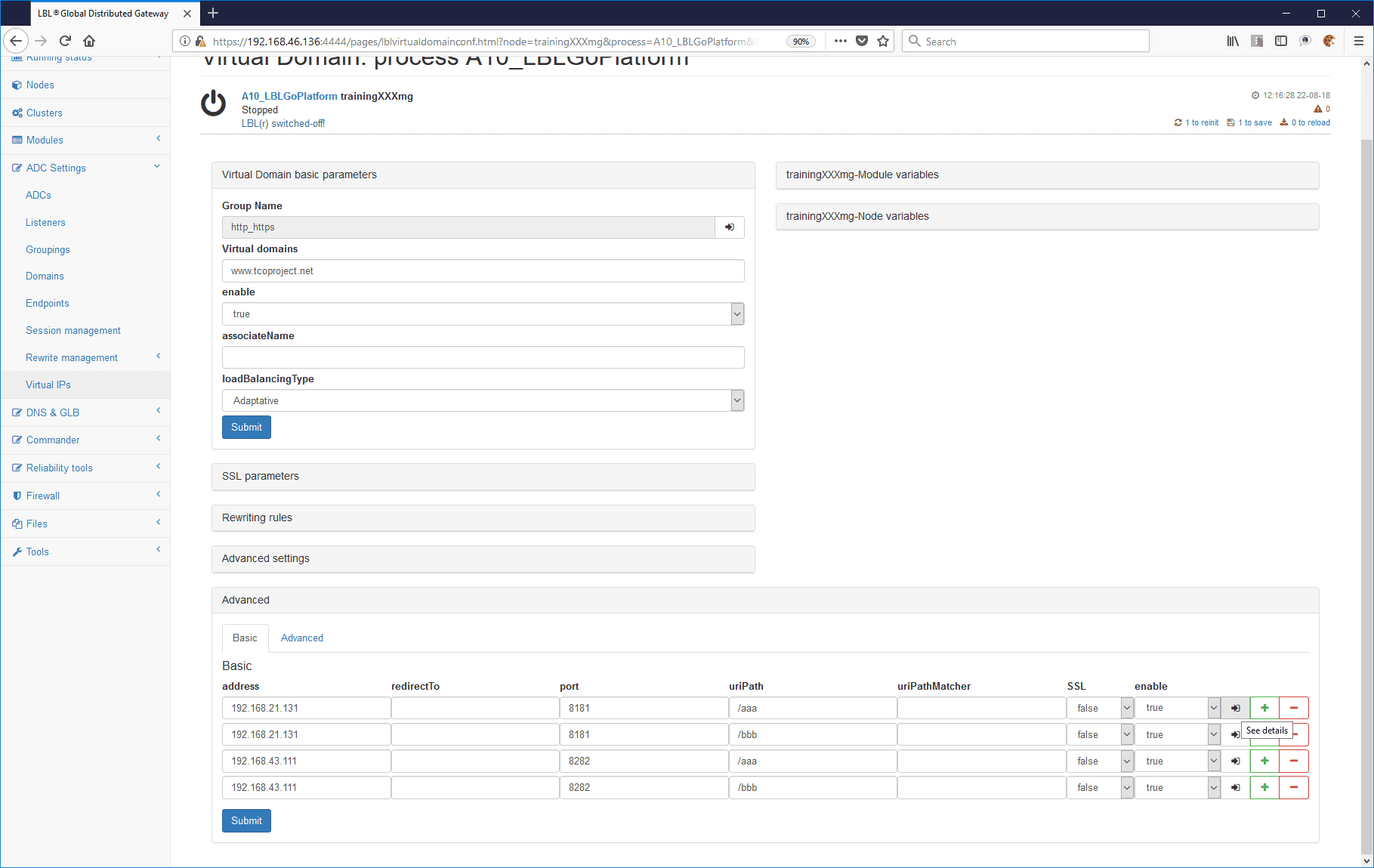
Endpoint Rewriting rules panel:
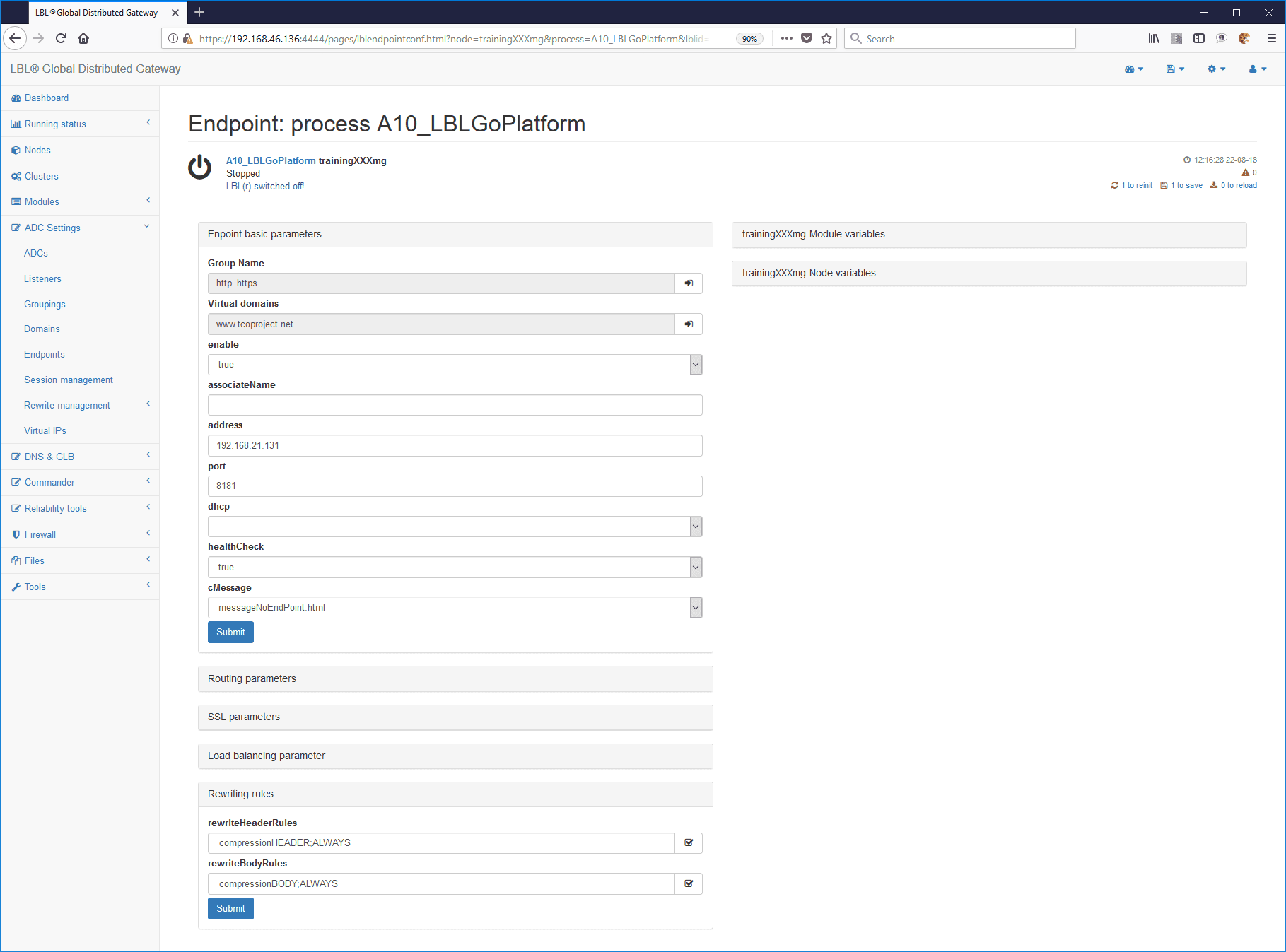
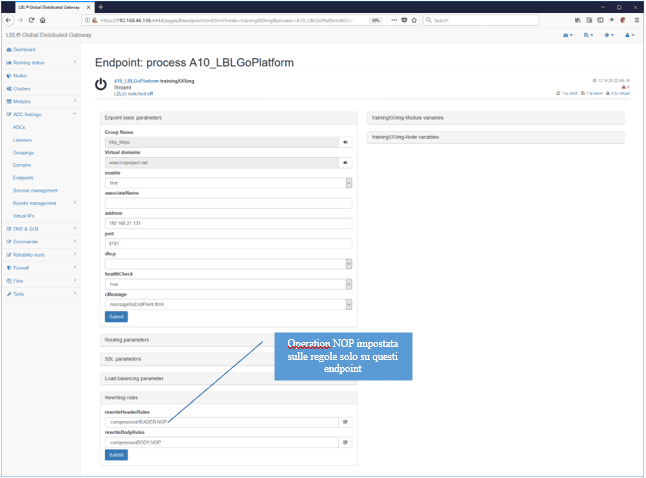
You can also apply the rule at a general level and disable it in some streams. For example, if you set the rules on the general panel of the ADC module and want to disable them only for certain endpoints, set Operation to NOP on those endpoints.
You can verify compression by analyzing the traffic statistics. The database statistics report the inbound and outbound data of the two streams, highlighting the differences between what is received and what is transferred.